


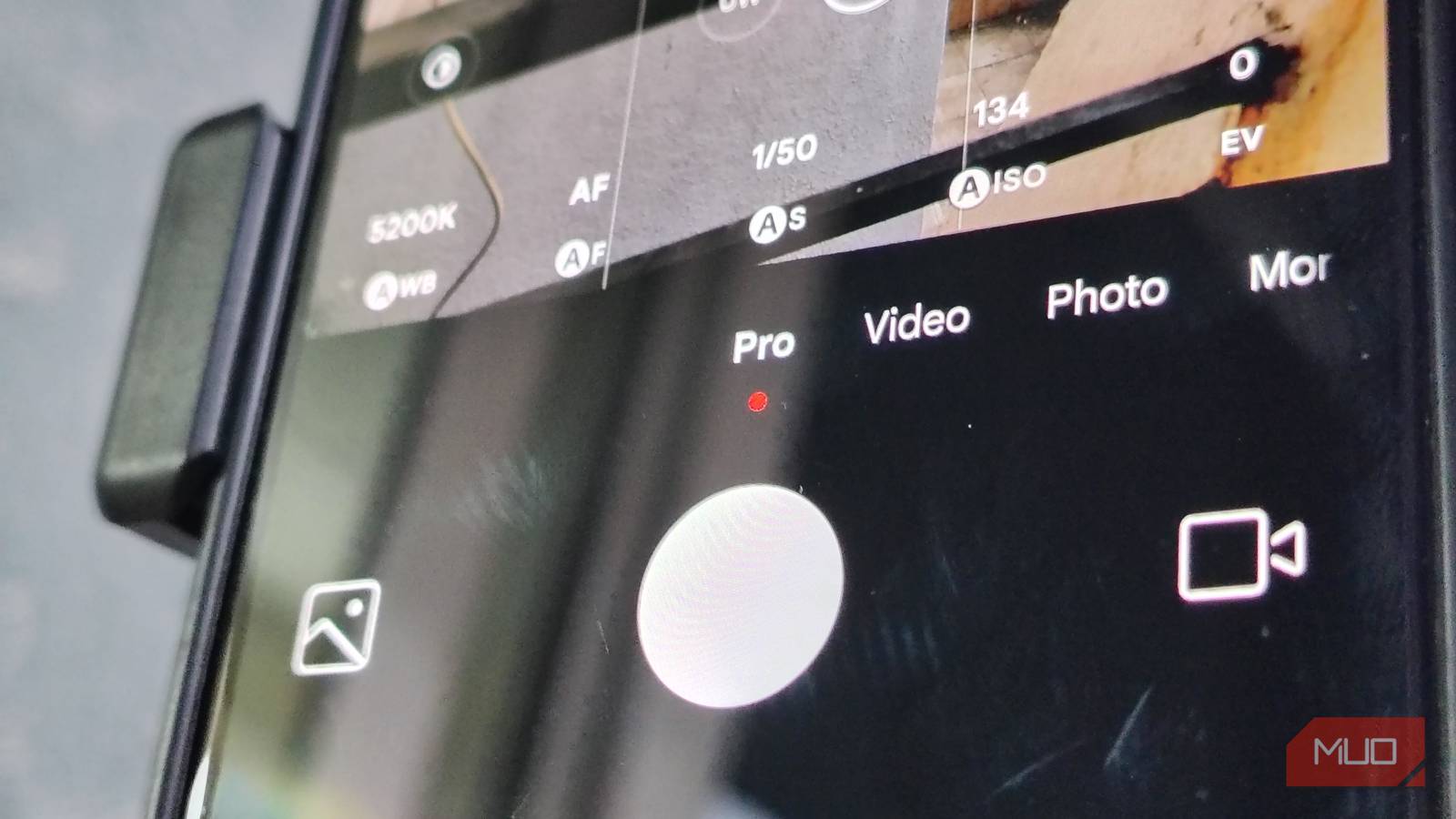
Smartphones these days mostly output social media-ready images. And to be fair, most consumers want exactly that. But if you have a modern smartphone, especially a flagship phone like Samsung’s Galaxy S25 Ultra or Google’s Pixel 10 Pro series, the only way to get the most out of the flagship hardware you paid for is to use Pro mode within the camera app.
At first glance, it does look intimidating, all those sliders, and a toggle that makes no sense in one go. And you don’t even need all of them. By just mastering five of these toggles, you can transform your mobile photos from just another punchy Instagram post to a deliberate work of art that is worth posting everywhere.

5 Pixel camera features that completely changed how I click photos
Pixel’s camera tools quietly shift the way you capture moments.
The format that lets you edit to the fullest
RAW capture (DNG)

If you try just one Pro mode setting, choose RAW. Auto mode usually saves photos as JPEG or HEIC, which compresses images and removes some data to save space. This process adds sharpening and changes colors right away, often losing details in bright or dark areas. RAW files, usually in DNG format, keep all the sensor data and give you an edge with much more detail to work with.
JPEGs may look vibrant straight from the camera, but RAW files let you bring back lost details using Android editing apps like Snapseed. RAW files are larger and can look dull at first, but they give you full control over contrast and color. You can avoid the overly sharp or artificial look that phones often add.
Every frame matters
Shutter speed

Photography is an art of light and time, making shutter speed a vital tool. It dictates how long the sensor is exposed to light. While Auto mode adjusts this automatically — fast for daylight, slow for dark scenes — it often introduces unwanted motion blur on moving subjects. Pro mode empowers you to take control.
Select a fast shutter speed, like 1/1000, to freeze high-speed action with razor-sharp clarity. At the same time, you can deliberately set a slow speed (e.g., 2–5 seconds) for artistic effects, such as light painting. However, when using these longer exposures, a tripod is non-negotiable; without stabilization, even the slightest handshake will ruin the photograph.
See in the dark without grain
ISO sensitivity (ISO)

ISO is an artificial grain applied to the sensor’s signal. If you increase the ISO, the image becomes brighter; if you crank it down, the image gets darker. That is why, if you are taking pictures in a dark setting on Auto mode, it will set the ISO to a higher value (sometimes over 2000), which makes the pictures bright but significantly grainy.
By using Pro mode, you can control ISO. You can set the grain value to 100 or 200 if needed while compensating with other sliders, such as exposure and shutter speed. This ensures cleaner results with almost zero grains. You can capture what your eyes see, rather than end up with a grainy mess.
Nail the sharpness every single time
Focus peaking and manual focus (MF)

For the most part, autofocus on modern smartphones is good, but not perfect. It usually falls short in low-light conditions and layered scenes. There is also an issue of ghost focus hunting, where the autofocus will continuously hunt for focus.
None of these are issues when you start using manual focus. But how do you determine where the camera is focusing? Using focus peaking, a feature borrowed from professional cameras, you can see the edges of the focused object highlighted (usually in red or green).
As you slide the manual focus wheel, you can watch the red line or grain moving within the viewfinder. By using these two focus modes together in Pro mode, you can make sure you nail the perfect focus 100% of the time.
Ditch the weird color casts
White balance (WB)

Unlike a human brain, which adapts to its surroundings to show white as white to our eyes, a camera sensor has to guess. That is where it messes up the entire photo. Auto White Balance (AWB) tries to neutralize the scene, but mixed lighting often confuses it. Pro mode lets you fix this by letting you be in control of the Kelvin value (e.g., 5500K for daylight, 3200K for tungsten).
When you try to remember what the scene looked like to edit it later on, there is a chance it might introduce weird artifacts within the image. So it’s better to correct it from the get-go when taking the picture, using the manual white balance slider. But you are not bound to perfection; you can set the white balance to match your aesthetic.
Start using pro mode
Pro mode was first developed for professionals, but with smartphones getting more and more powerful cameras, it only makes sense to normalize using pro mode while taking pictures. It was made for professionals, but you don’t have to be one to use it; you just have to be intentional about the image you want to take to make use of pro mode. Start small, don’t juggle between all the settings from day one.
