


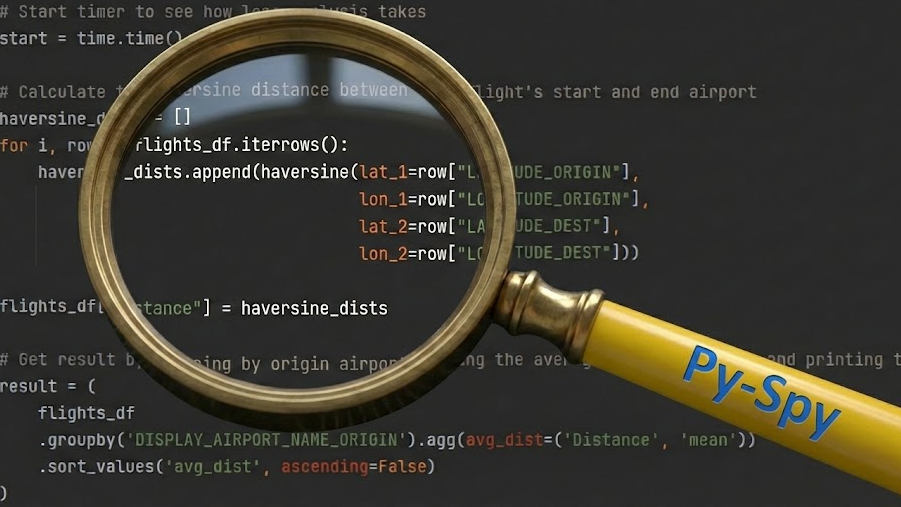
frustrating issues to debug in data science code aren’t syntax errors or logical mistakes. Rather, they come from code that does exactly what it is supposed to do, but takes its sweet time doing it.
Functional but inefficient code can be a massive bottleneck in a data science workflow. In this article, I will provide a brief introduction and walk-through of py-spy, a powerful tool designed to profile your Python code. It can pinpoint exactly where your program is spending the most time so inefficiencies can be identified and corrected.
Example Problem
Let’s set up a simple research question to write some code for:
“For all flights going between US states and territories, which departing airport has the longest flights on average?”
Below is a simple Python script to answer this research question, using data retrieved from the Bureau of Transportation Statistics (BTS). The dataset consists of data from every flight within US states and territories between January and June of 2025 with information on the origin and destination airports. It is approximately 3.5 million rows.
It calculates the Haversine Distance — the shortest distance between two points on a sphere — for each flight. Then, it groups the results by departing airport to find the average distance and reports the top five.
import pandas as pd
import math
import time


def haversine(lat_1, lon_1, lat_2, lon_2):
    """Calculate the Haversine Distance between two latitude and longitude points"""
    lat_1_rad = math.radians(lat_1)
    lon_1_rad = math.radians(lon_1)
    lat_2_rad = math.radians(lat_2)
    lon_2_rad = math.radians(lon_2)

    delta_lat = lat_2_rad - lat_1_rad
    delta_lon = lon_2_rad - lon_1_rad

    R = 6371  # Radius of the earth in km

    return 2*R*math.asin(math.sqrt(math.sin(delta_lat/2)**2 + math.cos(lat_1_rad)*math.cos(lat_2_rad)*(math.sin(delta_lon/2))**2))


if __name__ == '__main__':
    # Load in flight data to a dataframe
    flight_data_file = r"./data/2025_flight_data.csv"
    flights_df = pd.read_csv(flight_data_file)

    # Start timer to see how long analysis takes
    start = time.time()

    # Calculate the haversine distance between each flight's start and end airport
    haversine_dists = []
    for i, row in flights_df.iterrows():
        haversine_dists.append(haversine(lat_1=row["LATITUDE_ORIGIN"],
                                         lon_1=row["LONGITUDE_ORIGIN"],
                                         lat_2=row["LATITUDE_DEST"],
                                         lon_2=row["LONGITUDE_DEST"]))

    flights_df["Distance"] = haversine_dists

    # Get result by grouping by origin airport, taking the average flight distance and      printing the top 5
    result = (
        flights_df
        .groupby('DISPLAY_AIRPORT_NAME_ORIGIN').agg(avg_dist=('Distance', 'mean'))
        .sort_values('avg_dist', ascending=False)
    )

    print(result.head(5))

    # End timer and print analysis time
    end = time.time()
    print(f"Took {end - start} s")
Running this code gives the following output:
                                        avg_dist
DISPLAY_AIRPORT_NAME_ORIGIN
Pago Pago International              4202.493567
Guam International                   3142.363005
Luis Munoz Marin International       2386.141780
Ted Stevens Anchorage International  2246.530036
Daniel K Inouye International        2211.857407
Took 169.8935534954071 s
These results make sense, as the airports listed are in American Samoa, Guam, Puerto Rico, Alaska, and Hawaii, respectively. These are all locations outside of the contiguous United States where one would expect long average flight distances.
The problem here isn’t the results — which are valid — but the execution time: almost three minutes! While three minutes might be tolerable for a one-off run, it becomes a productivity killer during development. Imagine this as part of a longer data pipeline. Every time a parameter is tweaked, a bug is fixed, or a cell is re-run, you are forced to sit idle while the program runs. That friction breaks your flow and turns a quick analysis into an all-afternoon affair.
Now let’s see how py-spy can help us diagnose exactly what lines are taking so long.
What Is Py-Spy?
To understand what py-spy is doing and the benefits of using it, it helps to compare py-spy to the built-in Python profiler cProfile.
cProfile: This is a Tracing Profiler, working similar to a stopwatch on each function call. The time between each function call and return is measured and reported. While highly accurate, this adds significant overhead, as the profiler has to constantly pause and record data, which can slow down the script significantly.py-spy: This is a Sampling Profiler, working similar to a high speed camera looking at the whole program at once.py-spysits completely outside the running Python script and takes high-frequency snapshots of the program’s state. It looks at the entire “Call Stack” to see exactly what line of code is being run and what function called it, all the way up to the top level.
Running Py-spy
In order to run py-spy on a Python script, the py-spy library must be installed in the Python environment.
pip install py-spyOnce the py-spy library is installed, our script can be profiled by running the following command in the terminal:
py-spy record -o profile.svg -r 100 -- python main.pyHere is what each part of this command is actually doing:
py-spy: Calls the tool.record: This tellspy-spyto use its “record” mode, which will continuously monitor the program while it runs and saves the data.-o profile.svg: This specifies the output filename and format, telling it to output the results as an SVG file calledprofile.svg.-r 100: This specifies the sampling rate, setting it to 100 times per second. This means thatpy-spywill check what the program is doing 100 times per second.--: This separates thepy-spycommand from the Python script command. It tellspy-spythat everything following this flag is the command to run, not arguments forpy-spyitself.python main.py: This is the command to run the Python script to be profiled withpy-spy, in this case runningmain.py.
Note: If running on Linux, sudo privileges are often a requirement for running py-spy, for security reasons.
After this command is finished running, an output file profile.svg will appear which will allow us to dig deeper into what parts of the code are taking the longest.
Py-spy Output

Opening up the output profile.svg reveals the visualization that py-spy has created for how much time our program spent in different parts of the code. This is known as a Icicle Graph (or sometimes a Flame Graph if the y-axis is inverted) and is interpreted as follows:
- Bars: Each colored bar represents a particular function that was called during the execution of the program.
- X-axis (Population): The horizontal axis represents the collection of all samples taken during the profiling. They are grouped so that the width of a particular bar represents the proportion of the total samples that the program was in the function represented by that bar. Note: This is not a timeline; the ordering does not represent when the function was called, only the total volume of time spent.
- Y-axis (Stack Depth): The vertical axis represents the call stack. The top bar labeled “all” represents the entire program, and the bars below it represent functions called from “all”. This continues down recursively with each bar broken down into the functions that were called during its execution. The very bottom bar shows the function that was actually running on the CPU when the sample was taken.
Interacting with the Graph
While the image above is static, the actual .svg file generated by py-spy is fully interactive. When you open it in a web browser, you can:
- Search (Ctrl+F): Highlight specific functions to see where they appear in the stack.
- Zoom: Click on any bar to zoom in on that specific function and its children, allowing you to isolate complex parts of the call stack.
- Hover: Hovering over any bar displays the specific function name, file path, line number, and the exact percentage of time it consumed.
The most critical rule for reading the icicle graph is simply: The wider the bar, the more frequent the function. If a function bar spans 50% of the graph’s width, it means that the program was working on executing that function for 50% of the total runtime.
Diagnosis
From the icicle graph above, we can see that the bar representing the Pandas iterrows() function is noticeably wide. Hovering over that bar when viewing the profile.svg file reveals that the true proportion for this function was 68.36%. So over 2/3 of the runtime was spent in the iterrows() function. Intuitively this bottleneck makes sense, as iterrows() creates a Pandas Series object for every single row in the loop, causing massive overhead. This reveals a clear target to try and optimize the runtime of the script.
Optimizing The Script
The clearest path to optimize this script based on what was learned from py-spy is to stop using iterrows() to loop over every row to calculate that haversine distance. Instead, it should be replaced with a vectorized calculation using NumPy that will do the calculation for every row with just one function call. So the changes to be made are:
- Rewrite the
haversine()function to use vectorized and efficient C-level NumPy operations that allow whole arrays to be passed in rather than one set of coordinates at a time. - Replace the
iterrows()loop with a single call to this newly vectorizedhaversine()function.
import pandas as pd
import numpy as np
import time


def haversine(lat_1, lon_1, lat_2, lon_2):
    """Calculate the Haversine Distance between two latitude and longitude points"""
    lat_1_rad = np.radians(lat_1)
    lon_1_rad = np.radians(lon_1)
    lat_2_rad = np.radians(lat_2)
    lon_2_rad = np.radians(lon_2)

    delta_lat = lat_2_rad - lat_1_rad
    delta_lon = lon_2_rad - lon_1_rad

    R = 6371  # Radius of the earth in km

    return 2*R*np.asin(np.sqrt(np.sin(delta_lat/2)**2 + np.cos(lat_1_rad)*np.cos(lat_2_rad)*(np.sin(delta_lon/2))**2))


if __name__ == '__main__':
    # Load in flight data to a dataframe
    flight_data_file = r"./data/2025_flight_data.csv"
    flights_df = pd.read_csv(flight_data_file)

    # Start timer to see how long analysis takes
    start = time.time()

    # Calculate the haversine distance between each flight's start and end airport
    flights_df["Distance"] = haversine(lat_1=flights_df["LATITUDE_ORIGIN"],
                                       lon_1=flights_df["LONGITUDE_ORIGIN"],
                                       lat_2=flights_df["LATITUDE_DEST"],
                                       lon_2=flights_df["LONGITUDE_DEST"])

    # Get result by grouping by origin airport, taking the average flight distance and      printing the top 5
    result = (
        flights_df
        .groupby('DISPLAY_AIRPORT_NAME_ORIGIN').agg(avg_dist=('Distance', 'mean'))
        .sort_values('avg_dist', ascending=False)
    )

    print(result.head(5))

    # End timer and print analysis time
    end = time.time()
    print(f"Took {end - start} s")
Running this code gives the following output:
                                        avg_dist
DISPLAY_AIRPORT_NAME_ORIGIN
Pago Pago International              4202.493567
Guam International                   3142.363005
Luis Munoz Marin International       2386.141780
Ted Stevens Anchorage International  2246.530036
Daniel K Inouye International        2211.857407
Took 0.5649983882904053 s
These results are identical to the results from before the code was optimized, but instead of taking nearly three minutes to process, it took just over half a second!
Looking Ahead
If you are reading this from the future (late 2026 or beyond), check if you are running Python 3.15 or newer. Python 3.15 is expected to introduce a native sampling profiler in the standard library, offering similar functionality to py-spy without requiring external installation. For anyone on Python 3.14 or older py-spy remains the gold standard.
This article explored a tool for tackling a common frustration in data science — a script that functions as intended, but is inefficiently written and takes a long time to run. An example script was provided to learn which US departure airports have the longest average flight distance according to the Haversine distance. This script worked as expected, but took almost three minutes to run.
Using the py-spy Python profiler, we were able to learn that the cause of the inefficiency was the use of the iterrows() function. By replacing iterrows() with a more efficient vectorized calculation of the Haversine distance, the runtime was optimized from three minutes down to just over half a second.
See my GitHub Repository for the code from this article, including the preprocessing of the raw data from BTS.
Thank you for reading!
Data Sources
Data from the Bureau of Transportation Statistics (BTS) is a work of the U.S. Federal Government and is in the public domain under 17 U.S.C. § 105. It is free to use, share, and adapt without copyright restriction.
