


If you’re using Excel 365 or the web version, you’ve probably noticed a tab called Automate. You may have clicked it, seen buttons like New Script and labels like Office Scripts, and assumed it’s related to coding. You’d be partially right, but what isn’t obvious is how this tab can help the average person with no coding experience accomplish routine tasks. Ignoring the Automate tab, as most users do, is a big mistake.
The Automate tab is one of the most powerful time-saving features I’ve ever seen in Excel. If you’re tired of performing repetitive tasks, this tab can help. From cleaning up data and applying conditional formatting to running multi-sheet workflows, the Automate tab can reduce many tasks or complex workflows into a single button click. The best part is that you don’t need to be a coder or Excel wizard to get it done.
What is the Automate tab in Excel?
This is the secret to one-click workflows in Excel
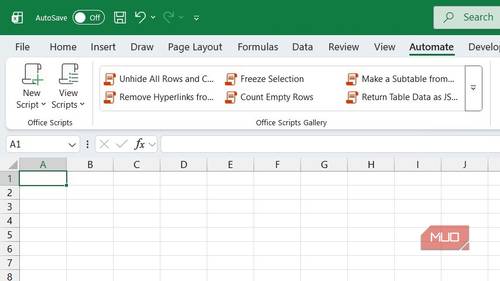
In my experience, using the Automate tab, Microsoft is offering users a modern way to make repetitive tasks effortless. At its core, it lets you run a set of instructions that tell Excel what to do — these are called scripts. You can use scripts that are pre-made (in Excel’s script library), recorded like a macro, or created from scratch. I will primarily focus on the first two options to demonstrate how this tab is suitable for everyday users.
The third option is designed for advanced users who are comfortable with coding. It provides access to Office Scripts, a coding environment built into Excel for writing scripts using a programming language called TypeScript. You can use it to build scripts from the ground up or modify the samples and recordings you’ve created. Customizing scripts offers greater control and allows you to handle more complex scenarios, but it’s not required for automating a majority of routine tasks.

Apps Script for Google Sheets Is the Productivity Hack You’re Missing
Don’t sleep on Apps Script.
On the surface, this sounds similar to using macros and VBA, but there is a key difference. The scripts are saved on OneDrive, making them instantly accessible across workbooks. This makes them portable, shareable, and far more reliable than traditional VBA macros, which are stored locally. The Automate tab essentially brings cloud automation to Excel without getting rid of macros for those who prefer an old-school approach.
Working with ready-to-use scripts in the Automate tab
One click can save you hours of work
Let’s look at the easiest way to use the Automate tab — ready-to-use scripts. Imagine you have a sheet with blank cells that you need to fill with data. It would be useful to highlight them to make them stand out, since the human eye can easily miss them.
Suppose you have a list of URLs. As you know, the moment you enter a URL, Excel turns it into a hyperlink. This annoying behavior makes it hard to copy URLs because every time you click a cell, it opens the default browser and attempts to connect to the website. Luckily, Excel has a ready-made script that can remove these hyperlinks.
Select the Automate tab, then choose the Remove Hyperlinks from Sheet script from the Office Scripts Gallery group. An Office Scripts panel will open on the right with the script already selected. Afterward, click Run to remove the hyperlinks. This is much easier than right-clicking each cell and selecting Remove Hyperlink or disabling hyperlinking altogether.
You can access the full list of ready-to-use scripts by opening the Office Scripts gallery. Click View Scripts -> Samples. You will see a list of scripts in the Office Scripts panel that appears on the right.
Suppose you have sales data that you need to summarize. You can select the range and click the play button next to the Create a New PivotTable from a Table script. You’ll see a message saying the script ran successfully. A new sheet will be created with a pivot table, slicer, and bar chart for analysis.
The pre-made scripts don’t cover every scenario
Sometimes you need to record your own scripts
The ready-to-use scripts are for specific scenarios, meaning they can’t possibly cover every use case. Luckily, Excel makes it easy to create a custom script without code by recording your steps. Just click New Script -> Create from Recording to start the process.
Now perform the steps you want to record, such as calculations and formatting.
A summary appears in the Record Actions panel on the right. Remove any unwanted steps by clicking the red X button in its top-right corner. When you’re done, click Stop in the top-right corner of the panel to save the script. You can rename it afterward.

I stopped using formulas because Excel macros do the work for me
I let Excel’s macro recorder handle my repetitive tasks.
To access the newly created script, click View Scripts -> Recent Scripts. It’s usable on data similar to the data you used to create the script. If you want to peek into the code, you can select the script and click Edit. This will open the code editor, and you will see all the lines of code, each with properly explained comments that describe what each line does. If you understand what’s going on, you can also tweak the lines or add more.
You can also generate custom code through vibe-coding. Essentially, you use natural-language prompts to describe the code you want, the AI writes it, you copy the results into the code editor, and then run it. If errors appear, copy them back to the AI for fixes. Repeat until everything runs smoothly. You can vibe-code with an AI like Gemini or ChatGPT.
Excel’s Automate tab cannot be overlooked
The Automate tab is a gateway to another way of building smarter Excel sheets. It can handle the boring stuff so you can focus on work that matters. Once you start using it, you’ll wonder how you ever managed without it. The Automate tab is more than a hidden feature—it’s the future of productivity in spreadsheets.
