


The power of automations is what draws many of us to Home Assistant in the first place, but there’s no denying that the process can feel a little drawn-out. Good news! A new experimental Home Assistant feature aims to make it easier to create automations, and you can try it out right now with the flick of a switch.
What are purpose-specific triggers and conditions?
This new functionality, known as purpose-specific triggers and automations, aims to simplify the process of creating automations by making it easier to target specific events as triggers and conditions. This means you can now use a simple action within your automation workflow to define things like presence detection or whether any lights are on in a specific area.
For example, let’s say you want to trigger an event any time a light comes on in your living room. Previously, you would need to list all devices (lights) in the “When” section of your automation workflow, whether those are listed as overhead lights, table lamps, sconces, and so on. With the new option, you can simply choose “Light turn on” in the living room, and the trigger will run without having to specify devices individually.

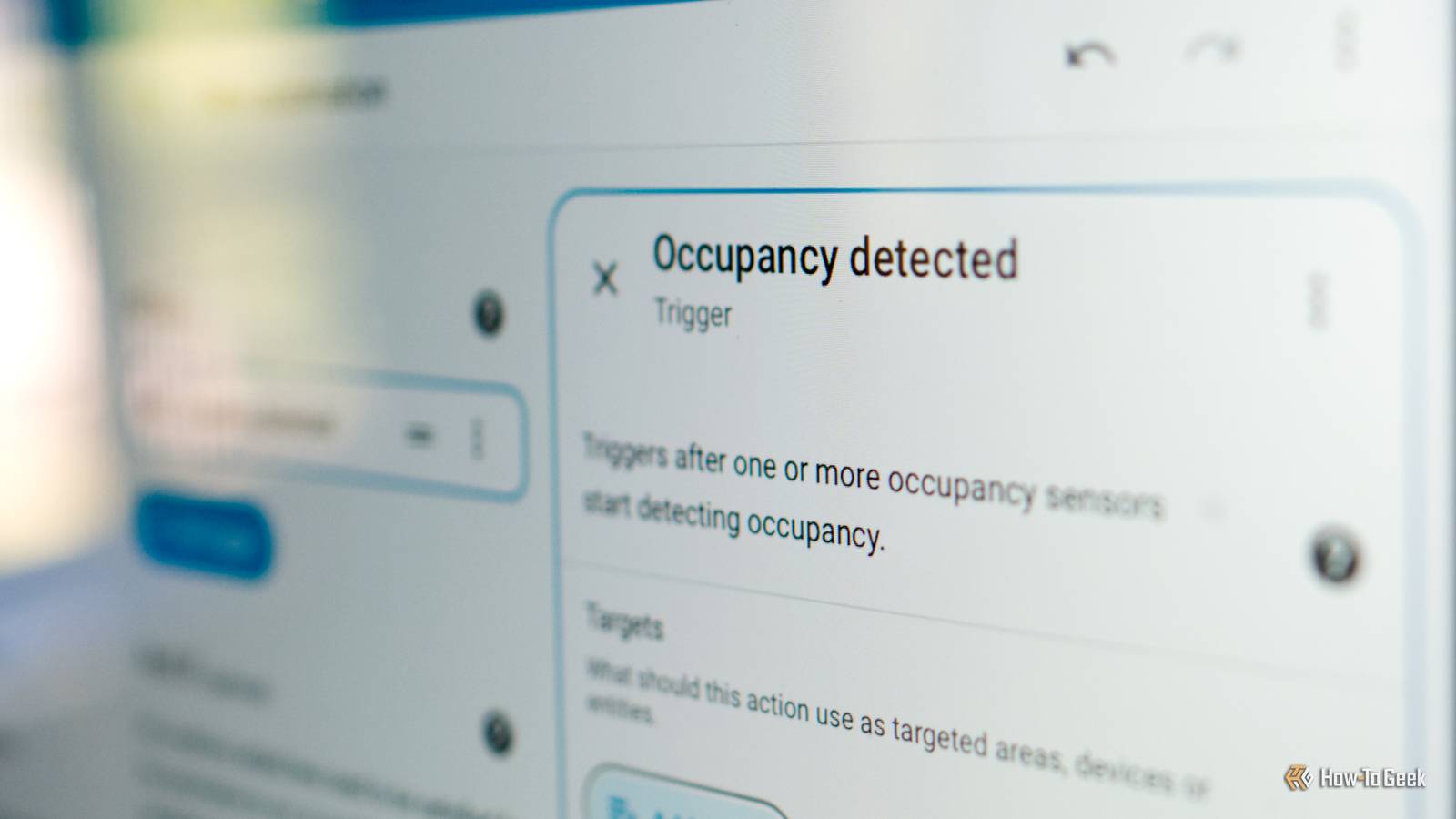
The one caveat here is that you’ll need to have everything configured correctly within Home Assistant (so you’ll need to define smart plugs connected to lamps as lights, not switches). The upside is that you can use these new tools as conditions, so you don’t need to define individual presence sensors in your “If” section; you can simply use an “Occupancy detected” or “Occupancy cleared” trigger instead.
Enabling this new feature doesn’t take any of the old functionality away. You can still build automations that only fire when certain lights or presence detectors are triggered, if you want. But going forward, this gives you the ability to simplify the process of creating new automations.
Enable the feature in Home Assistant Labs
The feature is experimental as of Home Assistant Core 2025.12, so you’ll need to update Home Assistant Core to the latest version under Settings > System Updates. This introduces a new feature called Home Assistant Labs, which allows you to turn on experimental features.

\Once updated, head to Settings > System > Labs and wait a moment for any available features to load. Click “Enable” next to “Purpose-specific triggers and conditions,” and you’ll see a warning pop-up indicating that the feature is still in testing and subject to change.
Home Assistant’s own update acknowledges that the feature has been two years in the making. If you’re concerned about enabling experimental features, you can always enable the “Automatic backup before enabling” toggle before proceeding.

Now that’s done, you’ll find the new Automation features under Settings > Automations & scenes (click “Create automation” to get started). Tired of clicking through menus to get there? Add a shortcut to the Automations screen in your Home Assistant sidebar.
Building automations with purpose in mind
You’ll now see some new options in the automation workflow when you click “Add trigger” or “Add condition” to start building your workflow. Here’s what the trigger selector looks like before enabling the new feature:

And here’s what it looks like afterward:

In addition to a new “Targets” selector which allows you to target whole floors and rooms, you’ll also see options for binary sensors, lights, and media players. How many options you have to play with greatly depends on what devices you have around your home.
For example, choosing “Light turned on” and then picking “Kitchen” from the “Areas” menu will allow you to trigger an automation any time a light in the kitchen comes on. You can tie these into other automations. For example, if you have security lights outside that are triggered by motion sensors, you could design a second automation that sends you a notification or plays an alert.
I only have a few infrared sensors in my house at present, so I had no ability to use the “Occupancy detected” conditions without a suitable mmWave sensor, but if you do, then this could greatly speed up your automation workflows. How you use these new tools depends on exactly what you’re trying to achieve.

One thing that’s worth keeping in mind is that if you build any automations that depend on these new features, they will stop working properly when you turn these experimental features off. It might be worth waiting for the feature to be absorbed into Home Assistant’s main release before you update everything, though you can always edit your automations in the future if you need to make changes.
A truly smart home is one that anticipates your next move, rather than one that you can control with your voice or smartphone. Automations can also keep your home safe from intruders by simulating occupancy when you’re away from home.
