


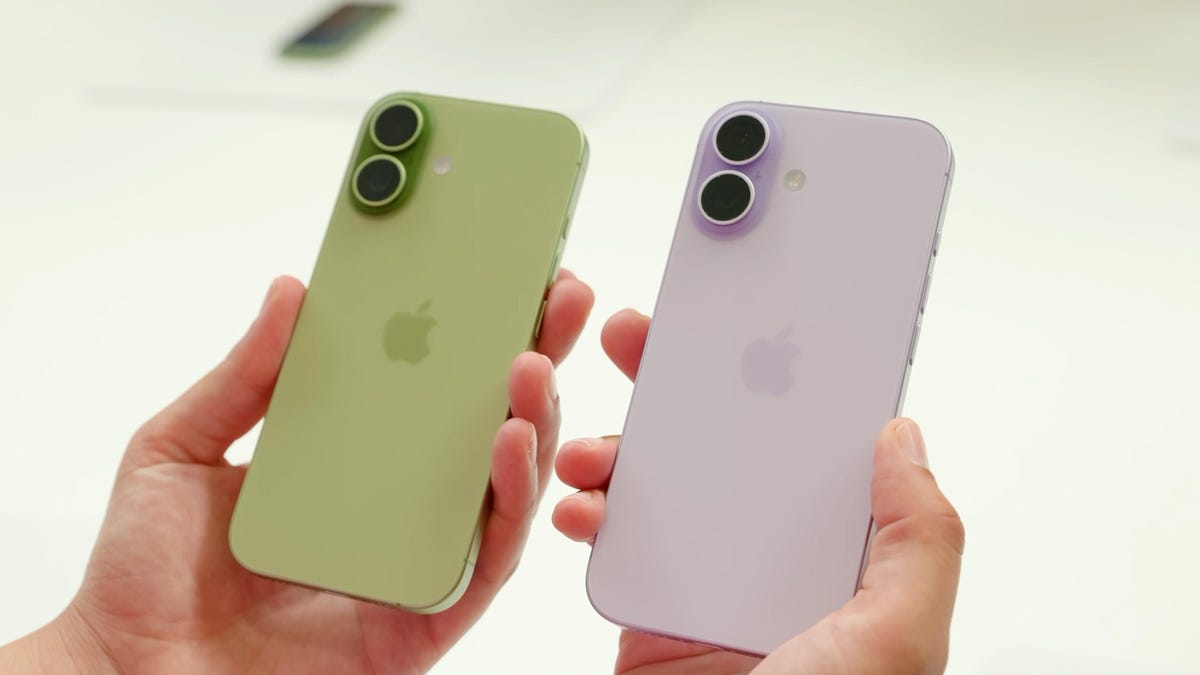
If you want to open an app on your iPhone, the first thing you’ll probably do is tap the screen. But that’s not the only way to interact with your device. For instance, newer iPhones have a Camera Control button that lets you quickly access the camera app.
However, even if your iPhone is a few years old, there’s still a hidden “button” that lets you open the camera — or any other app — just by tapping the back of your device.
The feature is part of the Back Tap tool in your iPhone’s accessibility settings. Once enabled, it can trigger almost anything your phone can do, from turning on the flashlight to opening Shazam before a song ends. You can even set it to open the Control Center, take a screenshot or run a custom Shortcut with two or three quick taps. It’s fast, discreet and surprisingly powerful once you set it up.
The feature is called Back Tap and, like the Action Button on newer iPhones, it gives you one more way to use your device without touching the screen. You can activate it by tapping anywhere on the back of your phone, including on the camera module. The best part is that it works even if you have a fairly thick case on your iPhone.
Back Tap is available on iPhones as old as the iPhone 8, as long as they’re running iOS 14 or later. We’ll show you how to enable it and how to use it with your Shortcuts app for nearly endless possibilities.
Read more: All the Ways the iPhone 16’s Camera Control Button Will Change Your iPhone Photography
What is the iPhone Back Tap feature?
Back Tap is an iPhone feature introduced in iOS 14. It lets you perform shortcuts on your iPhone by double- or triple-tapping on the back of the device.
You can customize Back Tap on your iPhone to easily perform common actions like pulling up the Control Center or Notification Center, especially useful if you have a larger phone and can’t swipe down from the top of the screen without some complex finger gymnastics. You can even have two separate functions enabled at the same time: Back Tap can distinguish between a Double Tap and a Triple Tap.
Depending on the number of times you touch the back of your iPhone, you can set Double Tap to open your Notification Center and Triple Tap to take a screenshot. Or, you can make Double Tap open the Control Center and Triple Tap launch the Magnifier app. Experiment with Back Tap to find the right combinations of taps and functions that best fit your needs.
And you aren’t limited to just the Back Tap options that are available by default. Thanks to the Shortcuts app, you can set up Back Tap to perform specific functions or launch any app. For example, you can create a simple shortcut that opens Shazam or starts a voice recording, then activate it with a quick Double Tap or Triple Tap. You can also use Back Tap to trigger a more elaborate shortcut, such as automatically sending photos and videos to specific photo albums.
How do I set up Back Tap on my iPhone?
To enable Back Tap, go to your Settings app. Then go to Accessibility → Touch → Back Tap. There, you’ll find a list of options for configuring Double Tap and Triple Tap.
Here is the full list of functions that you can map to a Double Tap or Triple Tap:
- None
- Accessibility Shortcut
System
- App Switcher
- Camera
- Control Center
- Flashlight
- Home
- Lock Rotation
- Lock Screen
- Mute
- Notification Center
- Reachability
- Screenshot
- Shake
- Spotlight
- Volume Down
- Volume Up
Accessibility
- AssistiveTouch
- Background Sounds
- Classic Invert
- Color Filters
- Control Nearby Devices
- Dim Flashing Lights
- Live Captions
- Live Speech
- Magnifier
- Smart Invert
- Speak Screen
- VoiceOver
- Zoom
- Zoom Controller
Scroll Gestures
At the bottom of the menu, you’ll also see a list of Shortcuts. These options will vary depending on what’s available in your Shortcuts app.
The one potential downside to Back Tap is that you don’t get any tactile feedback when you use it, so you might accidentally trigger it at the wrong time and not realize it until later. For instance, you might double-tap without meaning to and set off your flashlight by accident. In that case, you might want to remap your Double Tap to a less conspicuous function. Or, you can leave Double Tap off and only use Triple Tap, which you probably won’t trigger as often.
How do I use Back Tap to take a quick photo?
One way to set up Back Tap is to map Double Tap to the Camera and Triple Tap to Volume Up or Volume Down. Because you can press either of the volume buttons to instantly take a picture, you can get the same effect if your volume buttons are mapped to Back Tap. With this combination, you can capture a photo with five quick taps on the back of your iPhone (though you’ll have to pause briefly between performing the Double Tap and Triple Tap, so that your phone can distinguish between the two actions).
This Back Tap combination even works if your phone is locked. Again, spend some time trying out different combinations of taps and features to find which ones are most useful for you.
