


Your smart TV is probably handling your needs perfectly. If it wasn’t, you’d probably get a new one. But are you using your smart TV’s abilities to their potential? It’s hard to know because you might not even be aware of what those are.
If you purchased a smart TV, you likely did some reading about its features to help you narrow your choice. You likely didn’t just show up to the store and point to one and say, “That’s it. Ring me up.” Smart TVs have different features depending on their operating systems, screen sizes, panel colors, and more. Most smart TVs look different from one another, but you can change how they look. You shouldn’t just trust that your smart TV is showing you its best version of itself just because you’re using the default settings.

Gaming on a Smart TV Is So Much Better With These Settings Tweaks
Your smart TV has a heap of features that make gaming much better—you just need to know where to look.
Many smart TVs have multiple modes
You can change them based on what you’re watching
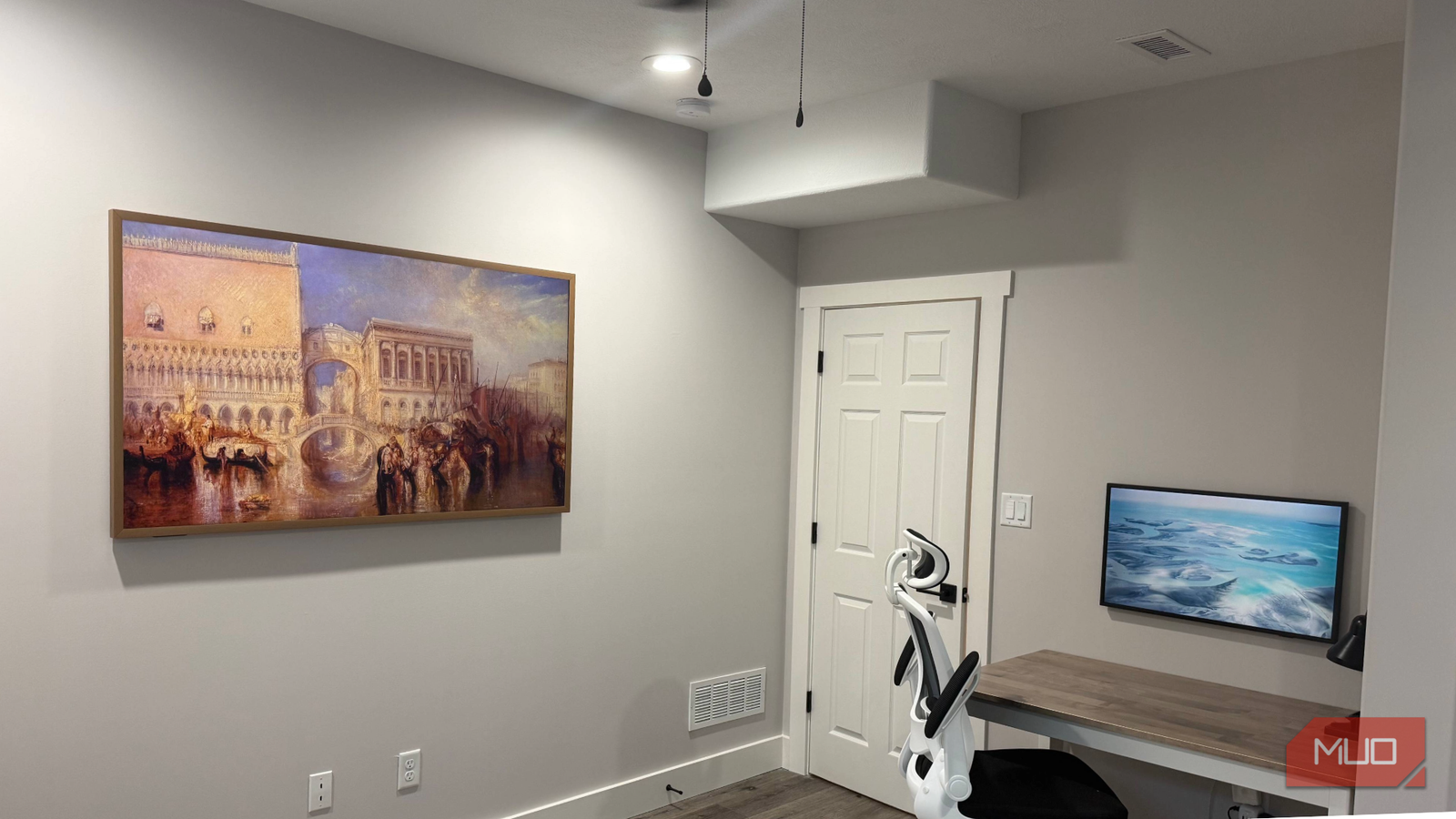
I have a Samsung Frame TV, and one of the reasons I like it is that it has many different settings. It is easy to connect other devices to it, especially via the USB port, and it allows me to split the screen in two to view two things at once. I once connected my laptop to the TV to show one sporting event on the right side of the screen and used my cable box to show another game on the other side of the screen. This is the kind of thing that you have to do if you don’t subscribe to YouTube TV, which lets users watch a quad box of games at once.
But probably my favorite thing about the Samsung Frame TV, besides the ability to put up artwork, is that I can change the mode based on what I’m watching. The modes change the visuals of the TV and adjust the colors automatically. The Standard mode levels out colors, brightness, and tint, making it look good in the widest variety of rooms.
This is what your TV is set to initially, and you should consider changing it, based on what you’re watching. That’s because certain types of content and entertainment are better suited to the other modes. It also makes sense to adjust the mode based on what time of day you’re watching something due to the possibility of glare. If you don’t have an anti-glare TV, you know what I’m talking about.
Different picture modes are a rather standard feature on many smart TVs. The names of them vary based on the manufacturer. But they mostly have similar options.
Adjust the modes for the content you’re watching
Movies can really pop if you set them up right

Turn off the default mode in your TV’s Settings menu. This will be true of any smart TV you have, regardless of operating system. For Samsung users, the third option in the Settings menu is Picture Mode. There are four modes you can choose from: Standard, Dynamic, Filmmaker, and Movie.
Standard, as discussed above, is basically right down the middle in all its settings. It’s not too bright, not too colorful, and suits most homes well. But you’re doing yourself a disservice if you’re relying on it for all kinds of content.
Dynamic mode is what makes your content pop. The brightness is automatically turned up, and the colors are sharpened to look more vivid. Dynamic mode displays a picture that is more vibrant than regular content typically is. This uses more processing from the computer’s internal system to portray sustained brightness. It is made to look less realistic and more artificial.
Filmmaker mode delivers an image that directors want you to see. If you remember the public service announcement Tom Cruise and Christopher McQuarrie did about motion smoothing, this is the setting that turns it off. This gets rid of all the processing that TV can do to your picture and produces the most real image that is like what the director intended you to see. Filmmaker mode is also a terrific option when watching live sports, as it removes any artificial enhancements and shows you what it’s like to watch a game in person.
Movie mode is the right setting for dark rooms. If you’re watching something at night, this is the mode you want to use. That’s because it enhances the color to reveal more natural, warmer tones. It can almost seem like it’s putting a softer light on the image, making it look like you’re watching something in a theater. It removes sharpness and excess brightness, creating a more realistic portrayal.
Take matters into your own hands
Brightness and tint are just numbers

Once you select a mode, you can still go in and alter it to better match your content. Many TVs allow you to adjust brightness, color, tint, and sharpness in any mode. You don’t have to trust the settings that the smart TV provides.
This is where I find adjusting the TV to the time of day comes in handy. I have skylights in the room where my Samsung Frame TV is. During the day, sunlight can provide a glare on the TV. While it’s not overly annoying, if the picture itself is darker, it can skew the visuals.
Adjusting the actual settings, rather than the mode, can give you a clearer picture and help you enjoy your entertainment more. If I’m watching an afternoon Yankees game on the weekend, I put on Filmmaker Mode and then adjust the tint to combat any glare. It may seem like work, but being able to sit back and watch with the best possible visual is worth it to me.
Don’t settle for the standard TV mode options
Most smart TVs let you switch modes to better suit the content you’re watching. You can adopt different modes to better enjoy your entertainment. If you want to take matters into your own hands, adjusting the brightness, tint, and other settings can deliver a picture you’ll love.
