


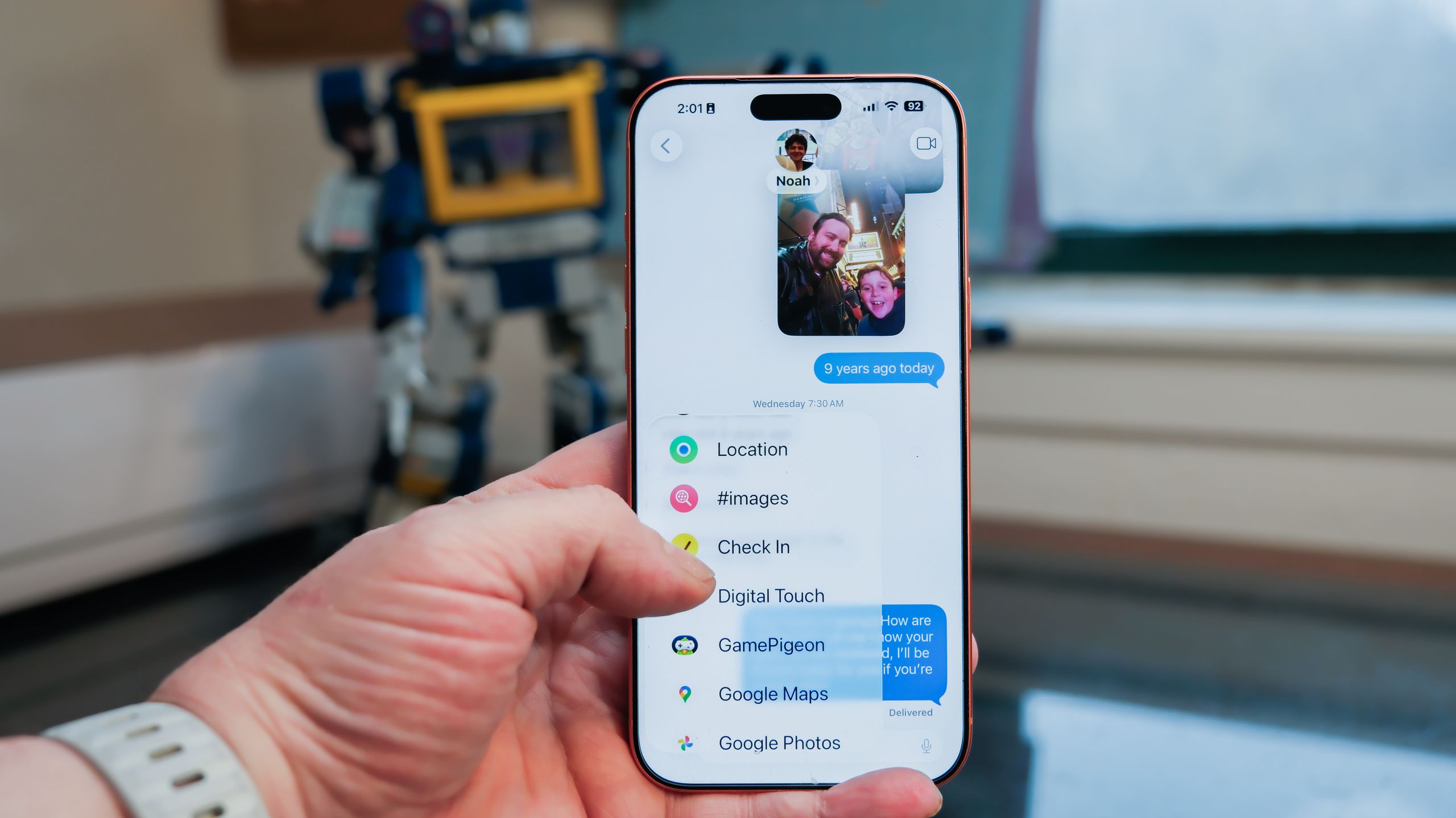
Apple’s Messages app (née iMessage) has never been for basic text messages; it’s always done more, especially if your recipient also has an iPhone. Nowadays, sending a text is only the tip of the iceberg for Messages. It’s an incredibly robust platform for sending all sorts of things – from money to locations to animated drawings.
I’ve been using the iPhone since the very beginning, and since most of my family opted for the iPhone, I use Apple Messages extensively, and I’ve explored its best features.

To access these tools, open Apple Messages and choose a conversation. At the bottom of the screen, next to the open text box, you’ll see a plus (‘+’) sign. Tap that + and a long list of extra features will appear. That list will grow as you add apps that can use Apple Messages for features, like the Starbucks app.
Here are seven fun and useful tools that Messages offers to take your communication beyond basic text messaging.
Send a sticker that you made from a favorite photo

To make a sticker, open Apple Photos and find a photo with the subject you want in a pose that makes a great sticker when you cut out the background. Then, hold your finger down on the subject. You’ll see a wavy effect that traces the outline of your sticker. Lift your finger and a pop-up menu will appear – choose the ‘Add Sticker’ option.
If you try to make a sticker with a Live Photo, it won’t work. Holding your finger on a Live Photo makes the photo playback. You’ll need to turn that Live Photo off first, then you can create a sticker.
Once you’ve created a sticker in Photos, you can add it to your conversation by tapping the ‘+’ sign in Messages and choosing ‘Stickers.’ You can also add cool effects, making your sticker look puffy or sparkly in a way that reacts when you tilt your iPhone.
Send Cash money

Why bother with Venmo or Zelle when you can send money through Apple Messages? If you have Apple Cash set up with a payment method, you can send money to another iPhone user through Messages, without opening a separate app or service.
Open Messages and tap the ‘+’, then choose Apple Cash. You can send or receive money from this window. If you don’t have Apple Cash set up yet, open the Apple Wallet app. Cash should appear as one of your Wallet cards.
Poll a group for their opinions

Where should we eat dinner? What time should we meet on Sunday? Did you watch the Super Bowl halftime show or the Puppy Bowl? Instead of pinging your group chat with questions, send a poll instead.
Open Messages, then tap the ‘+’ and choose ‘Polls.’ You don’t have much control over the poll – being able to set a time limit would be nice. However, you can add countless options, so you aren’t limited to A, B, C, or None of the Above.
Unlike Stickers and Apple Cash requests, Polls can only be sent to iPhone recipients. If you have a group chat with one Android user, you won’t be able to send a Poll questionnaire.
A text message… but not right now

I use this feature all the time. Schedule a text message for later. Maybe you want to hit somebody at the right moment – at the end of the school day instead of during class. Perhaps you want to remind someone about an appointment. Maybe you just don’t want to seem weird if you have an idea at 2 AM and want to send a message. Instead, write your message now and schedule it for later.
Open Messages and tap the ‘+’ then choose Send Later. A bubble appears above your text box, showing the time your message will be delivered. Tap that bubble to change the time. You can even set your message to be sent up to 364 days in the future. Set your birthday messages now and take credit next month!
A check-in when I get there

Does someone frequently ask you to ‘text me to let me know you got there safe?’ Your iPhone will remember to check in, even if you forget. Open Messages and tap the ‘+’ then choose Check In, and you’ll find one of the iPhone’s coolest features.
You can set a check in to occur when you arrive at a specific location, or send a check in after a set period of time. You can even inexplicably send a check in after you finish a workout if you coordinate with your Apple Watch.
A check in can send an interesting package of details: your location, your phone’s battery level, and signal strength. You can also choose to send even more details, like the route you took to get to your destination and the last location before your iPhone shut down or your Apple Watch was removed.
These features put Check In well into the realm of safety and security tools, beyond simple messaging.
Coffee from Starbucks, or moves on a game board

Send somebody a coffee. Not the actual coffee, but a Starbucks gift card, through Apple Messages. If you have the Starbucks app on your iPhone, you’ll see an option under the Messages ‘+’ menu for Starbucks. You can choose from several card designs and set the value before you send it. Sure, you could just send Apple Cash, but this is a bit more personal.
As you add apps to your iPhone, check under that ‘+’ menu to see if you have any new features for Messages. For instance, TikTok integrates directly with Apple Messages, and there are also a number of games that you can play using Messages to send moves to the other player’s screen, like Game Pigeon.
An animated doodle

The Digital Touch feature was born on Apple Watch, but now you can send doodles and drawings to anybody with Apple Messages. The doodles aren’t just static drawings, either; your recipient can see the lines as if traced by your finger, making doodles animated and surprisingly personal.
You can also record a video of yourself and draw on the screen while it’s recording! There’s a lot of potential fun to be had with Digital Touch, especially since it works across devices. Using my Apple Watch to send doodles adds a more personal touch than just telling Siri what to say.
