


Over the past couple of months, we’ve been collecting feedback from Team users and turning it into meaningful improvements across the Inoreader interface. The result is a set of new features designed to make collaboration easier, navigation clearer, and shared workflows more powerful. This update introduces a redesigned Team sidebar, shared dashboards, file uploads, automated Intelligence reports, Team filters, and more. Read on to see what’s new!
Updated sidebar and navigation
We’ve replaced the previous tab-based layout with a more efficient sidebar that brings all Team-related links into one place.
At the top of the updated sidebar, you’ll find a Manage Team button, which opens a central hub for all Team settings. From here, admins can manage the Team’s name and description, billing and usage details, member access and SSO settings, API keys, and more.
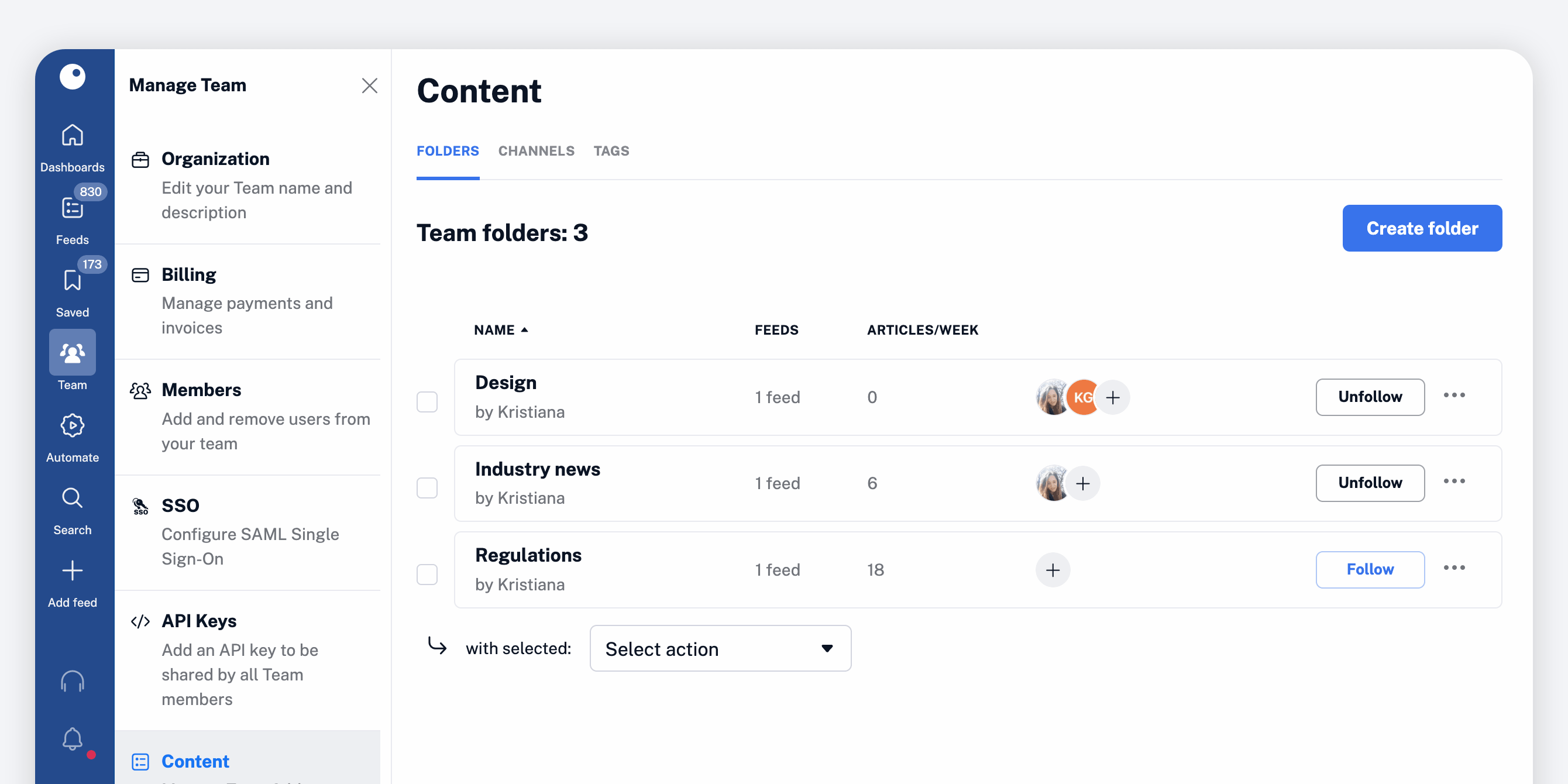
The Manage Team section also lets you organize and control shared Team resources, including:
- Team folders, channels, and tags
- Team filters and spotlights
- Automated Intelligence reports
Having everything accessible from one place makes it easier for admins to manage content and keep the Team workspace organized.
Team dashboards
One of the most requested features from Team users is now here: shared dashboards.
Team admins can now create dashboards that are visible and accessible to all Team members. Each dashboard can be customized with its own name and layout template (one, two, or three columns), and then populated with widgets.
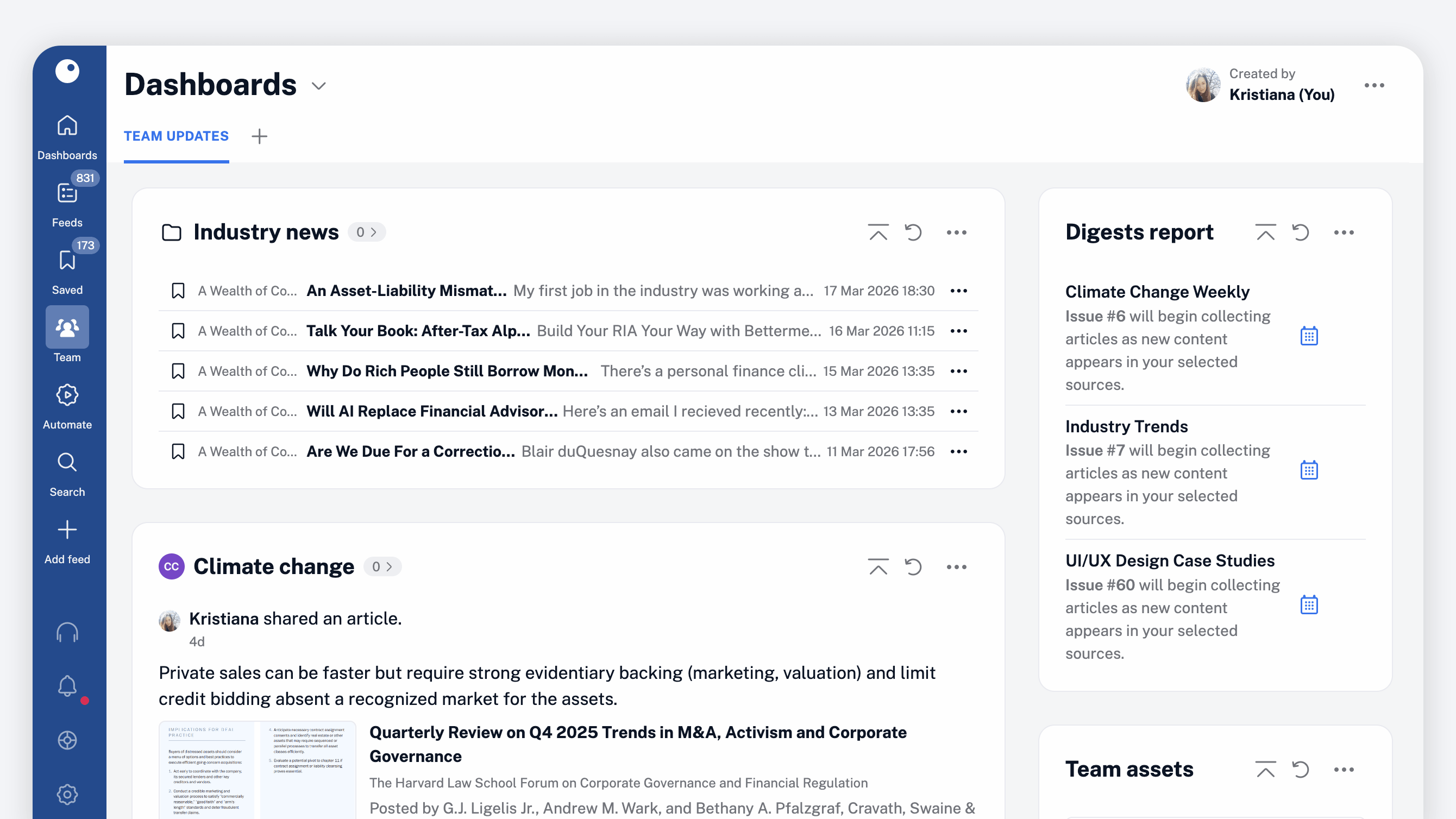
Content widgets can display:
- New articles in a selected Team folder
- New articles in a Team channel
- Recently tagged articles
- New Intelligence reports
- Recent file uploads
- Articles with the latest annotations
In addition, you can add feature widgets to quickly access key Team information, like:
- A summary of your Team’s digests and their current status
- An overview of Team assets (folders, channels, tags, digests, filters, automated reports)
- A Team plan FAQ, which is especially useful when onboarding new members
Dashboards make it easy to surface the most important information in one shared view.
File uploads
Teams can now build a shared archive of uploaded files directly inside Inoreader.
Every Team member can upload documents and make their content available to the rest of the Team. Supported file formats include PDF, DOC/DOCX, RTF, TXT, and XLS/XLSX.
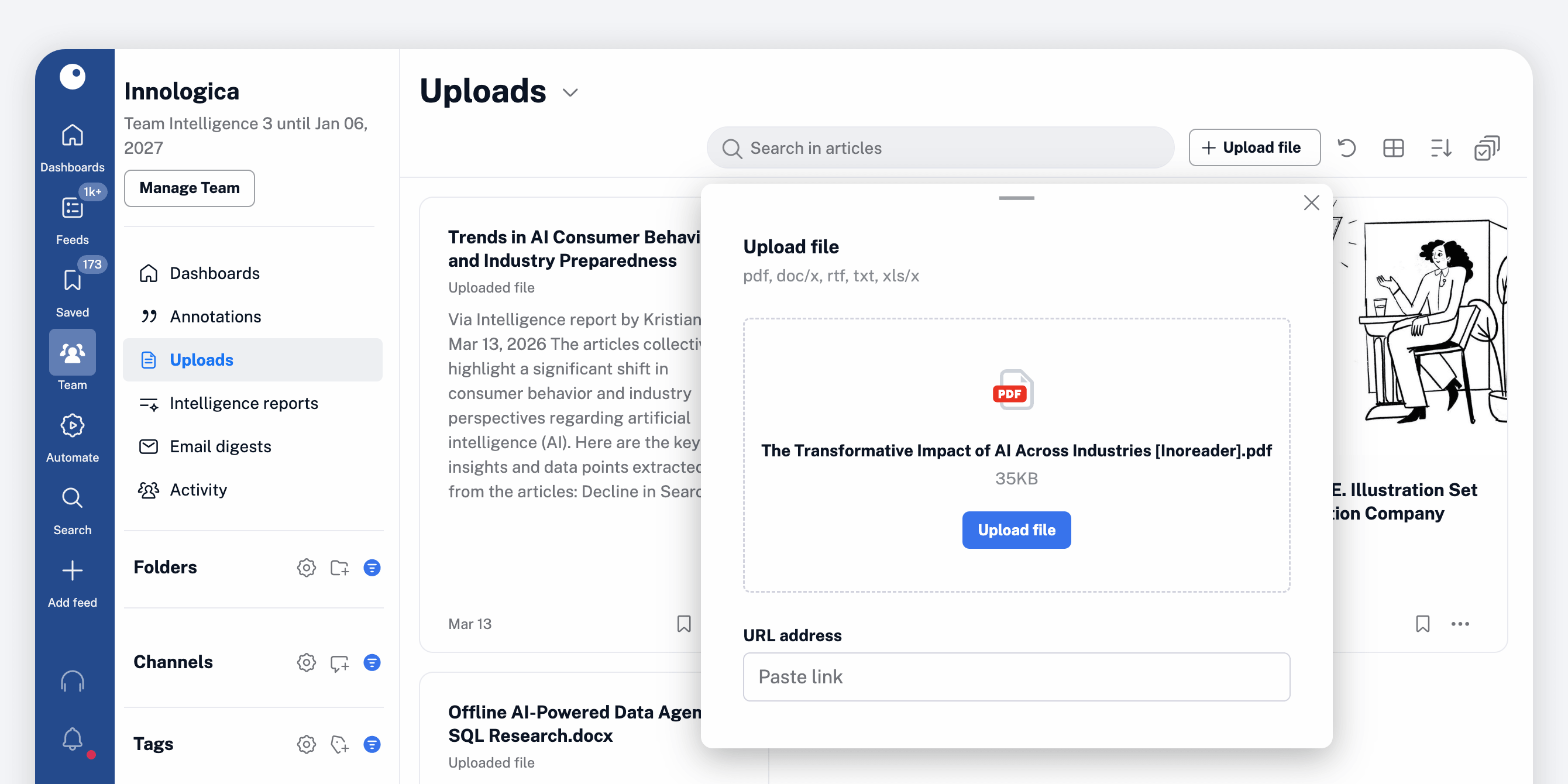
Uploaded files are converted into articles, allowing them to behave much like other content in Inoreader. When viewing them, you can:
- Choose a custom layout, sorting, and grouping
- Use multiple select and bulk actions
- Search contextually within uploaded files
- Add annotations and share them with others
This makes it easy to work with important documents alongside the information your Team is already monitoring in Inoreader.
Intelligence reports
Intelligence reports, included in the Team Intelligence plan, can now be created for the entire Team to access. Admins can either generate reports manually or set them to be created automatically.
To make a report visible to everyone in the Team, simply enable the shared option when creating it manually.

To automate the process, go to Manage Team > Automated reports. Click the button in the top right corner and set a name for your report. Then choose the source that the report should analyze. This can be a single feed, a folder, a tag, or a Team channel. For best results, we recommend using monitoring feeds, which are designed to track specific topics or queries. Next, select the maximum number of articles to include in the report. A smaller, more focused set of articles usually produces more reliable insights.
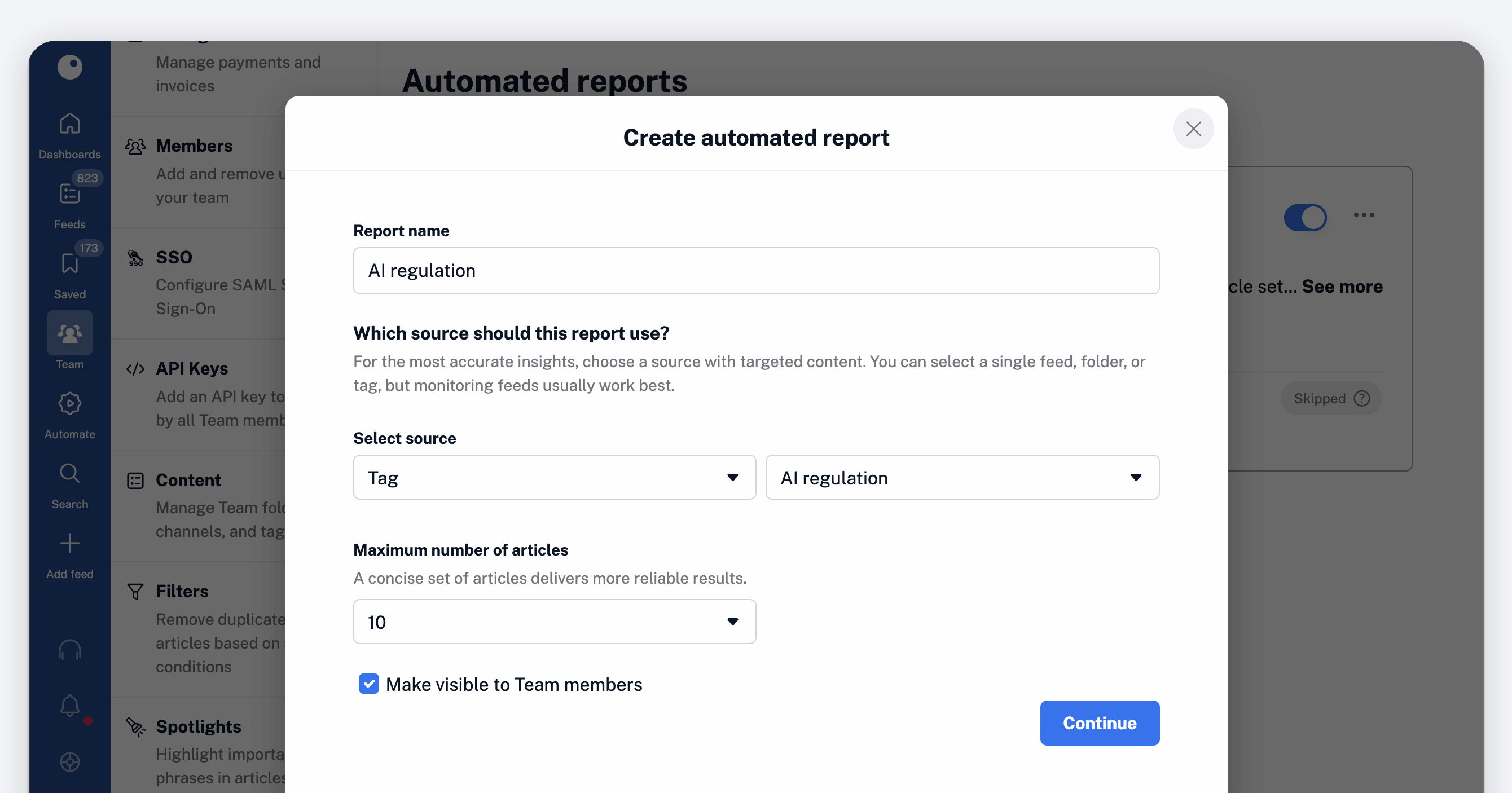
After that, set the report frequency and delivery time, and configure the prompt that guides the report generation. Each Intelligence report highlights key insights from the selected articles, such as summaries, analyses, and research findings. You can choose from predefined prompts or define a custom goal to tailor the report output to your needs. A preview option allows you to review the report before saving it.
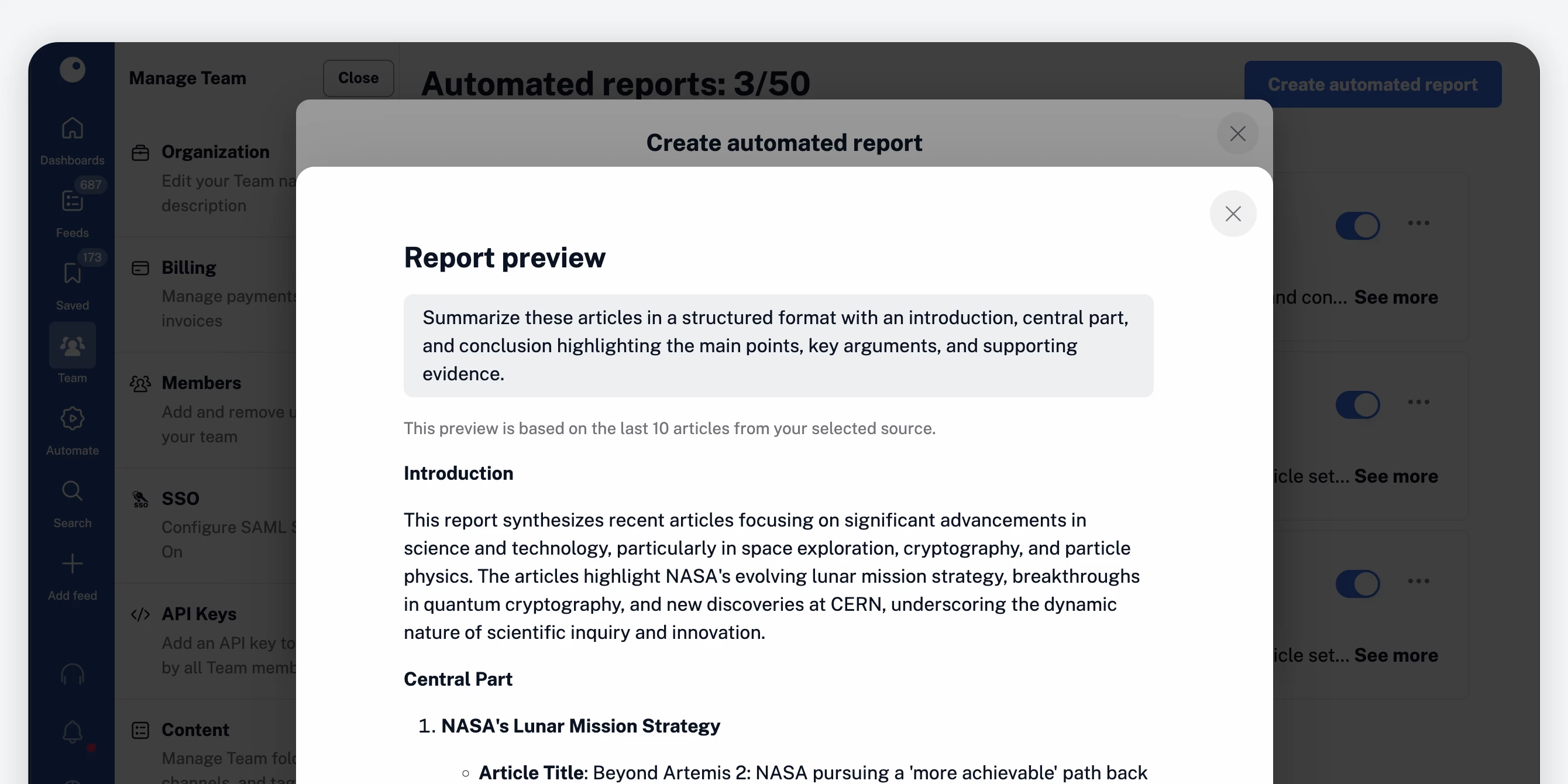
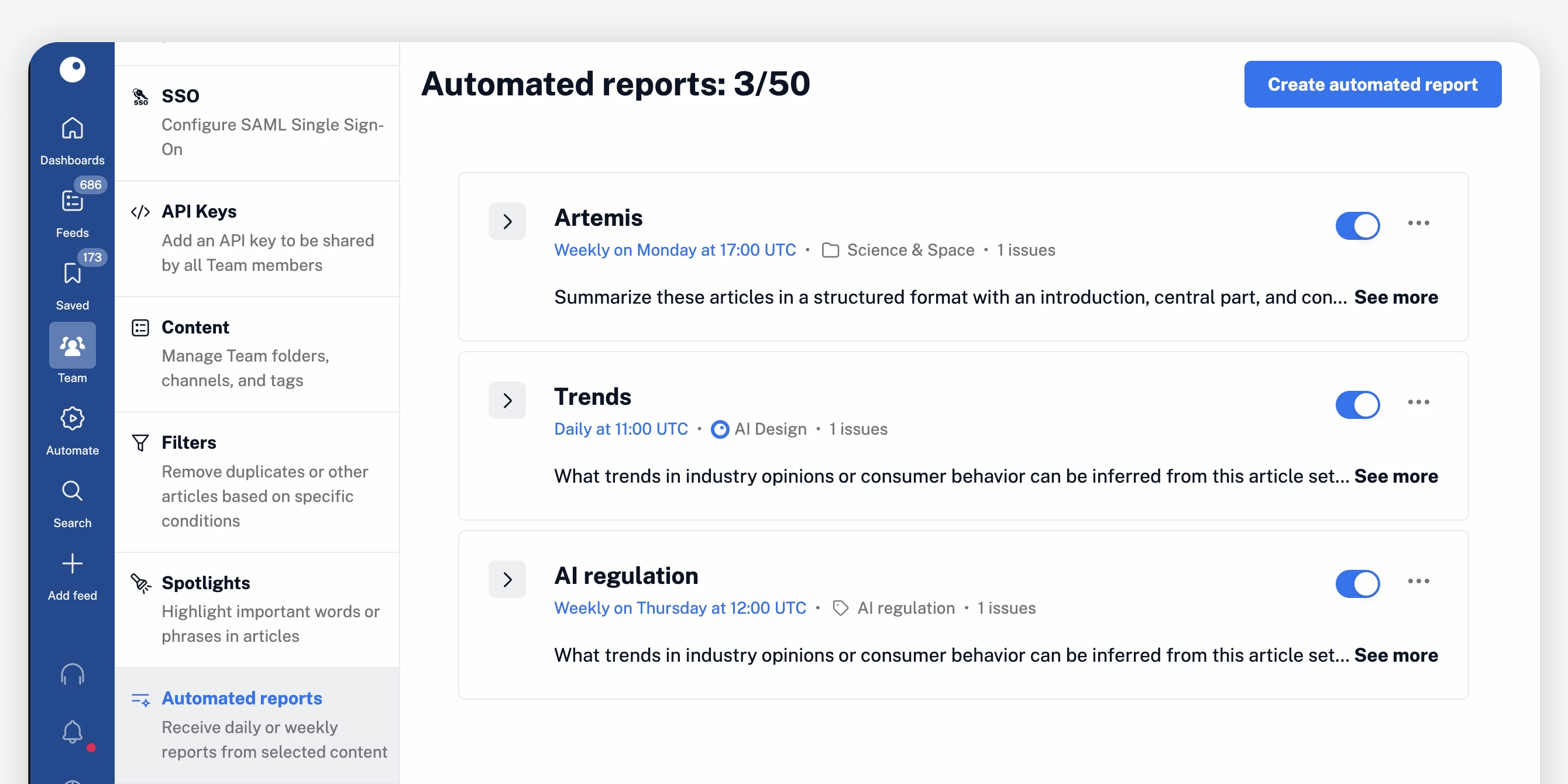
Finally, define how the report headline should be generated. You can either let Inoreader create one dynamically based on the articles included or provide a headline template to be used for every new report. Once saved, the report will appear in the Automated reports dashboard, where admins can activate, deactivate, edit, clone, or delete automated Team reports.
Team filters
Another highly requested feature is Team filters, which allow admins to create duplicate or content filters that apply to entire Team folders. This ensures that all Team members see only the relevant, filtered content.
To create a Team filter, go to Manage Team > Filters and click Create Team filter. From there, the setup process is similar to creating personal filters:
- Choose the filter type (duplicate or content)
- Select the Team folder where the filter should apply
- Define the filtering conditions
- Save the filter
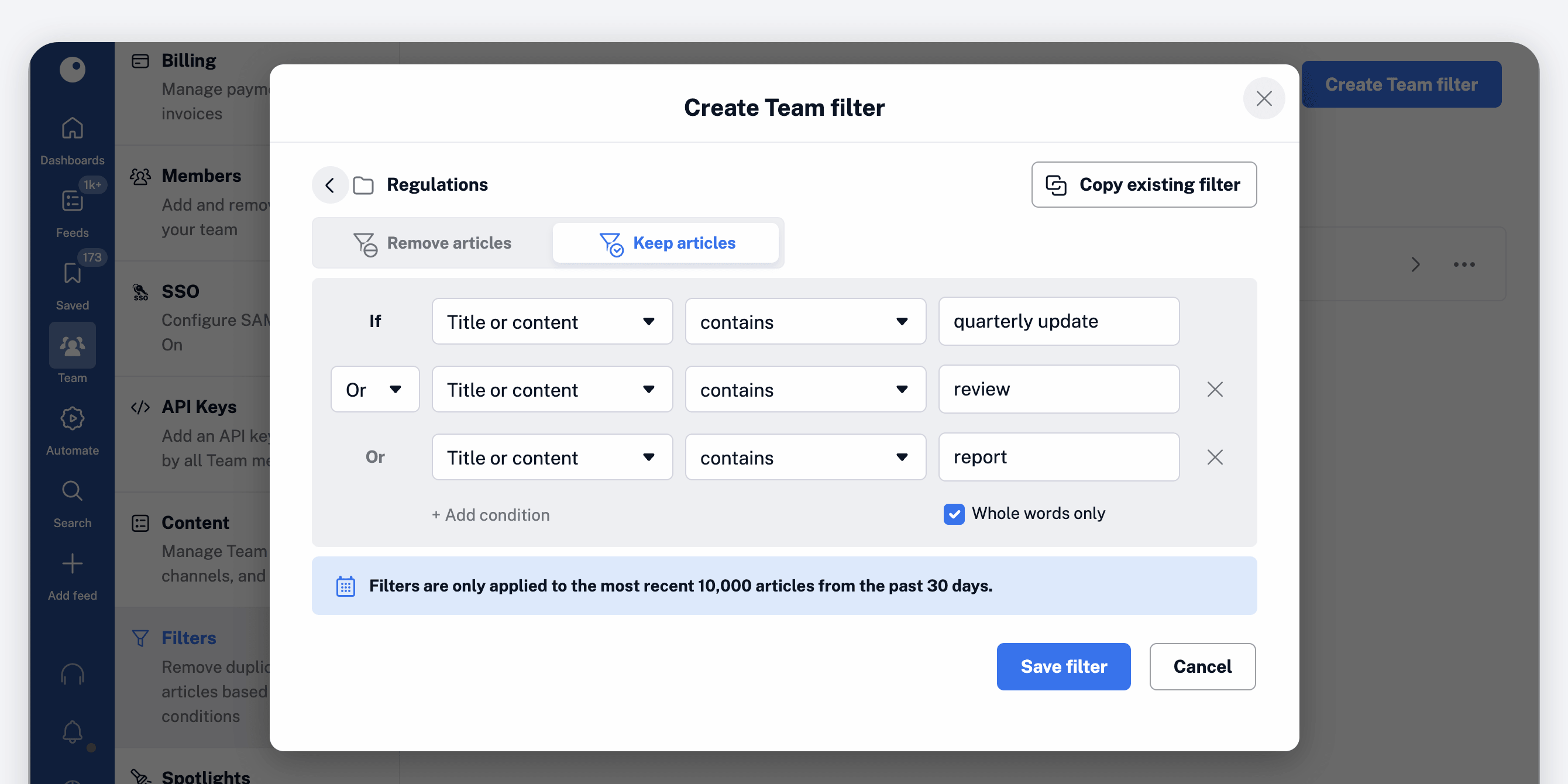
Admins can manage all filters from the Team filters dashboard under Manage Team > Filters.
If a dashboard widget uses a filtered Team folder as its source, it will automatically display only the filtered results, ensuring consistency across the Team workspace.
A more powerful workspace for Teams
These updates bring several of the most requested collaboration features to Inoreader Teams. With improved navigation, shared dashboards, file uploads, automated Intelligence reports, and Team-wide filters, it’s now easier than ever to organize information and collaborate efficiently.
We’re excited to see how Teams use these tools to build smarter workflows and stay on top of the information that matters most.
