


You might go on believing that writing cryptic formulas in Google Sheets is unavoidable until you try LET. Once you’ve written even a handful of LET formulas, free from deeply nested functions, repeated lookups, and cell references scattered all over the place, it becomes hard to justify any other approach. In fact, I dare say that refusing to use LET would be quite like returning to a dumb phone after years of using a smartphone, except there’s no benefit to going backward here.
If you’ve ever opened a spreadsheet you built weeks ago and couldn’t decipher your own formula, LET might be precisely what you need.
How I use LET in Google Sheets
Name your values upfront so complex formulas become simple

The LET function follows a simple pattern: you assign names to values and then use those names in a final calculation. The syntax looks like this:
=LET(name1, value1, name2, value2, …, formula_expression)
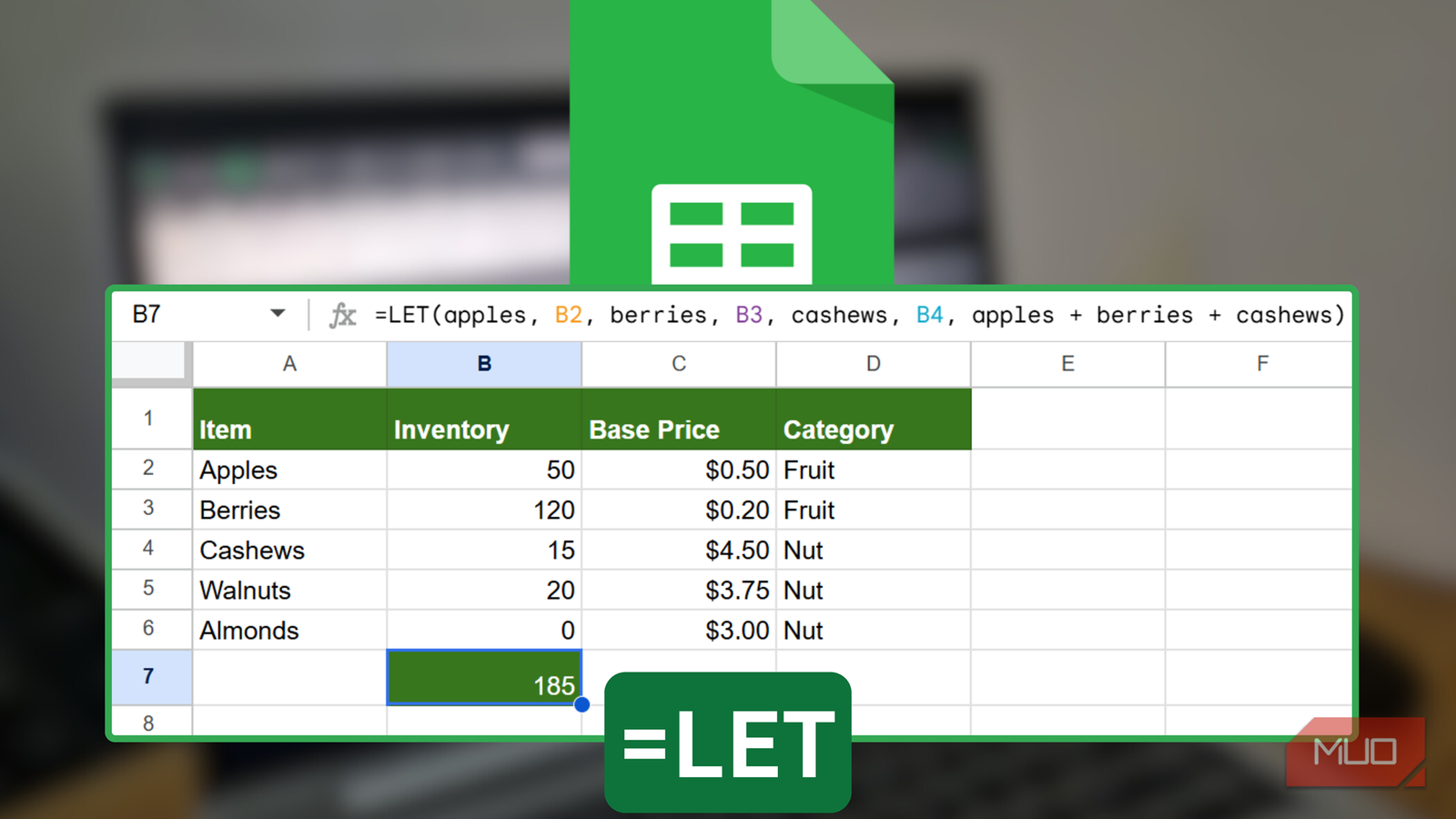
Instead of referencing cells like B1, C7, and F12 throughout a formula and forcing yourself to remember what each one represents, you can name them upfront. Maybe the number of apples lives in B2, berries in B3, and cashews in B4. With LET, the final calculation becomes apples + berries + cashews instead of B2 + B3 + B4, which you can read like a sentence rather than decode like a puzzle:
=LET(apples, B2, berries, B3, cashews, B4, apples + berries + cashews)
There are a few rules to keep in mind. Names must be valid identifiers, meaning no spaces, no special characters, and no numbers or cell references. You cannot name something “A1″ or “tax 2025!” and expect it to work. You can, however, use variables to define other variables. As long as you declare them from left to right, each name can reference any variable that came before it.
For instance, let’s calculate a snack mix total where the cost of cashews depends on how many apples and berries a customer buys:
=LET(AppleCount, 5, BerryCount, 10, CashewPrice, (AppleCount * 0.5) + (BerryCount * 0.2), CashewPrice)
In this formula, I declare AppleCount and BerryCount before defining CashewPrice, so CashewPrice knows which values to use. If I tried to put CashewPrice at the very beginning, the formula would break because it would not yet know what AppleCount or BerryCount meant. The final formula expression here is simply CashewPrice, since that variable already contains the full calculation based on the earlier definitions.
When I notice that I am using the same LET structure repeatedly, I typically turn it into a named function (quite different from the named ranges feature in Google Sheets) by visiting the top menu and selecting Data -> Named functions -> Add new function. You can define your LET formula in the New named function panel and then call it anywhere on your sheet or even import it into other spreadsheets. This approach keeps everything tidy and saves you from rewriting the same logic repeatedly.

5 Functions to Instantly Clean Up Your Messy Excel Sheet
These functions are like a power wash for Excel.
Why LET makes long formulas easier to read and fix
Fewer repeated calculations, clearer logic, and faster troubleshooting

When I assign a calculation to a variable with LET, Google Sheets evaluates it once, even if I use that variable multiple times later in the formula. Without LET, every repeated reference triggers another calculation. You’ll easily notice the difference with super-long formulas on sheets with plenty of rows and columns.
This one calculation is also useful when you’re performing lookups. Say you’re using XLOOKUP to find a value, and you want to check whether it returned anything before displaying it. Without LET, you’d have to write the entire XLOOKUP twice: once to test the result and once to return it.
=IF(ISNA(XLOOKUP("Cashews", A2:A10, B2:B10)), "Missing", XLOOKUP("Cashews", A2:A10, B2:B10))With LET, you calculate the lookup once, assign it to a variable like “Result“, and then reference that variable inside a simple IF statement.
=LET(Result, XLOOKUP("Cashews", A2:A10, B2:B10), IF(ISNA(Result), "Missing", Result))The same idea applies to dates or anything involving volatile functions like TODAY(). You assign it to a short name, like “thisday“, once at the top of the formula and reference it wherever you need it. Your sheet runs faster, and the formula stays readable.

Your Excel sheets keep lagging because of these 3 formulas
Use these formulas with caution.
Aside from making sheets faster and easier to read, LET also makes troubleshooting much less painful. Because the formula is broken into smaller, named pieces, you can verify each part on its own. If something looks off, you can temporarily replace the final formula_expression with one of the variable names. That lets you see exactly what that step is producing, fix it in isolation, and then switch back to the full expression once everything checks out.
Once your formulas are readable, everything else on the sheet becomes simpler
After I mastered LET in Google Sheets, I noticed how much easier spreadsheeting became overall. I could share my sheets with my teammates without writing a manual or leaving a trail of explainer comments, and I could return to a workbook months later without worrying about breaking everything.
LET makes your spreadsheets less fragile, more collaborative, and pleasant to work with. If you haven’t tried it yet, it’s worth a try.
