


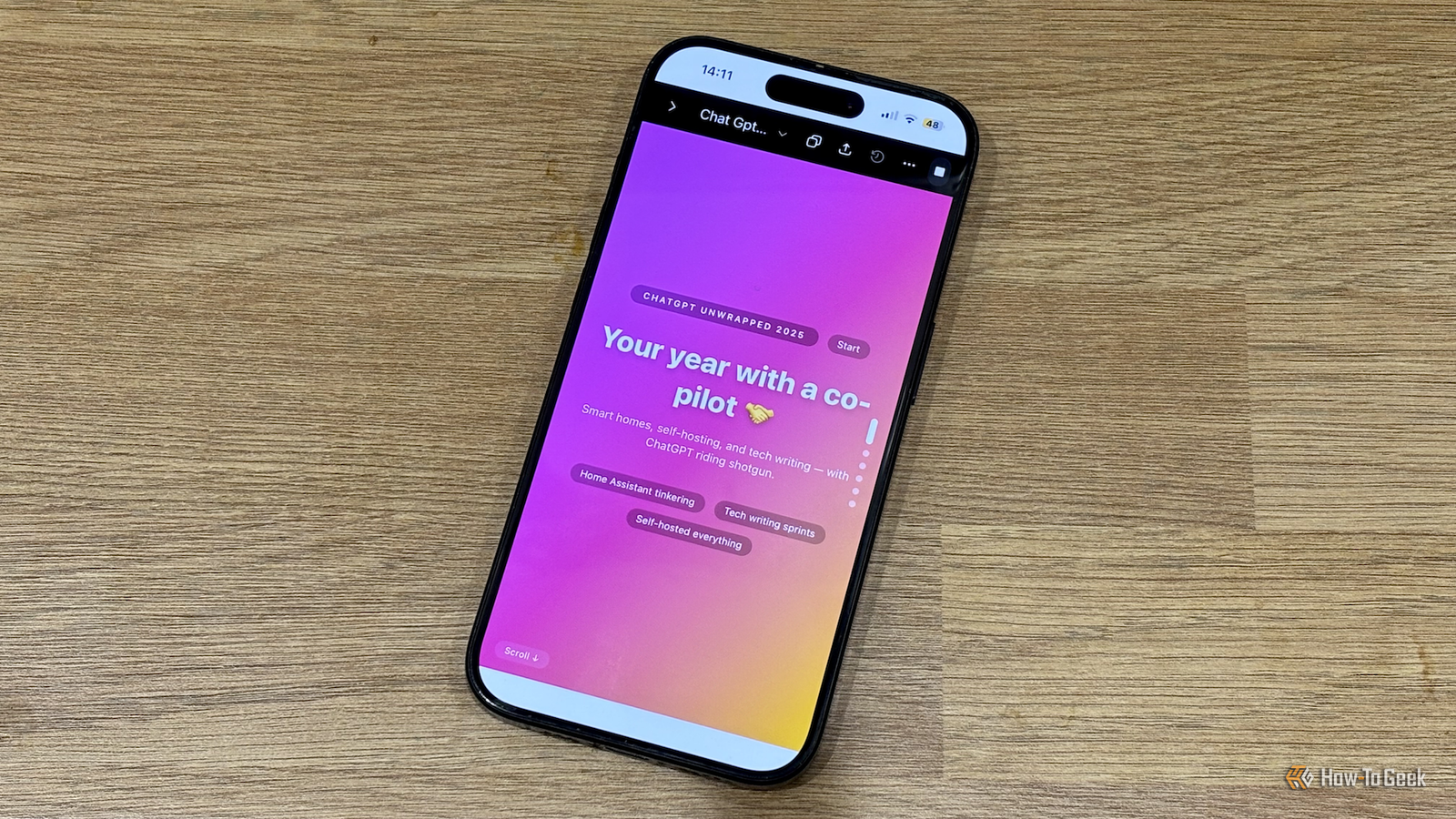
The introduction of Spotify Wrapped back in 2016 made the concept of an end-of-year app-usage review go viral. Since then, many other apps have jumped on the bandwagon. One app that doesn’t have its own “Wrapped” yet is ChatGPT. Thanks to a genius idea posted on LinkedIn, I got ChatGPT to create my own ChatGPT Wrapped 2025, and it’s incredibly easy to do.
You can ask ChatGPT to generate your usage stats
I first came across this idea in a post by Angel Brodin on LinkedIn. She had the brilliant notion of asking ChatGPT to generate its own summary of how you’ve been using it over the course of the year.
ChatGPT has a memory and access to all your previous conversations. This means it knows an enormous amount about you if you use it regularly. It’s able to determine what ways you use the chatbot the most, what skills or strengths you display based on your prompts, and other trends that appear in your ChatGPT usage.

This means that ChatGPT should be able to extract all the data it needs to be able to create something similar to Spotify Wrapped and other similar yearly summaries. Extracting the data is only half the problem, however.
Use Canvas to turn the stats into a scrollable web page
This is the really clever part. The best thing about Spotify Wrapped is that it’s not just a page of cold statistics. It presents information such as your total listening minutes, your top songs, albums, artists, and genres, and even your listening age as easily digestible graphics.
Brodin’s idea was to get ChatGPT to create this part, too. The Canvas feature in ChatGPT provides a dedicated window for writing, coding, and other complex activities that would clog up the main chat window. One of the best features of Canvas is that it lets you preview the output of your code in the Canvas window. If you create code for a React dashboard, for example, you can preview how the dashboard will look directly within Canvas.

This means that you can ask ChatGPT to build a React dashboard to display your ChatGPT Wrapped stats. You can preview the finished dashboard in Canvas and see your personalized ChatGPT Wrapped in all its glory.
This is where I tweaked Brodin’s original prompt a little. Her version generated a single dashboard with card components for each section. I wanted to have each page appear individually, so that you could swipe through from page to page to see each set of stats at a time.
The final prompt I used to create my ChatGPT Wrapped uses much of what Brodin posted, but with some tweaks to allow you to swipe through the sections and to try to ensure that the dashboard is as visual as possible. The prompt is as follows, which you can copy and paste into ChatGPT to create your own ChatGPT Wrapped:
Use ChatGPT’s memory and conversation history with me to create a personalized “ChatGPT year in review” dashboard using everything you know about me from past chats this year and memory.

Part 1: Infer and define the dashboard based only on what you already know about me (work, habits, interests, goals, tone, and how I tend to use ChatGPT). Infer a dashboard concept that would be useful and fun for me. Propose a theme, a title, a short hero summary line or two, and 3 to 5 sections. Examples of sections could include top patterns in how I use ChatGPT, key stats or “power user” vibes, skills or strengths you see, highlights or milestones, superpowers or “signature moves,” trends and recommendations, and predictions for 2026. If my history is too thin to do this well or if I don’t have memories enabled, tell me and briefly ask only the minimum follow up questions you need, then continue. Remind the user  to select “canvas” for the next step to ensure they can run the code properly. Wait for my quick confirmation or edit of the structure before you write code.

Part 2: Build the React dashboard. After I confirm the structure, generate a single file React component that produces a Spotify Wrapped-style, ultra-minimal slide deck. It should present one big idea per screen with very little text, and the experience should progress vertically through slides. Each slide must be infographic-first and must include a prominent visual element that represents the idea, not just text. The infographic can be built using simple HTML/CSS/Tailwind techniques such as donut or split-donut visuals using conic-gradient, big numeric stat treatments, progress pips, pill or chip clusters, or other lightweight visual metaphors, but every slide must contain at least one clear infographic component that visually communicates the takeaway. The text should be secondary and brief, like a poster caption. Use native vertical scroll with CSS scroll-snap for the swipe experience, relying on snap-y, snap-mandatory, snap-start, and scroll-smooth, and avoid custom drag, pagination, or complex animation systems. Keep it Canvas-safe and dependency-light by using no external UI libraries beyond React, and do not use lucide-react, Framer Motion, shadcn/ui, recharts, or any other imports. Use emoji or simple text labels instead of icon libraries. Use Tailwind CSS utility classes for styling. Make it colorful in a Wrapped-like way by applying per-slide color themes with soft gradient washes and blurred blob backgrounds, and match accent colors across each slide’s label pill, chips, and infographic styling. Include a minimal progress indicator such as stacked vertical pips that updates based on scroll position. The component should be fully self-contained in one file and ready to run in ChatGPT Canvas. Fill the content with what you inferred about me from memory in Part 1.

Part 3: Canvas instructions. At the end, give me clear and accurate instructions for how to open the Canvas window, expand it if necessary and how to select “Preview” on the upper left of the page to see your ChatGPT wrapped dashboard.
The results are reasonable, but they’re not real usage stats
Taking a look at my ChatGPT Wrapped, it’s a reasonably accurate representation of how I’ve used the chatbot over the year. It listed the ways I use it the most in the correct order and highlighted some of the key concepts from the chat history.
This is not an accurate measure of my usage, however. Spotify Wrapped is built on your precise listening history data for the year, and ChatGPT does not have access to that same level of detail. Any numbers and statistics in your ChatGPT Wrapped are best guesses rather than exact values.
This isn’t really a huge issue, however. ChatGPT Wrapped is just meant to be a bit of fun rather than a perfectly accurate tool for measuring your ChatGPT usage. Using the prompt above, ChatGPT generated a fair reflection of how I used the app in the past year and managed to pull some interesting insights. It was a relief to see that I was using ChatGPT for genuinely useful purposes and not just asking it to play Six Degrees of Kevin Bacon with me all the time.
How to share your ChatGPT Wrapped with others
When your ChatGPT Wrapped is generated, you can tweak it just by asking ChatGPT to make the changes you want. Once you’ve got it exactly how you want it, you’ll want to show it off. The good news is that it’s simple to share your ChatGPT Wrapped with others.

You can use the “Share” tool in ChatGPT to share your dashboard with people. When they open the shared link, they will be able to see your ChatGPT Wrapped dashboard and marvel at how you’ve definitely used ChatGPT for useful purposes and not just to turn yourself into Studio Ghibli art.
Before you share your ChatGPT Wrapped, make sure it doesn’t contain anything that you wouldn’t want other people to see. If you’ve been using it for Christmas present research, for example, you don’t want to give away all the surprises.
Wrapped-style end-of-year reviews are everywhere, so it’s nice to be able to make your own when one doesn’t exist. Huge thanks to Angel Brodin for coming up with this idea—a true Christmas Angel.
