


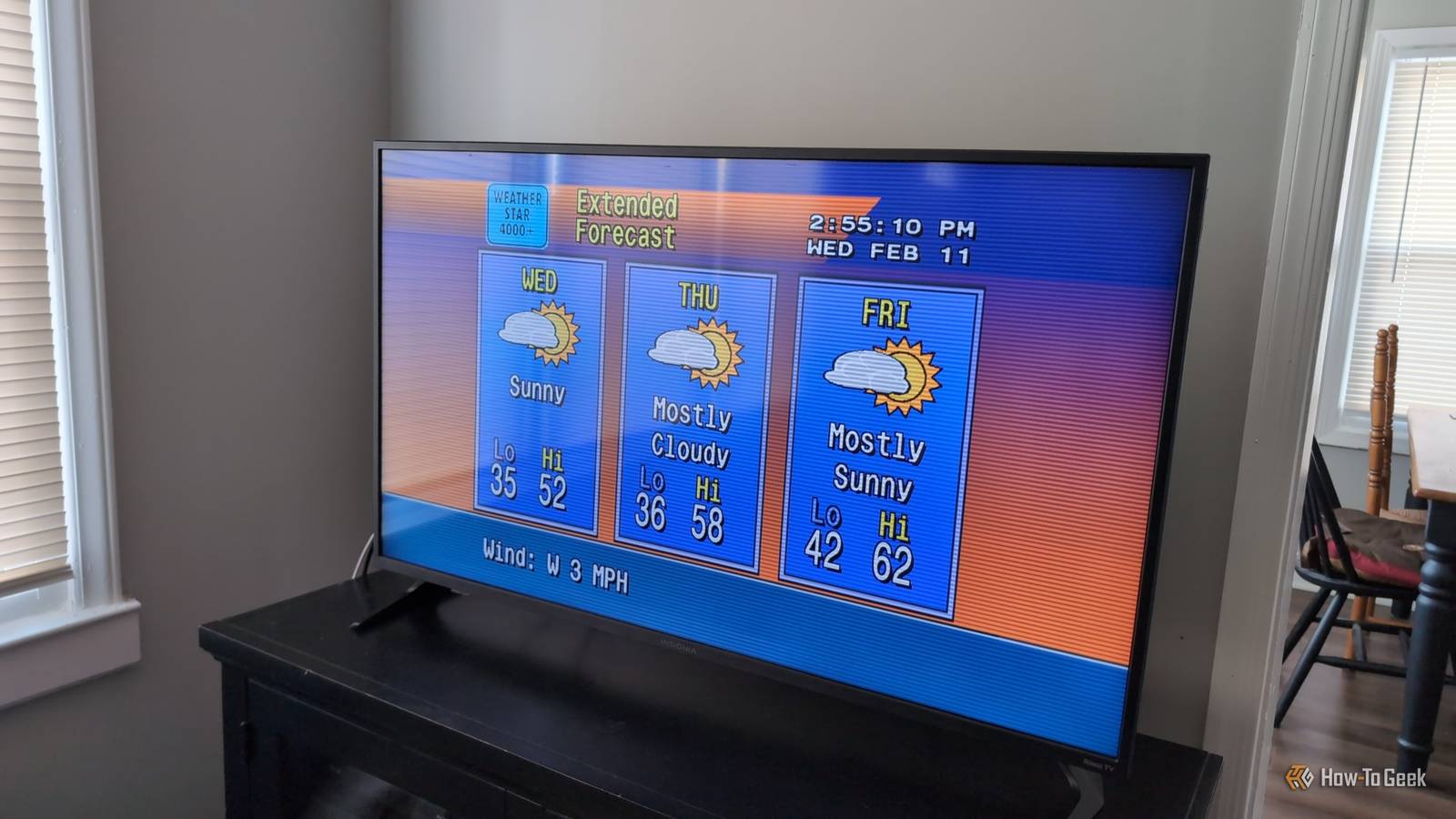
Back before we could check the weather forecast with our phones or computers, we used to be able to check it by turning on the TV. The Weather Channel’s automated local weather info would tell you what you needed to know while playing a smooth jazz musical number. I was able to bring that back in my homelab.
This self-hosted app gave me a retro weather stream
There’s a free and open source project called WeatherStar 4000+ whose sole purpose is bringing back that familiar experience of watching “Local on the 8s” programming. You may not be aware, but the underlying technology that generated those local forecasts was called WeatherStar 4000, and the goal of WeatherStar 4000+ is to simulate that functionality while also extending it and letting you control the experience.
A WeatherStar 4000+ server is able to retrieve and display local weather data pulled from NOAA, including multi-day forecasts, hourly forecasts, radar, an almanac, regional temperature and wind reports, and more. Using the web interface, you can easily control which ones appear in the video loop, and while it comes with royalty-free music, you can also configure other music to play.
If you want to use it without self-hosting, you can actually try the WeatherStar 4000+ demo. It’s fully functional, but you won’t be able to customize and manipulate it like you can a self-hosted instance.

How I built my own command-line weather app with Python
I never thought it would be so easy!
Installing and running WeatherStar 4000+ is easy
There are several ways to install and run WeatherStar 4000+. The simplest method I found was to install a “static” instance via Docker, which essentially provides the application framework for the service and your web browser handles the rest.
On a device with Docker installed, just run this Docker command to get it up and running:
docker run -p 8080:8080 ghcr.io/netbymatt/ws4kpAfter it starts running, you can just head to http://localhost:8080 if you’re on the same device you installed it on, or type in the IP address of the device that’s running it, followed by the port section of the URL, :8080. It will look similar to this:
http://192.168.1.131:8080/You’ll instantly be brought to a stream where you can type in a zip code or city and start watching your local weather forecast in retro style.

If you scroll down, you can see a bunch of checkboxes to toggle various features and tweaks you might want or not want. You can even insert your own custom text to appear at the bottom of the screen along with other weather updates. It also claims to support RSS feeds to display live headlines instead of just plain text, though I personally couldn’t get that functionality to work on my system.
When you have WeatherStar 4000+ configured how you like, click the “Get Permalink” button to generate a URL you can paste into another browser or bookmark. The permalink saves all your settings so you don’t have to repeatedly configure it every time you open WeatherStar 4000+.

For a more advanced and more efficient setup, you can install a complete WeatherStar 4000+ server, which handles all API calls while delivering multiple streams using cached data. Check out the WeatherStar 4000+ Docker deployment documentation to learn how to do that.
How I got it on my TV
So what if you want to watch your WeatherStar 4000+ stream on your TV? The simplest way I found was to get a browser app on my Google TV, type in the address of my server, and click the full-screen toggle. It’s admittedly not as seamless as just changing the channel or selecting an app on your home screen, but it’ll get you there.
If you’re willing to do more technical setup, it’s possible to make your WeatherStar 4000+ stream appear as a live TV channel for media servers with TV connectivity like Plex or Jellyfin. You can check out the ws4channels GitHub repo to learn the details of how it works and all the different ways to set it up. Personally, I was able to get it running by pulling the Docker image:
docker pull ghcr.io/rice9797/ws4channels:latestThen, I ran this command, making sure to replace your_zip_code, ws4kp_host, and ws4kp_port with my zip code and the IP address and port number of my WeatherStar 4000+ setup, respectively.
docker run -d \
  --name ws4channels \
  --restart unless-stopped \
  --memory="1096m" \
  --cpus="1.0" \
  -p 9798:9798 \
  -e ZIP_CODE=your_zip_code \
  -e WS4KP_HOST=ws4kp_host \
  -e WS4KP_PORT=ws4kp_port \
ghcr.io/rice9797/ws4channels:latest
From there, if you’re following, you’ll have to look up the instructions for adding live TV channels to your self-hosted media server. On Jellyfin, I needed to supply an M3U playlist, which can be found at the IP address of the device running ws4channels with :9798/playlist.m3u attached at the end. To get a channel guide, you’ll need the same but with :9798/guide.xml attached.
Some limitations to know
WeatherStar 4000+ is built to work with NOAA specifically. That means that folks outside the US will have to look elsewhere to get a similar setup. Specifically, there’s an international version of WeatherStar 4000+ on GitHub you might want to check out.
Additionally, which specific kinds of forecasts and informational screens are available depends on the availability of data in your selected area. If some data isn’t loading, you may want to try entering a nearby city or zip code instead.
Be sure to read through the WeatherStar 4000+ read-me on GitHub since it has a ton of documentation on fine-tuning the experience with things like original music and optimizing for mobile devices.

How Retro Enthusiasts Are Upgrading CRT TVs With RGB Mods
It all sounds like alphabet soup.
