


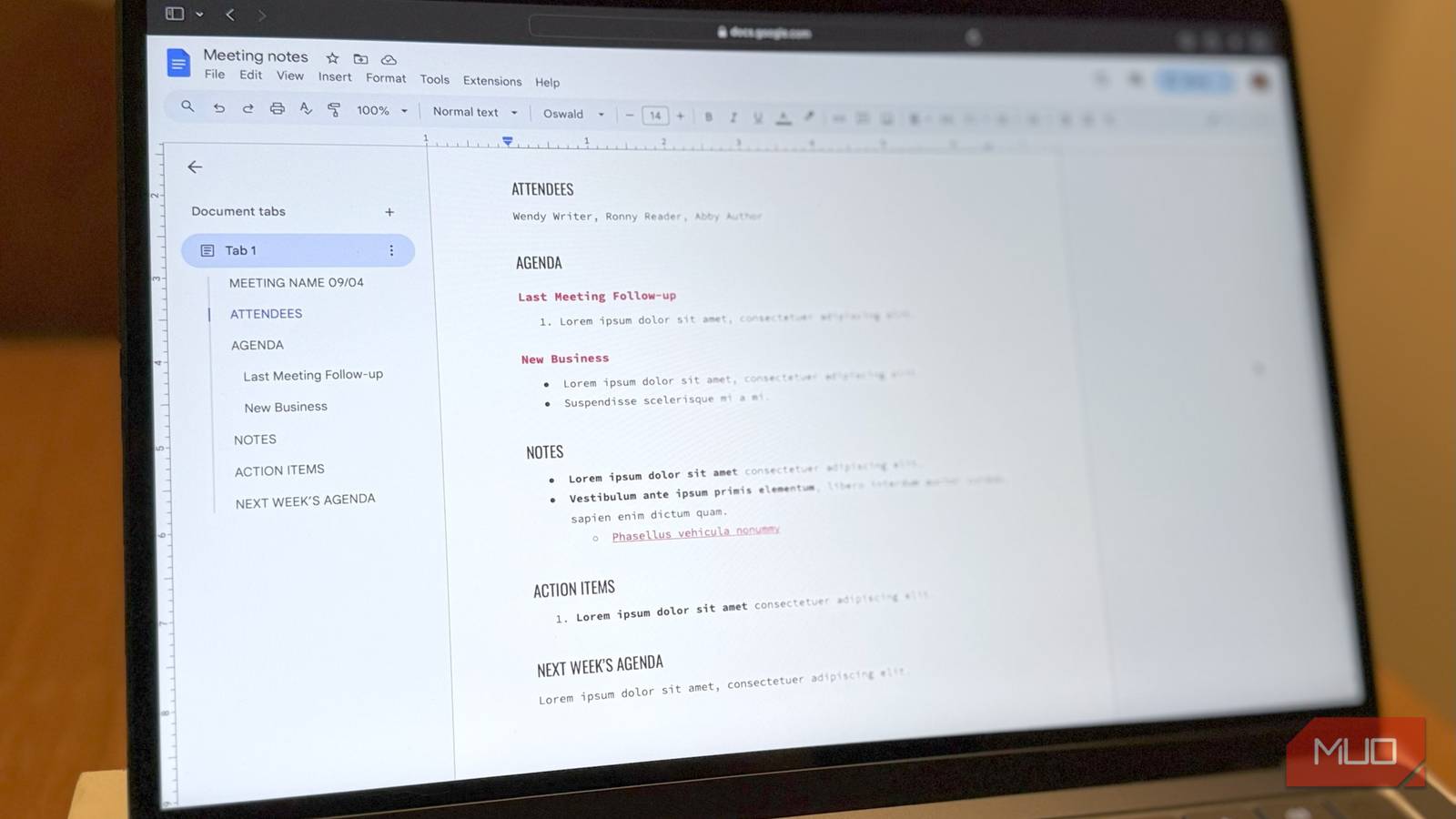
Google Docs is convenient, but convenience only gets you so far when you write for a living. It is intentionally minimal, which also means many features serious users rely on are either missing or underpowered. And when you use Google Docs every day, those small limitations stop being small.
The lack of native dark mode strains your eyes at night. The built-in spelling and grammar tools feel bare-bones. And there’s no real way to understand how productive you’ve been beyond a raw word count. All of this used to frustrate me until I found a few Google Docs extensions that fixed these problems.
A night mode that Google Docs should have had
I don’t know about you, but I use dark mode pretty much everywhere. Apps, browsers, code editors, and even my phone live in dark mode. That’s why one of my biggest annoyances with Google Docs has always been the lack of a dark mode. It makes the whole writing experience jarring, especially when I switch between tabs or use Google Docs side by side with my research.
The DocsAfterDark extension fixes that. It brings a clean, comfortable dark theme that almost feels native. I can just enable the extension from the toolbar, and it applies to every Google Docs document automatically. If I only want to use it in a specific document, I can click the smiley icon in the bottom left corner instead.
Everything, from the page background to the Google Docs toolbar, goes dark, and the text flips to white. If the default black and white dark mode feels too harsh, I can also tone things down by switching to a grey variant. And if that’s not quite right, there’s also the option to apply custom page backgrounds.
I can apply the dark mode to the entire interface or just the toolbar and keep the writing page in light mode, which is perfect when I want to write without distractions. One small caveat with DocsAfterDark is that it doesn’t work on the Google Docs homepage for some reason. It only kicks in once you open a document.
Catching mistakes Google Docs misses

Google Docs already has a spelling and grammar checker, but let’s be honest, it’s basic at best. It catches obvious typos, sure, but it doesn’t identify awkward phrasing, tone issues, and the kind of mistakes that chip away at good writing. Grammarly is a popular choice here, but I have my reasons for not using it.
LanguageTool is an open-source tool that works as a real-time writing assistant inside Google Docs. As I type, it underlines grammar mistakes, awkward phrasing, and even subtle style issues that Google Docs’ basic spell checker completely ignores. Its Picky Mode is great for adjusting the text for style and tonality.
Like most things in 2025, LanguageTool also has a bunch of AI features, and thankfully, they’re actually useful. I can double-click a word, and it instantly suggests synonyms for it, and from the same menu, I can also ask AI to rewrite the sentence in a specific tone.
Of course, LanguageTool isn’t limited to Google Docs. It works on all websites, be it Gmail, WhatsApp, or Notion. One feature I didn’t expect to rely on so much is text snippets. I use them for commonly repeated phrases, templates, and responses, which saves me a lot of time and effort.
The free plan is generous enough to offer up to 10,000 characters. But if you write a lot, you may need the premium plan, which goes for $4.99 a month.

The 7 Google Docs Shortcuts Everyone Forgets But Shouldn’t
Your mouse will get lonely if you use these.
Measure more than just word counts
As someone who makes a living off writing, knowing how much I actually write matters. It’s not just about motivation. It’s how I track my productivity and figure out whether I’m realistically going to hit a deadline. Writing Habit is a Google Docs add-on that helps me with that. It’s focused entirely on writing analytics.
Once enabled, it tracks how many words I’ve written across all my documents. Beyond raw word counts, it also measures active writing time, words per minute, and overall writing pace. That distinction matters because there’s a big difference between having a document open and actually writing.
One of my favorite features is goal forecasting. Based on how much I’ve written so far and the writing speed, Writing Habit can estimate whether I’m likely to hit my target.
It also keeps a 180-day history of writing analytics and shows it in a clean graph view. This makes it easy to determine how well I’m doing and how much I’ve improved over the past few months. And for a writer, that kind of insight is incredibly valuable.
Google Docs is where most of my writing happens, but it’s never been perfect. However, these extensions help me fill the gaps and turn Google Docs into a tool that I genuinely enjoy using.
