


TikTok LIVE is a blank canvas that creators and brands have adopted in different ways. Some creators stream games as they would on Twitch. Others perform or create content in real-time on the platform.
Going live on TikTok can help you increase your engagement, reach new audiences, and grow your following.
It’s also a great way to start monetizing your TikTok presence through TikTok Gifts.
If you’re curious about how to go live on TikTok, you’ll need to meet some requirements for TikTok LIVE access:
- Have 1,000 followers, and
- Be older than 16 (18 if you want to monetize)
Once you’re there, you’re ready to start streaming!
In this article, I’ll explain how to go live on TikTok and start connecting with your audience in a new way. First, let’s get the most common question out of the way:
Can I go live without 1,000 followers?
Officially, you need 1,000 followers to go live. However, you can request access through TikTok’s support if you meet other eligibility criteria.
⚡
Why TikTok LIVE is a great way to grow your following
If you’re new to TikTok — or looking to grow your following and engage with your TikTok audience — going live is a good option. It provides a genuine way to connect and can help you find your creative voice on the platform.
TikTok LIVE are displayed to audiences in several unique areas on the app, which means your lives are far less likely to get lost in the noise of the regular TikTok For You Page or Following feed.
For one thing, if you’re a regular TikTok user, you’ll have noticed more lives popping up on your For You Page. The TikTok algorithm seems to be surfacing lives more and more, which means your lives may have a better chance of being shown to more users than regular videos.
On top of that, creators who are currently live get pride of place in the TikTok inbox, with a little pink circle around their profile pictures.
Anecdotally speaking, I tried TikTok LIVE as part of my 30-day TikTok experiment and managed to reach more than 200 completely new people during the random, impromptu coworking session.
While a little intimidating at first, it ended up being really fun! I had some interesting conversations with people who tuned in and netted a couple of new followers, too. It also didn’t require much effort or planning on my part — far less work than my usual content, at any rate — which meant the process offered more bang for my buck in terms of following and engagement.
Key takeaway: Going live regularly gives you more chances to connect with new followers and deepen relationships with your audience.
How to go live on TikTok: 3 ways to stream to your followers
Before we get into the step-by-step guide to how to go live on TikTok, it’s worth noting that there are now three different ways to live stream on the platform:
- Via the TikTok app on your phone
- Via mobile gaming mode (for mobile gamers looking to stream their sessions)
- Via the TikTok LIVE Studio desktop app
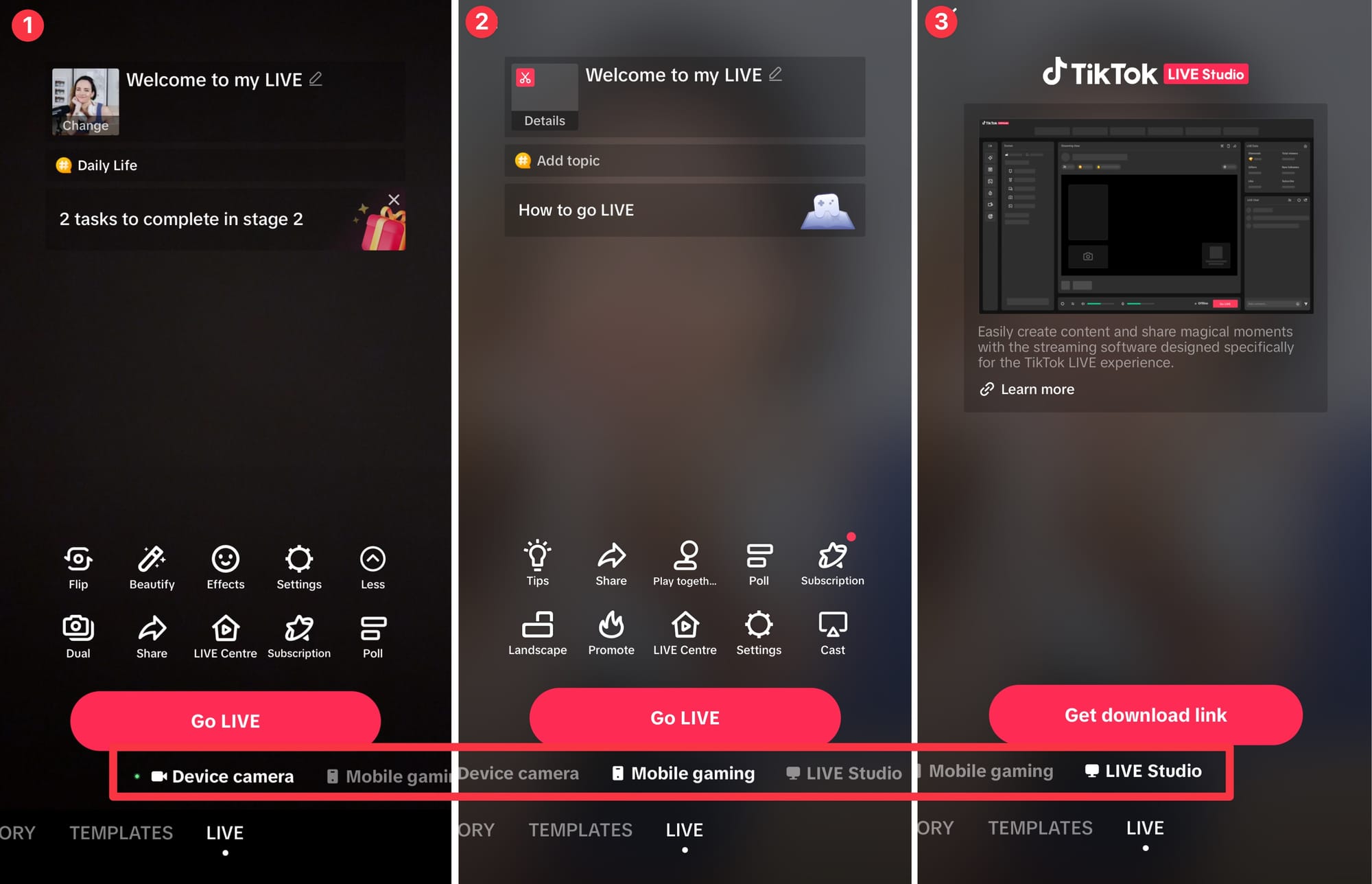
If you’re just starting out (and you’re not a gamer), I recommend trying TikTok LIVE on your phone with the TikTok app first.
💡 Key takeaway: TikTok gives you multiple ways to go live, so you can choose the method that fits your content and audience best.
1. How to go live on TikTok on your phone (the easiest way)
- Open the TikTok app and tap on the + icon at the bottom of the screen.
- Swipe to select the LIVE option on the home screen.
- Add a live title and choose any filters, effects, or features you’d like to use. (Check out the list below to see the many options available.)
- Tap Go LIVE.
- To exit the live stream, press the X at the top-left corner of the screen to stop recording.
All the options, features, and settings you can choose on TikTok LIVE
Here’s a rundown of the most useful things you can do before you start your TikTok LIVE (pretty much all of these options will be available to you if you choose TikTok LIVE Studio or the mobile gaming route, too).
The numbers below correspond with those on the screenshot, so you know exactly where to tap to access them.
- Check your weekly Scaled LIVE Rewards targets.
- Take part in TikTok LIVE Campaigns.
- Access the TikTok LIVE Center to see all your analytics and earnings.
- Flip to your front or back camera.
- Change your appearance.
- Add effects.
- Tweak your settings (use LIVE practice mode, add an ‘About me’ message that will be pinned to your live, add moderators, turn comments on or off, and a whole lot more).
- Start or interact with your Fan Club (read more about TikTok LIVE Fan Clubs here.)
- Join TikTok Service+ (a way for professionals to offer services like consulting and coaching, or find clients — learn more about TikTok LIVE Service+ here)
- Set up to 20 Viewer Wishes, use playbook templates, or create polls.
- Share your live link on other channels.
- Boost your live in the feed by paying for promotion.
- Change your title and profile picture.
- Set a gift goal for your live.

💡 Key takeaway: Going live on mobile is the fastest way to connect with your followers on the go. You can experiment with different filters or effects to create unique live experiences.
2. How to go live on TikTok with mobile gaming mode
- Open the TikTok app and tap on LIVE
- Choose ‘Gaming’ from the category options
- Make sure to tap the Add topic button below your live title and photo to choose your game.
- Tap Go Live to start streaming your gameplay
Pro tip: TikTok will stream all the action directly to the app (and anything else you do on your phone, so make sure to turn off notifications if you don’t want personal messages appearing during your live stream.)
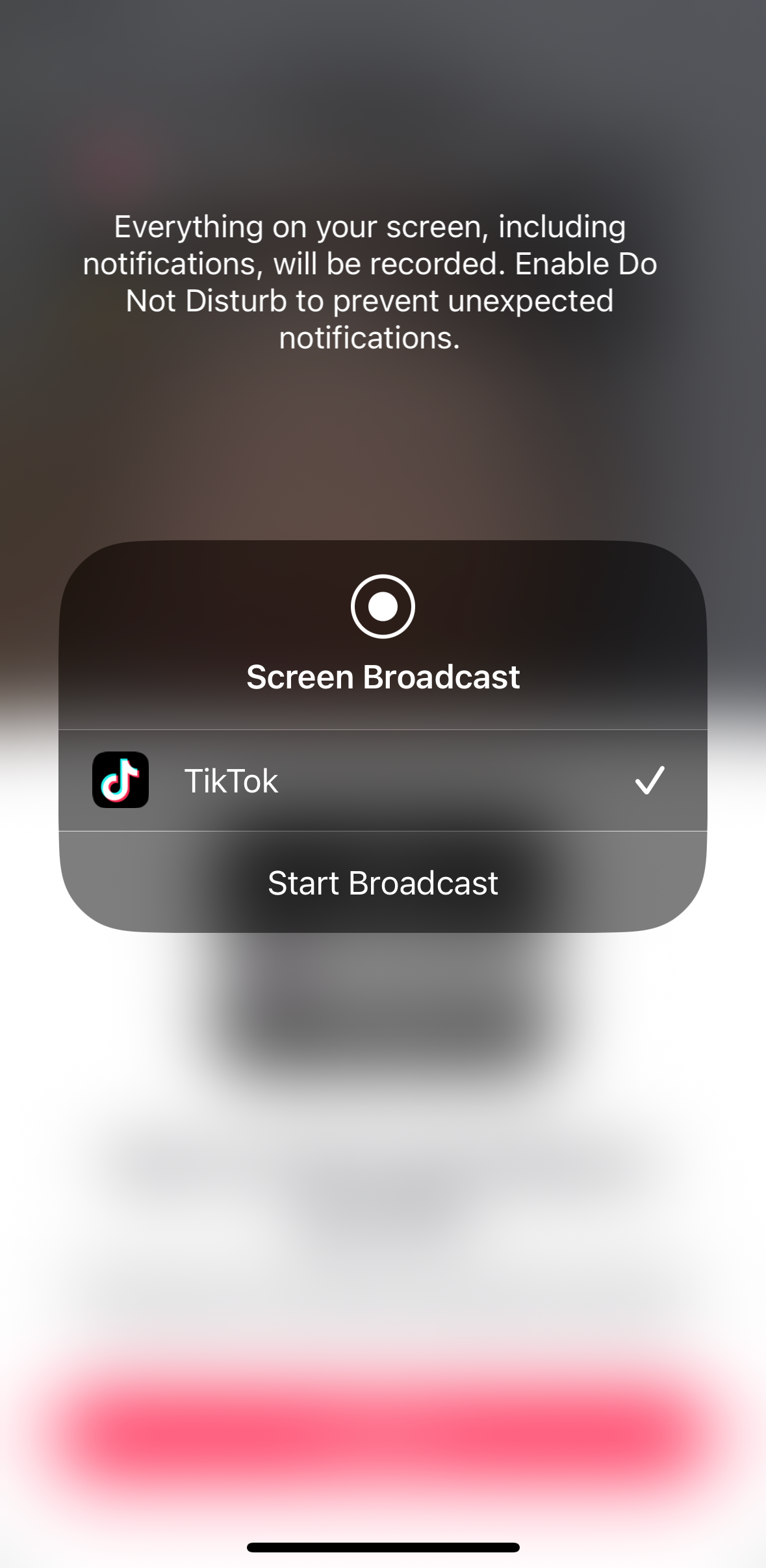
💡 Key takeaway: Gaming mode allows you to connect with fellow gamers in real time. Engaging with viewers while you play can help boost viewer loyalty.
3. How to go live on TikTok with TikTok LIVE Studio on your computer
Before we get into it, note that you can only run TikTok LIVE Studio (the official Windows-based livestreaming software, similar to Twitch) on a Windows PC. Mac support is only currently available in Beta.
Here’s how to go live on TikTok using your computer:
- Download TikTok LIVE Studio here (Windows only).
- Install the tool and log in with your TikTok account.
- Click the beginner’s Set up now button to walk through all necessary setup steps (highly recommended, no matter your skill level).
- Select your camera and microphone, and run an internet speed test to confirm your connection is strong enough for streaming.
- Choose your quality settings — you can prioritize video quality or PC performance, and Live Studio will make a recommendation.
- Pick your ‘Scene’ (landscape or portrait mode), and select a theme that matches your brand or stream style.
- Explore the TikTok LIVE window to get comfortable with the available settings.

Pro tip: For questions or troubleshooting, check out TikTok’s Help Center or find video walkthroughs from creators like TikTok LIVE With Harry.
💡 Key takeaway: TikTok LIVE Studio is a powerful option for creators who want more control over their live streams.
TikTok LIVE: Tips and best practices
If you want your content to stand out amongst the thousands of other live videos and streams going on at any given moment, you’ll need to be strategic with your live streams.
Here are some tips to consider to keep your live stream interesting and engaging:
Choose the right time
Pick a time when your audience will be most active for your live streaming. TikTok’s analytics are pretty robust and help you track follower activity. With this feature, you can see what times and days your followers are most likely to view your content.
To view this data, click on TikTok Studio > Analytics > Followers, then scroll down to Most active times to see when most of your followers are online. (Or check out our guide to TikTok Studio for the most important TikTok metrics).
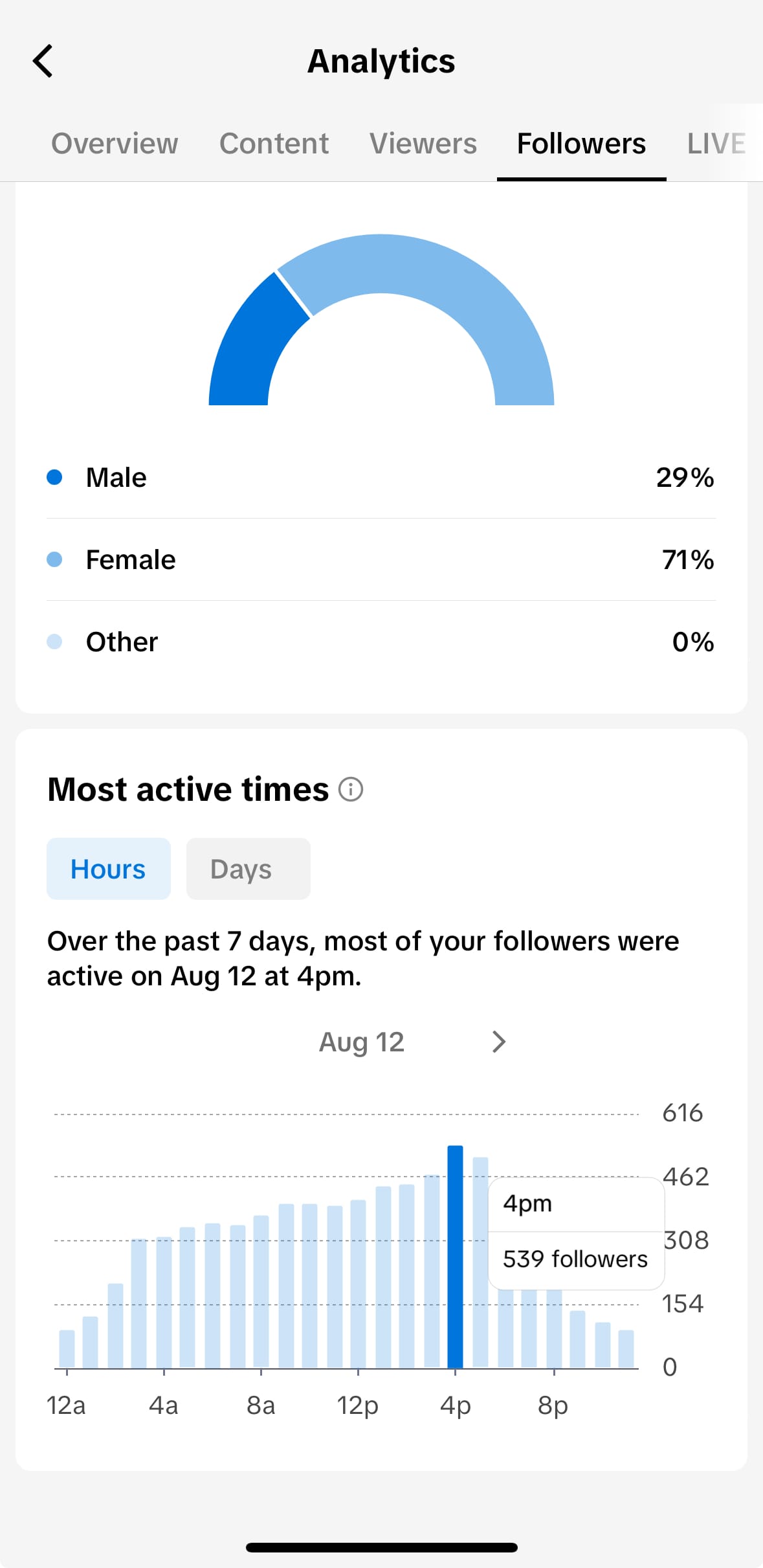
Our TikTok research data may also be helpful here — check out the best times to post on TikTok.
Consider the best length
You can go live for about 60 minutes, but TikTok recommends keeping your streams to 30 minutes.
Post consistently
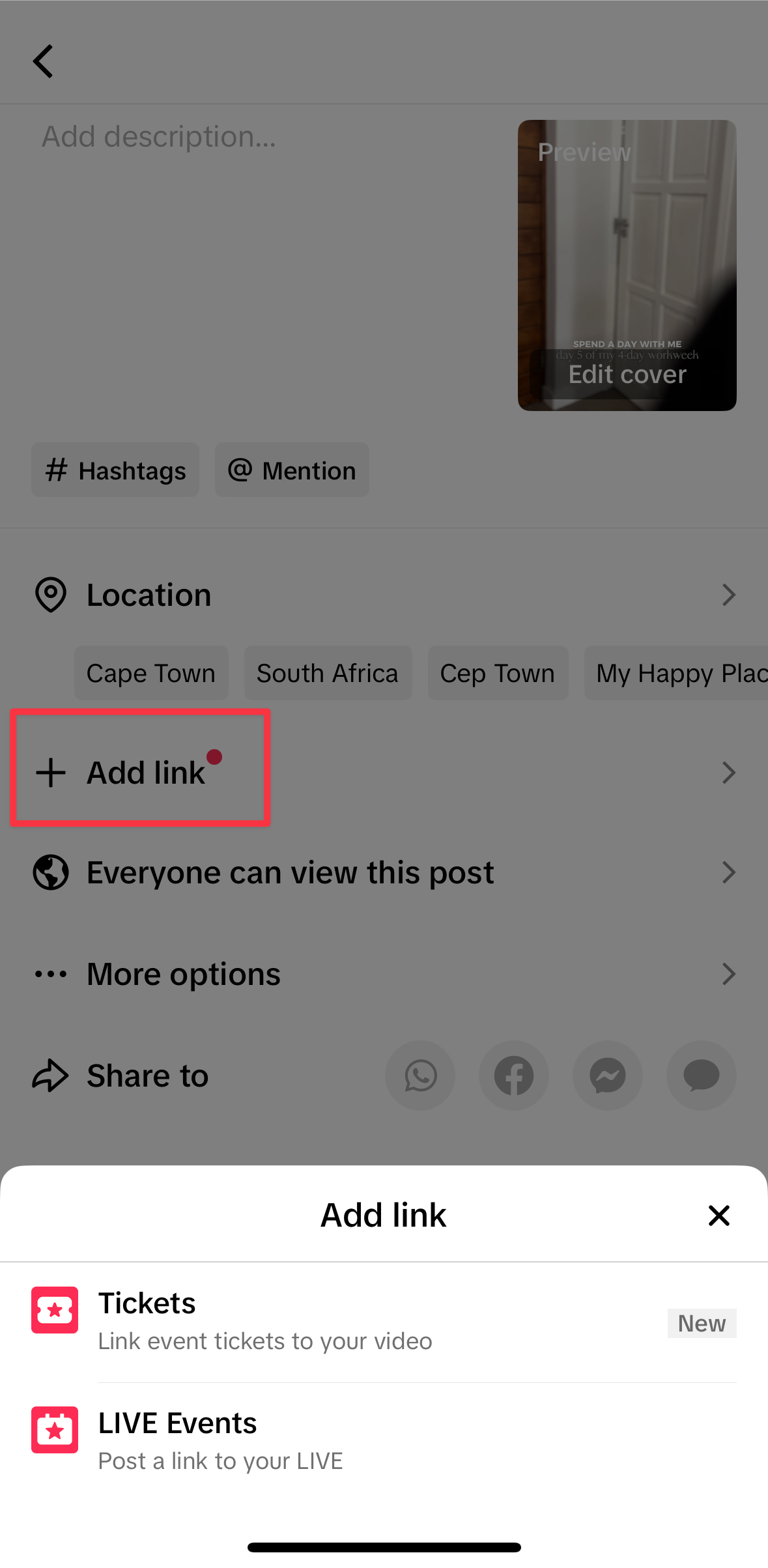
Having a recent video on your followers’ For You or Following page means that they will see a special icon that lets them enter your stream directly. It’s even better if this video shows you telling them when you’ll be going live — you can even choose to add a scheduled TikTok LIVE link to your post by choosing the +Add link option.
Set up good lighting
Film in a well-lit area with natural lighting, or consider using a ring light. This helps keep your viewers’ attention on you, not distracted by not being able to see well.
Have a good internet connection
Check your Internet connection beforehand to make sure it’s good so you can avoid interruptions to your streaming.
Have a plan or guidelines
While you don’t need a script, it is beneficial to have a solid set of guidelines — and scheduling your session in advance with TikTok LIVE Events — to stay focused on your live stream.
Engage your audience
The best part of TikTok LIVE is being able to interact with your followers in real time. Keep an eye out in the chat and respond to comments, questions, or requests to really connect with your viewers.
You have the option to filter comments, mute viewers from commenting, and block someone from the live stream if you need to.
5 ideas for your next TikTok LIVE
Whether it’s through behind-the-scenes content, Q&As, or promoting products, the opportunities for TikTok LIVE are endless.
From brands to creators, here are some ideas to use when you go live on TikTok.
1. Answer audience questions
TikTok LIVE is an ideal way to engage your audience and answer their questions. If there are questions that come up frequently in the comments, go live on TikTok to answer them! It’s the perfect opportunity to interact in real time with your followers and give them answers.
So, if you’re launching a new product or collection, or just want to connect with your audience, opening up for questions in real time on your live stream can help you build strong relationships with your audience.
2. Host live shopping sessions
Although the feature isn’t available to everyone yet, getting acquainted with TikTok LIVE can give your brand a leg up.
Live shopping will allow brands to integrate the products they share on their TikTok Shopping tab into a live session. This feature connects brands with their audiences in real time while also helping users buy what they discover while watching a brand’s stream. Leverage live shopping to give your audience more opportunities to engage with and shop from your brand.
3. Show people behind the scenes
An easy idea to execute for TikTok LIVE is showing what goes on behind the scenes at your office or in a creative process. It allows you to be more transparent with your audience and give them a peek at what it takes to create content or make a product.
4. Fulfill audience requests in real-time
Taking audience requests for creative projects when you go live on TikTok is also a good way to engage and grow your following. Several creators have taken advantage of this format to create personalized items on camera and ship them to their active followers.
You can simultaneously reward your followers while encouraging them to participate in your lives or buy your products.
5. Collaborate with a brand or creator
TikTok LIVE allows you to bring someone “on stage” with you, opening the door for multiple opportunities for collaboration. Creators can work with brands and vice versa on Live interviews, sponsored content, or takeovers, which are popular on Instagram.
💡 Key takeaway: There are endless ways to use TikTok LIVE, from Q&As to product launches, so get creative and make it your own.
Live streaming on TikTok can help you find new followers, increase brand awareness, generate leads, and even drive sales.
But more importantly, it lets TikTok users connect with your community and engage with them on a more intimate level — a level of authenticity that TikTok users have come to expect on the platform.
More TikTok resources
FAQ about TikTok LIVE
What are the requirements to go live on TikTok?
To go live on TikTok, you must have at least 1,000 followers, be at least 16 years old, and comply with TikTok’s Community Guidelines.
Can I go live on TikTok with fewer than 1,000 followers?
Officially, no — TikTok requires 1,000 followers. But if you’re super keen to try, you can request access through TikTok’s support if you meet other eligibility criteria.
How do I go live on TikTok using my phone?
Just open the TikTok app, tap the + icon, swipe to LIVE, add a title, choose filters or effects, and hit Go Live. You can even invite up to five guests or use dual camera mode for extra creativity.
Can I live stream gameplay on TikTok?
Yes, TikTok has a mobile gaming mode specifically for gamers. Select Gaming when going live, connect your game feed, and stream directly to your audience while interacting in real-time.
What is TikTok LIVE Studio?
TikTok LIVE Studio is a desktop app that lets creators stream from their PC. It gives you more control, like setting scenes, customizing quality, and using advanced settings — perfect for professional streams or PC/console gamers.
Why should I go live on TikTok?
Going live is a powerful way to grow your following. It helps you connect with your audience authentically, boost engagement, reach new viewers, strengthen community and loyalty, and potentially monetize your content.
