


There was once a time when you could avoid buying a smart TV, but that’s no longer true. While convenient and packed with streaming apps, smart TVs are also filled with ads and tracking technology that monitors how you use your device, what you watch, and more.
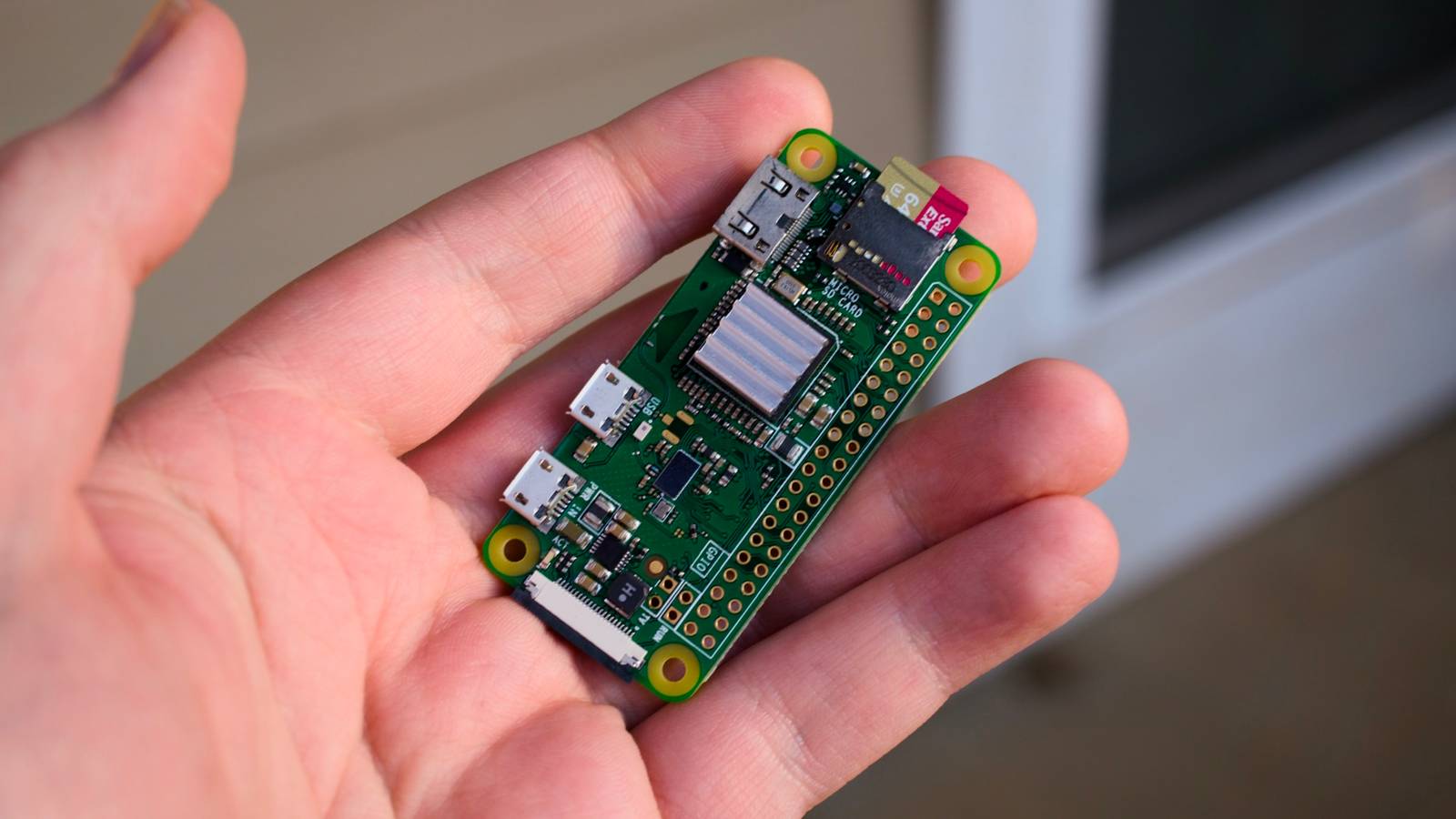
But don’t worry, with a cheap single-board computer like the Raspberry Pi, you can defeat the trackers without compromising your experience.
Your smart TV is tracking you
Your TV is much more than a flat screen panel and a couple of underwhelming speakers. There’s a whole computer in there for upscaling content, watching streaming services, and even observing how you use your TV. This data isn’t just useful to the people who manufacture televisions; it has value and can be sold or used to sell you things.

Your TV might even display adverts from time to time, appearing as small pop-up app suggestions or full-blown banners for products that advertisers think you might be interested in. The better they can track you, the better they can serve you adverts.
The most insidious form of tracking is Automatic Content Recognition (ACR), which works across sources and inputs to analyze the content being displayed on your TV. You can turn this off on most TVs, but differences in models and software versions can make it tricky to find all of these options.
Thankfully, there’s more you can do.
Use Pi-hole to block tracking, network-wide
Pi-hole is a network-wide content blocker that limits tracking and advertisements by restricting domain name system (DNS) requests. It runs locally on your network and manages all DNS requests made by any devices that are configured to use it. Despite the name, Pi-hole is available for a range of operating systems, though it’s well-suited to low-power devices like the Raspberry Pi, even the Pi Zero W and older models.
To get started, you should first configure your Raspberry Pi to use a static IP address. The easiest way to do this is using your router’s control panel. You’ll need to know how to access your router (try 192.168.0.1 for starters) in a browser, plus you’ll need to be able to reserve a specific IP address for your Raspberry Pi.
To get your Raspberry Pi’s MAC address, open a Terminal window within Raspberry Pi OS and run the nmcli -o device show command. Look for the GENERAL.HWADDR: field to find your MAC address (it will look like A1:B2:C3:D4:E6:F7).
You can now head over to your router control panel and set up a new DHCP rule to reserve a specific IP address for your Raspberry Pi. Once you’ve done so, your Pi will always use this local IP, which means it will always be accessible via this address.

Now it’s time to set up Pi-hole. You can do this using a variety of different methods, all detailed over at the Pi-hole GitHub page. The easiest way is to open a new Terminal window and run the following command:
curl -sSL https://install.pi-hole.net | bash Now follow the instructions to set everything up. You’ll need to specify your network interface (if you’re connected wirelessly, use Wi-Fi), which upstream DNS provider to choose, whether to enable query logging, and what level of privacy you’re happy with (whether or not your Pi-hole instance can see the requests coming from connected devices). You can change these settings once everything is set up.

Finally, you’ll see a screen informing you that Pi-hole is installed and that you can use the provided IP address as a DNS server. You’ll also see a link to the Pi-hole admin page (at http://pi.hole:80/admin) to make changes and observe Pi-hole working in real time.

Finally, turn on your smart TV and find the network settings. You’ll likely need to choose manual network setup so that you can specify a DNS server. When prompted, enter your Pi-hole’s IP address and save. It may take a moment for the DNS change to filter through, but you’re now blocking advertising and tracking requests from reaching their destination.
Be aware that your Pi-hole instance will need to be online for this to work. If it goes offline, your smart TV’s DNS requests will all fail (even the good ones).
Alternatively, you can try to turn your smart TV into a dumb TV by never connecting it to the internet. If you’ve already connected it to the internet, you can wipe your network settings or remove the network cable from the back. Consider updating the firmware before you go fully dark.
Not having an internet connection on your smart TV prevents you from being able to use any of the built-in apps or services, app stores, or from receiving future firmware updates. It also breaks tracking and advertising completely, since there’s no pathway to transfer data.

You can build a media center with a Raspberry Pi fairly easily. Kodi is a local media center that can integrate with a broad range of internet sources, local network shares, NAS drives, cloud storage, and more. You can install Kodi on your Pi easily by opening a new Terminal window and running the following command:
sudo apt-get install kodi Your Raspberry Pi will need to be connected to your TV via HDMI for this to work, and you’ll need some means of controlling it (like a game controller, wireless keyboard, or Bluetooth remote). The Logitech K400 Plus is a combined keyboard and trackpad that’s perfect for this sort of setup.
For streaming services, consider using a browser like Chromium. It enjoys broad compatibility with the likes of Netflix, Disney+, and Apple TV. Alternatively, Stremio is available as an operating system (Stremio OS) that can be installed on a microSD card and booted directly on a Raspberry Pi. You’ll need a Raspberry Pi 5 or later for smooth playback of 4K content.
Both of these solutions will prevent your smart TV from tracking you or sending you advertisements. Once you’ve set up a Pi-hole, you can use it with other devices on your network to block nasties everywhere you go. You might even want to set up a second Pi-hole instance, in case something happens to the first.
