


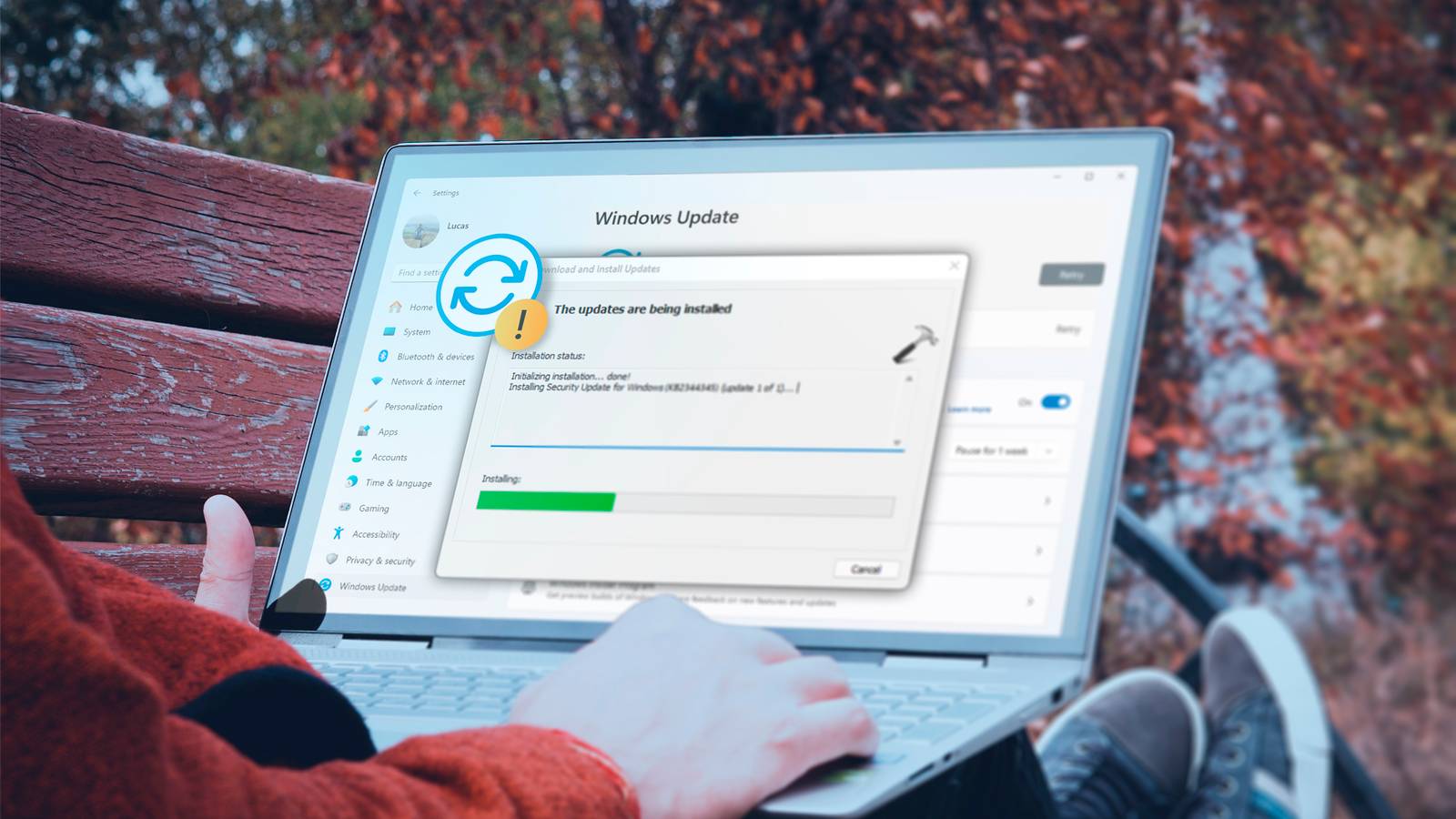
Windows updates are meant to improve system stability, but sometimes after installing them, Windows may roll them back the next time you restart your computer. You might even see an “Undoing changes to your computer” message during the reboot. Here’s how to identify the cause of this issue and fix it.
Ensure the problem isn’t with the update itself
Microsoft occasionally releases updates that turn out to be buggy and can create system issues. When this happens, your PC may attempt to install the update, fail after installation, and then revert the changes every time you restart. Before troubleshooting your system, confirm whether the update that keeps reverting is faulty on its own.

First, install the update and note its KB number. Open the Start menu, type View update history, and click the matching result. Find the most recently installed update, note its KB number, and search for it on the Microsoft Update Catalog or Windows support forums. If other users are reporting the same issue, then the update is likely the problem—not your system.

In that case, the best solution is to pause Windows Updates until Microsoft releases a fix. But if the issue seems isolated to your device, proceed to the next troubleshooting steps.
Apply some preliminary fixes
Before moving on to major fixes, try these preliminary steps, as they may resolve the issue quickly without taking much time or effort:
- The update may have reverted due to a temporary glitch. Try reinstalling it to see if it happens again, or it was a one-time hiccup.
- If you have any removable media, such as a USB drive or memory card, connected to your computer, unplug it, as it might interfere with the system.
- Low storage space can also cause updates to fail or revert. If the drive containing your operating system is running low on space, free up some storage space.
- Boot your computer into Safe Mode and attempt the update there. If the problem doesn’t occur, a driver or service conflict could cause the issue.
Repair corrupted system files
Windows updates may fail or revert if system files are damaged or missing. If the above preliminary checks don’t resolve the issue, your next step should be to repair any file corruption. Windows provides two built-in tools for this: System File Checker (SFC) and Deployment Image Servicing and Management (DISM).
SFC scans your system for corrupted or altered files and restores them to their correct versions, while DISM addresses deeper issues with the Windows image itself. To run an SFC scan, type Command Prompt in Windows Search, right-click it, and select “Run as Administrator.” Then enter the following command and follow the on-screen instructions:
sfc /scannow
If SFC doesn’t fully resolve the issue, use DISM by running the following command:
DISM /Online /Cleanup-Image /RestoreHealth

After completing these scans, restart your computer and try installing the update again. If corrupted files were causing the issue, this should resolve it.
Update or uninstall problematic drivers
Driver conflicts can also cause a Windows update to revert. Once you’ve repaired any corrupted system files, you should check for outdated or problematic drivers. Right-click the Start button and open “Device Manager,” and look for devices with a yellow warning icon (exclamation mark), which indicates a potential issue. Right-click the device and select “Update Driver” to update it.
If updating the driver doesn’t fix the problem, right-click and select “Uninstall Device.” After that, restart your computer, and Windows should automatically install a compatible driver.

To identify drivers that may be causing the update failure, go to “Update History,” expand “Driver Updates,” check for any recently installed drivers, and reinstall them from scratch.

Reset Windows update components manually
Windows updates can sometimes revert if the update components themselves become corrupted. Resetting the update cache or components often resolves the issue. To do this, type PowerShell in Windows Search, right-click it, and select “Run as Administrator.” Then, enter the following commands one by one to stop the essential update services:
net stop wuauserv
net stop cryptSvc
net stop bits
net stop msiserver

Afterwards, restart the update services with the following commands:
net start wuauserv
net start cryptSvc
net start bits
net start msiserver
Finally, close PowerShell and restart your computer. Once the reset is complete, try installing the updates again. This process should clear any stuck components and fix the problem.
Perform a clean boot
Sometimes, third-party services can interfere with Windows updates, causing them to fail or revert. Performing a clean boot can eliminate this possibility by starting your system with only essential Microsoft services and temporarily turning off any other services that might cause conflicts. To do this, press Win + R, type msconfig, and hit Enter.
In the System Configuration window, go to the “Services” tab, check “Hide All Microsoft Services,” and you’ll see only the remaining third-party services. Click “Disable All,” “Apply,” and “OK” to turn off all non-Microsoft services.

Once your PC is in clean boot mode, reinstall the problematic update. If the update goes through, pinpoint the problematic service and avoid turning it on in the future.
Following the fixes above should resolve the underlying issue and stop updates from reverting. If the problem persists, your next option is to use System Restore to revert Windows to a previous stable state. Should that still not resolve the issue, you can perform an in-place upgrade, which reinstalls Windows without affecting your personal files.
