


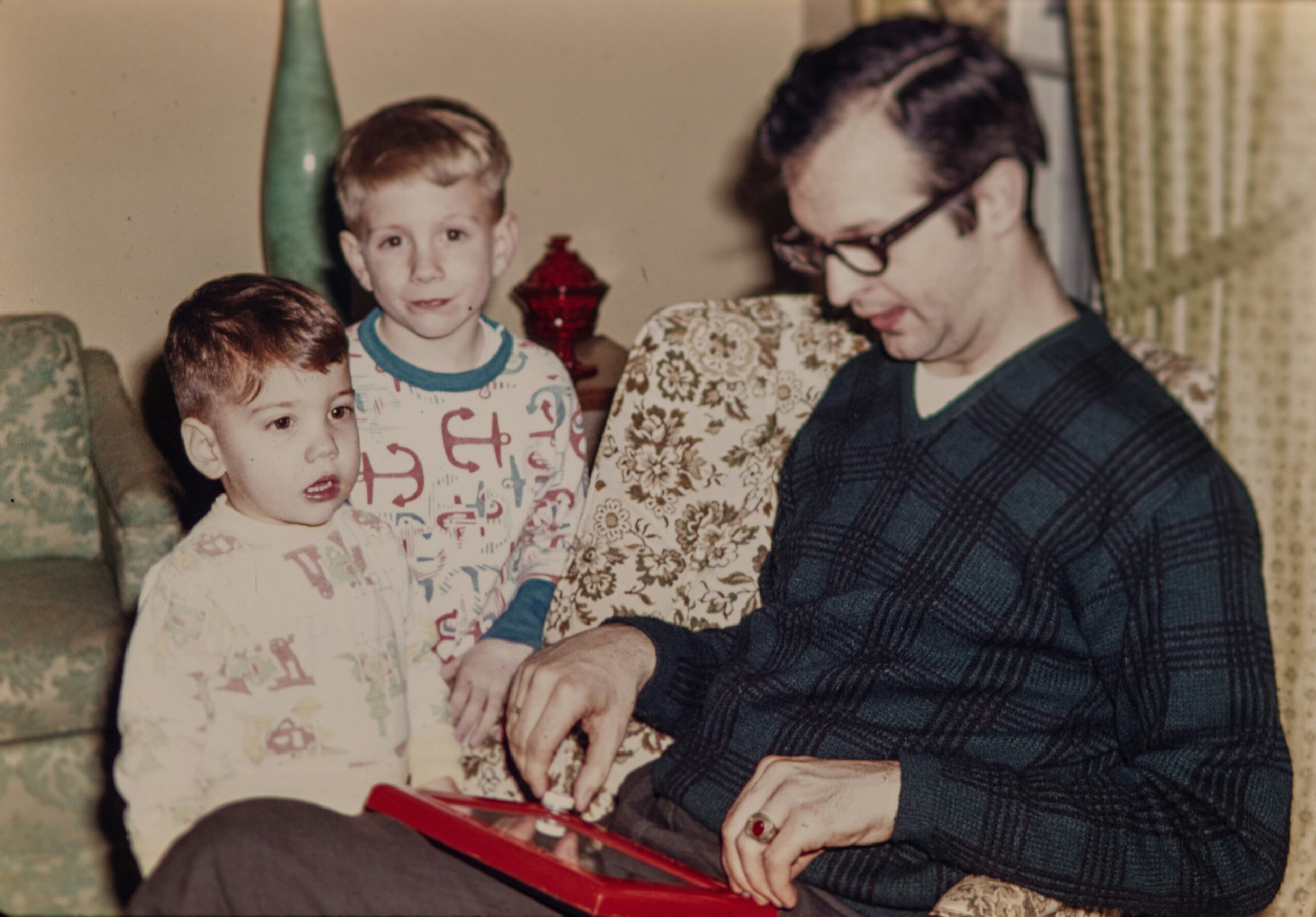
and History of the Etch-a-Sketch Tablet
The Etch-a-Sketch tablet was one of the most interesting toy creations of the late 1950s. The Etch-a-Sketch is basically a tablet look-alike; the red frame has a screen embedded in it and has two knobs. These knobs control the horizontal and vertical movements of a stylus behind the screen. This product quickly became a massive success, with over 1 million units sold within the first year. It was one of the inventions that would keep kids busy making drawings and having fun, and at the same time, promote cognitive development by enhancing fine motor skills, hand-eye coordination, and spatial awareness through knob-controlled sketching. It became so popular that it even got featured in movies like Toy Story.
Understanding the Project
In this article, we will use the Python Turtle Module to develop our own-style, digital version of the Etch-a-Sketch. This is a beginner-to-intermediate-level tutorial, which would require a basic understanding of Python fundamentals such as Python functions, loops, etc. Through coding this project, we will learn Python event handling, coordinates and movements, functions and loops, as well as consequential visual feedback. Moreover, we will also understand the concept of instances in object-oriented programming. This is an interesting implementation of the core concept of Python, and a fun way to learn programming through a visual project. Let’s get started!
Python’s Turtle Module for Visual Coding
In order to make an Etch-a-Sketch Application, we will need a visual representation of our code. This is where Python’s Turtle module comes into play. The turtle module is a part of the Python standard library, and allows one to draw on a 2D coordinate system through simple commands. The module alse supports keyboard input, behaving as a digital pen and thus making it ideal to simulate an Etch-a-Sketch.
The turtle module is based on a robotic turtle, which is given some commands that it follows and produces drawings accordingly. To use this functionality, we simply have to import the module into our code and then use the defined functions, which can be explored from the official documentation here.
The following is a few lines of code that import the module and use the most useful function to draw on the screen:
import turtle
turtle.forward(100)
turtle.right(90)
turtle.forward(100)
turtle.right(45)
turtle.forward(100)
turtle.exitonclick()
The forward function is used to move the cursor forward and takes the distance as an argument, whereas the right function turns the turtle’s head to the right by the angle that is given as an argument. More details of each function can be accessed through the official documentation.
The Turtle module also has object-oriented programming capabilities, which means that we can create objects from a given blueprint. The Turtle and Screen class can be used to create object instances to be used in our code. Let us create these:
my_pen= Turtle()
my_pen.width(3)
my_pen.speed(0)
screen = Screen()
screen.title("Etch A Sketch")
See how we have created a turtle object and called it my_pen from the Turtle Class that is a part of the Python Turtle Module. We have also created the screen object, which will allow us to visualise the pen movement as well as customise it according to our needs. We have also customised the width and speed of the pen, as well as named the screen.
Defining the Movement Functions
Next is to define the functions for the movement of our pen. Just like the physical Etch-a-Sketch tablet, which has 2 knobs, one for the vertical up and down movement, and the second for the horizontal left to right movement, we will define a total of 4 functions:
- Move Forwards: This will move the pen upwards, synonymous with the up movement in the original tablet.
- Move Backwards: This will move the pen downwards, synonymous with the down movement in the original tablet.
- Turn Left: This will move the pen to the left by a certain angle.
- Turn Right: This will move the pen to the right by a certain angle.
Let’s code the above as functions:
def move_forwards():
    my_pen.forward(50)

def move_backwards():
    my_pen.backward(50)

def turn_left():
    new_heading = my_pen.heading() + 10
    my_pen.setheading(new_heading)

def turn_rigth():
    new_heading = my_pen.heading() - 10
    my_pen.setheading(new_heading)
In the first two functions, we have straightforwardly used the turtle functions of forward and backward. In the horizontal movement functions, turn_left and turn_right, we have defined a new variable new_heading which is basically the angle by which the pen will turn. The new_heading takes the pen’s heading which is the current angle and adds 10 degrees in case of turning left and subtracts 10 degrees in the case of turning right. This angle will be stored as the new_heading which will act as an argument to the setheading function that sets the orientation of the pen by the angle given as the argument.
We will also define a function that will clear the screen. This function uses the turtle’s clear function which deletes the turtle’s drawing from the screen without affecting the state and position of the turtle. It will also return the pen’s position back to home, by using the penup, home and pendown functions:
def clear_screen():
    my_pen.clear()
    my_pen.penup()
    my_pen.home()
    my_pen.pendown()
Screen Listening
One of the capabilities of the turtle module is that it accommodates screen listening events. In programming, event listening is a concept that detects and responds to user actions. In our case, the user action will be via keyboard, using the WASD keys for the pen’s movement. We will use this functionality in our code. This can be accomplished using the listen and onkey method for the screen object. The listen method is used to collect key events, and the onkey method defines the function to be called according to the particular key that has been pressed.
screen.listen()
screen.onkey(move_forwards, "w")
screen.onkey(move_backwards, "s")
screen.onkey(turn_left, "a")
screen.onkey(turn_rigth, "d")
screen.onkey(clear_screen, "c")
Lastly, since we want to retain the screen, we will use the exitonclick screen method that would keep the screen there until we click on it.
screen.exitonclick()Etching & Sketching!
Now that our code is complete, we will run the program. A screen will appear before us and will remain so until we click anywhere on it.
We will use the “W”, “A”, “S” and “D” keys to create drawing and “C” to clear screen. Let us draw a circle through the keyboard!

You can also draw a circle simply by moving forward with “W” and then turning the left key “A” two times, and continuing to do so until the pen reaches its starting position. We can also practice drawing shapes and understand geometry all the while playing with this program.
Enhancing the Project
Now that our basic program is made, we can add many other features that would further customise and enhance our creation, such as:
- Adding keys and corresponding functions for diagonal movements
- Changing the color of the pen
- Saving the drawings and exporting the canvas as an image
Conclusion
We have successfully used our basic knowledge of Python and the Turtle module to create an Etch-a-Sketch digital program. This is a fun way to learn programming as well as to understand the coordinates, as everything is visually displayed. It also makes it easy to point out any mistakes one makes in the code and debug in a timely manner. Although simple in its code, this kind of program forms the basis of complex graphical programs and software ahead, so a basic understanding of the graphical interface is crucial to comprehend the foundations of digital graphics.
