



Big news for productivity enthusiasts – Intelligence reports can now be created automatically!
Designed to maximize efficiency, automated reports help you stay ahead by analyzing multiple articles at once using custom or predefined prompts, on a schedule you set. Extract key points, compare perspectives, identify trends, and uncover insights without repeating the same manual steps every time.
Each generated report is saved as a new article in your account, ready for annotation, notes, sharing, or export. It’s a powerful way to streamline your workflow and turn information into structured insights.
How to create an automated report
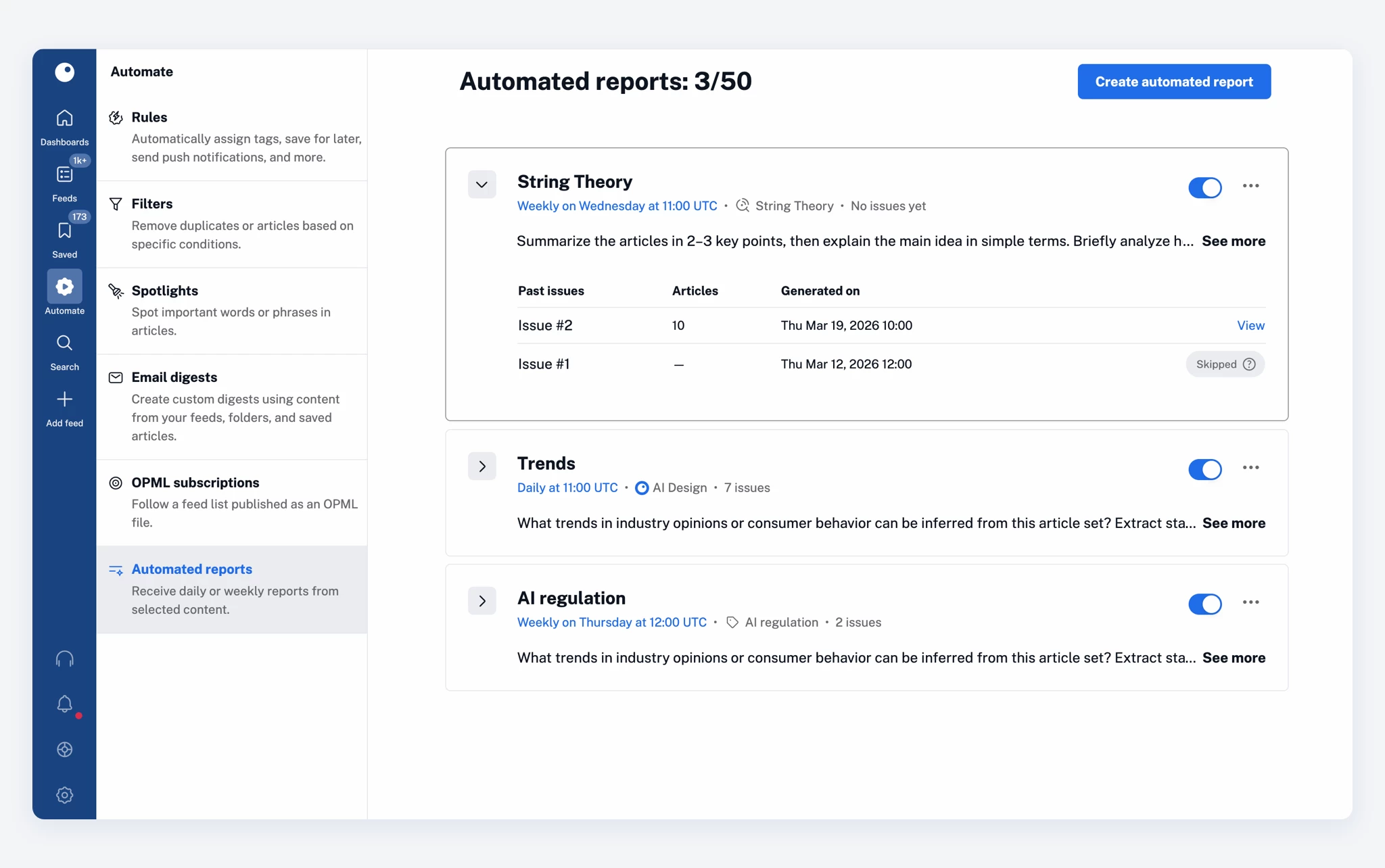
To get started, go to Automate > Automated reports and click the button in the top right corner.
Give your report a name, then choose the source it should analyze. This can be a single feed, a folder, a tag, or a Team channel (if you’re part of a Team). For best results, we recommend using monitoring feeds or tags, as they are designed to track specific topics or queries.
Next, select the maximum number of articles to include. In most cases, a smaller, more focused set produces more accurate and useful insights.
If you’re part of a Team, you can also make the report available to all members by enabling the option at the bottom.
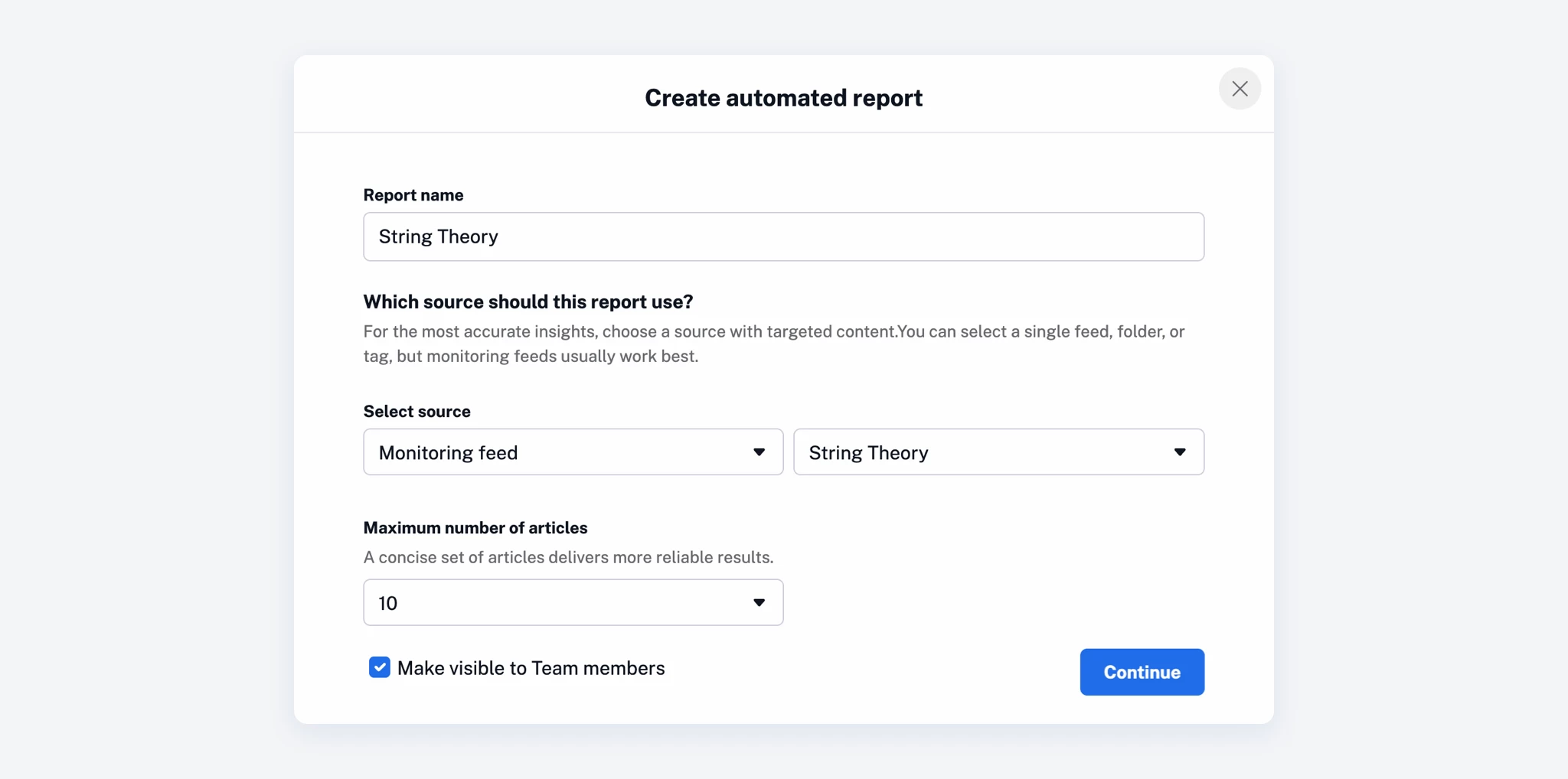
After that, choose how often the report should run and when it should be delivered, then configure the prompt that will guide the report generation.
Each automated report uses Inoreader Intelligence to extract insights from the selected articles – this can include summaries, comparisons, sentiment analysis, or structured research findings. You can either select one of the predefined prompts or define your own to match your exact goal.
A preview option lets you review the output before saving.
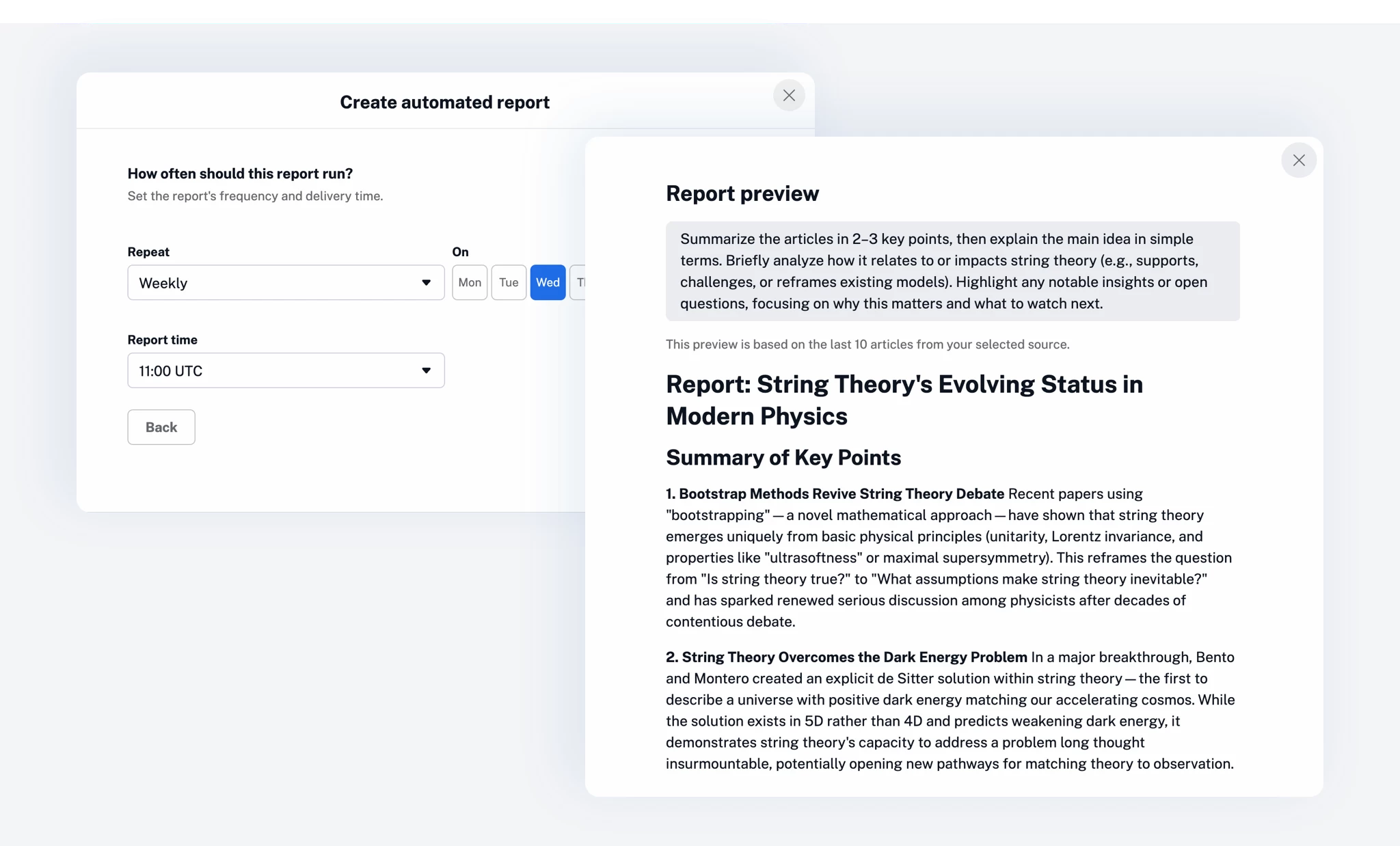
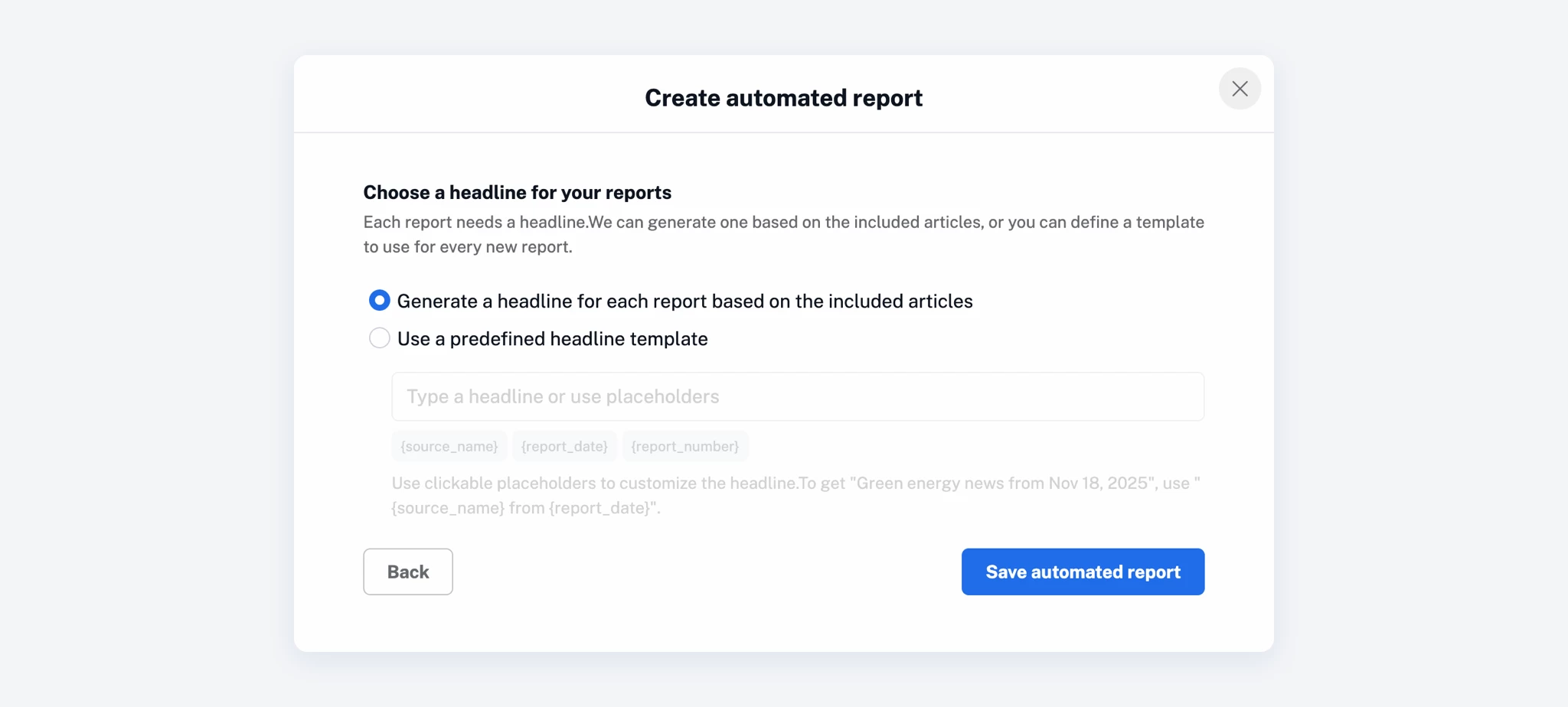
As a final step, choose how your report headline should be generated.
You can let Inoreader create a dynamic headline based on the included articles, or define a custom headline template to be used for every report.
Once saved, your report will appear in the Automated reports dashboard, where you can easily manage it – activate or deactivate it, edit its settings, clone it, or delete it.
Use cases
Automated reports can fit into a variety of workflows, depending on how you use Inoreader:
- Daily briefings
Get a clear summary of the most important articles from selected sources. - Topic monitoring
Track ongoing developments around a key topic or industry and receive structured insights. - Competitive analysis
Group articles by company, region, or theme, and extract key data points and trends. - Content creation
Turn multiple articles into ready-to-use summaries for newsletters, blog posts, or social media. - Research workflows
Automatically organize and extract insights from large sets of saved or tagged content.
Availability and limitations
Intelligence reports (whether created manually or automatically) are available as an add-on for Pro and Custom plans and are included in Team Intelligence plans.
They use your Intelligence token quota, just like article summaries and other Intelligence features. If you run out of tokens, you can purchase more at any time to continue generating reports.
You can learn more about usage limits and best practices in our blog post on Intelligence reports.
Get started
Try automated reports and let Inoreader do the heavy lifting for you!
