Close Menu
SkytikSkytik

    Subscribe to Updates

    Get the latest creative news from FooBar about art, design and business.

    What's Hot

    At Least 32 People Dead After a Mine Bridge Collapsed Due to Overcrowding

    November 17, 2025

    Here’s how I turned a Raspberry Pi into an in-car media server

    November 17, 2025

    Beloved SF cat’s death fuels Waymo criticism

    November 17, 2025
    Facebook X (Twitter) Instagram
    • About Us
    • Contact Us
    SkytikSkytik
    • Home
    • AI Tools
    • Online Tools
    • Tech News
    • Guides
    • Reviews
    • SEO & Marketing
    • Social Media Tools
    SkytikSkytik
    Home»Online Tools»Add a Photo Widget to Your iPhone Home Screen
    Online Tools

    Add a Photo Widget to Your iPhone Home Screen

    AwaisBy AwaisJanuary 27, 2026No Comments3 Mins Read0 Views
    Facebook Twitter Pinterest LinkedIn Telegram Tumblr Email
    Add a Photo Widget to Your iPhone Home Screen
    Share
    Facebook Twitter LinkedIn Pinterest Email

    The Download

    • Press and hold an empty area and the plus sign to add photo widgets on your iPhone. 
    • Select the photo widget size and tap Add Widget to display your photos on the home screen. 
    • Exclude images: Share > Remove from Featured Photos. 

    This article details how to add a photo widget on an iPhone.

    To use iPhone widgets like the photo widget, you need to have iOS 14.0 or newer.

    How Do I Add a Photo Widget on iPhone?

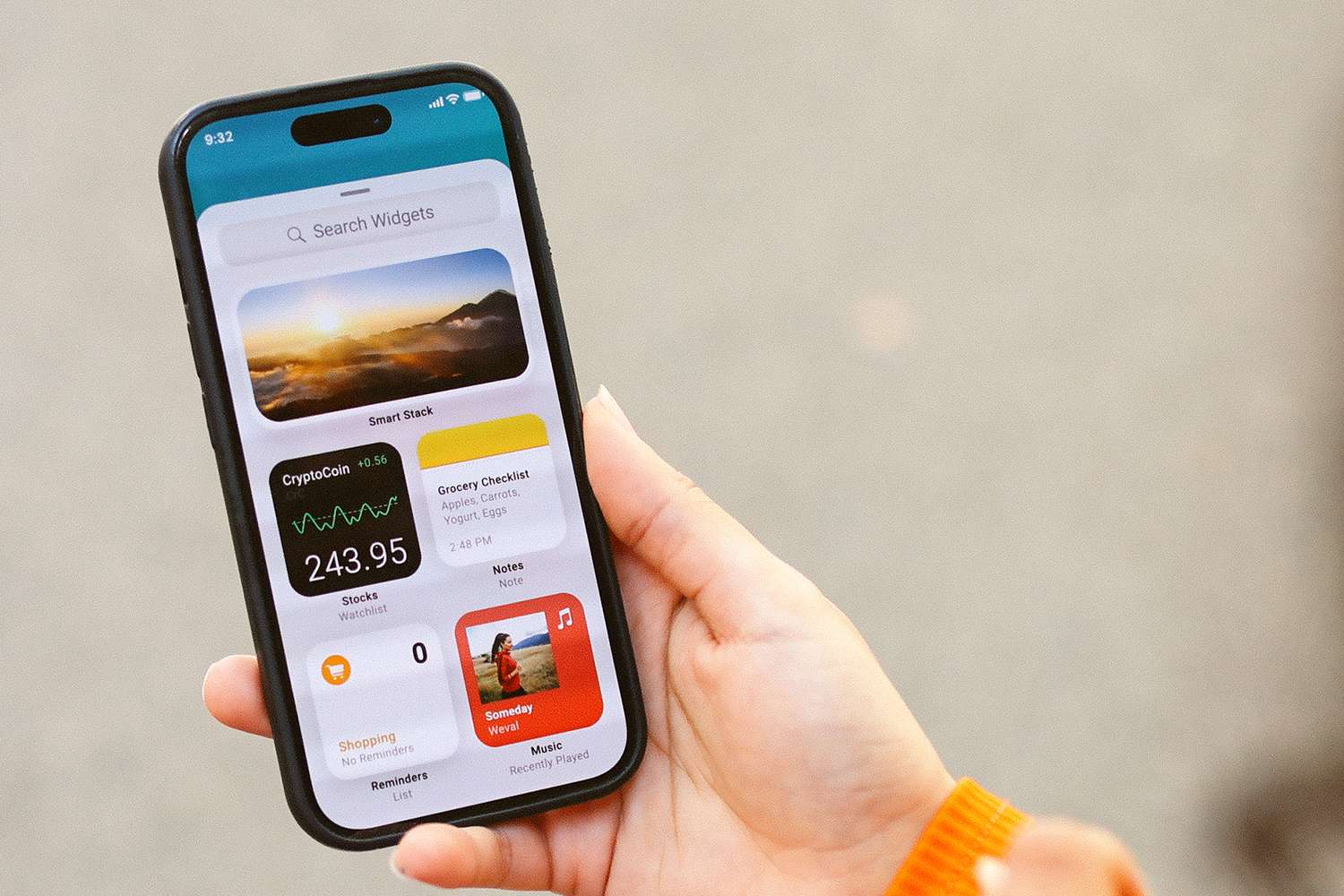
    You can customize your iPhone’s home screen in many ways, and adding a photo widget is one option.

    When you add the photo widget, a selection of your photos will appear in a set spot. You can move the widget if you don’t like its initial position.

    Here’s how to add a photo widget on an iPhone:

    1. Press and hold an empty area on your screen until the icons begin to wiggle.

    2. Tap the + (Plus sign) at the top right or select Edit > Add Widget.

    3. Swipe down to the list of widgets, then tap Photos.

      Several popular widgets are automatically listed at the top of this menu. If you see the Photos widget here, tap it instead of scrolling down to tap the Photos app icon.

    4. Swipe left or right to choose a widget size.

    5. Once you’ve chosen a widget size, tap Add Widget.

    6. The photo widget will then appear on your screen.

    7. To move the Photos widget, press and hold an empty space on the screen.

    8. When the icons start wiggling, press and hold the photo widget.

    9. Drag the photo widget to your desired location.

    10. Release the widget.

    11. Tap an empty area of the screen to lock the widget in place.

    How Can I Change Photo Widget Pictures on iPhone?

    You can choose the size and location of the Photos widget, but you can’t select specific photo albums or individual photos to display.

    Apple uses an algorithm to automatically select your best shots, and you can’t force specific pictures to appear, prevent showing specific people, or control the selection direction.

    The only control over the photo widget’s content is preventing it from showing specific images the algorithm selects. If you see a photo you don’t want, open it in the Photos app and remove it from featured photos. This prevents the widget from displaying that image again.

    Here’s how to remove an image from the photo widget on your iPhone:

    1. Wait for the photo you want to remove to appear.

    2. Tap the image.

    3. Tap the Share icon.

    4. Select Remove from Featured Photos.

    5. The photo will no longer show in your photo widget.

    FAQ

    • How do I get a Google widget on iPhone?

      To add the Google app widget for easy Google Search access, touch and hold the home screen, tap the + (plus sign), search for the Google app, and tap it. Choose the widget size, tap Add Widget, position it on your home screen, and tap Done.

    • How do I add the Google Calendar widget to an iPhone?

      Touch and hold the home screen, tap the + (plus sign), search for the Google Calendar app, and tap it. Swipe left to choose the widget size, tap Add Widget, then tap Done.


    Thanks for letting us know!

    Get the Latest Tech News Delivered Every Day

    Subscribe

    Tell us why!


    add home iPhone photo screen Widget
    Share. Facebook Twitter Pinterest LinkedIn Tumblr Email
    Awais
    • Website

    Related Posts

    How to create a Zoom meeting link and share it

    March 21, 2026

    How to add Google Calendar to Outlook

    March 21, 2026

    9 types of Google Ads (pros, cons, and when to use each)

    March 21, 2026

    4 ways to automate Rillet

    March 20, 2026

    How to change cell size in Google Sheets: 3 methods

    March 20, 2026

    What is an integration platform?

    March 20, 2026
    Leave A Reply Cancel Reply

    Top Posts

    At Least 32 People Dead After a Mine Bridge Collapsed Due to Overcrowding

    November 17, 20250 Views

    Here’s how I turned a Raspberry Pi into an in-car media server

    November 17, 20250 Views

    Beloved SF cat’s death fuels Waymo criticism

    November 17, 20250 Views
    Don't Miss

    Google ads are showing identical website stats across multiple advertisers

    March 23, 2026

    A strange pattern has emerged in Google’s paid search results — multiple competing ads are…

    Hierarchical Reinforcement Learning for Large-Scale Adaptive Traffic Signal Control

    March 23, 2026

    Why Technical Expertise Alone Won’t Cut It Anymore

    March 23, 2026

    Answer engine optimization case studies that prove the ROI of AEO in 2026

    March 23, 2026
    Stay In Touch
    • Facebook
    • YouTube
    • TikTok
    • WhatsApp
    • Twitter
    • Instagram
    Latest Reviews

    5 GEO Strategies To Make AI Search Recommend Your Brand

    March 23, 2026

    [2603.04803] Guiding Diffusion-based Reconstruction with Contrastive Signals for Balanced Visual Representation

    March 23, 2026
    Most Popular

    13 Trending Songs on TikTok in Nov 2025 (+ How to Use Them)

    November 18, 20257 Views

    How to watch the 2026 GRAMMY Awards online from anywhere

    February 1, 20263 Views

    Corporate Reputation Management Strategies | Sprout Social

    November 19, 20252 Views
    Our Picks

    At Least 32 People Dead After a Mine Bridge Collapsed Due to Overcrowding

    November 17, 2025

    Here’s how I turned a Raspberry Pi into an in-car media server

    November 17, 2025

    Beloved SF cat’s death fuels Waymo criticism

    November 17, 2025

    Subscribe to Updates

    Get the latest creative news from FooBar about art, design and business.

    Facebook X (Twitter) Instagram Pinterest YouTube Dribbble
    • About Us
    • Contact Us
    • Privacy Policy
    • Terms & Conditions
    • Disclaimer

    © 2025 skytik.cc. All rights reserved.

    Type above and press Enter to search. Press Esc to cancel.