


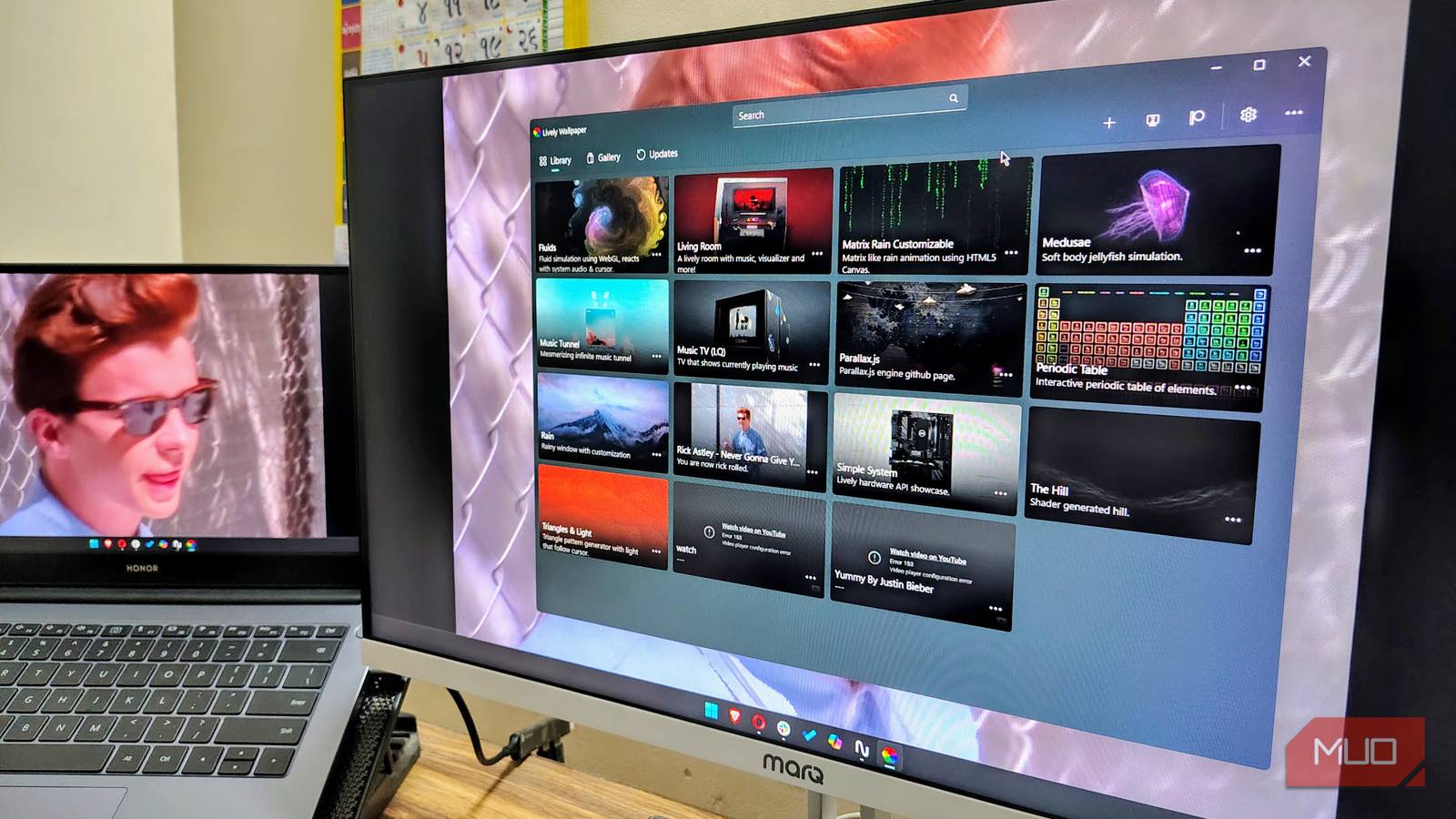
I enjoy personalizing my Windows PC; it makes me feel at home. I can customize Windows’ taskbar or even change its entire UI appearance. But the first and most basic step in customizing a Windows PC? Changing the wallpaper.
However, the default wallpaper options on Windows 11 were too plain for me. That’s why I started using Lively Wallpaper. This lightweight wallpaper customization app is easily the best tool I’ve found for Windows wallpapers, and I’ve gone so far as to install it on all of my devices.

- OS
-
Windows
- Developer
-
rocksdanister
Lively Wallpaper is a free and open-source Windows app that transforms your desktop with animated and interactive wallpapers, including videos, GIFs, and web pages. It supports multi-monitor setups, performance optimization, and extensive customization for a personalized experience.
How to set video wallpaper using Lively Wallpaper on Windows
A quick guide to make your desktop truly yours
Setting any video as wallpaper with Lively Wallpapers is a quick and easy process. Just download the Lively Wallpaper from the Microsoft Store and follow the steps below.
- Open the Lively Wallpaper app.
- Click the “+” (Add wallpaper) button in the top-right corner.
- In the window, select from the file picker or drag and drop your video.
- Give the attributes to the video wallpaper.
- Click ok.
You can use various video file formats, such as GIF, MKV, MP4, or even a link to a YouTube video, as your wallpaper.
Why the Lively Wallpaper app is the best for animated Windows backgrounds
A vast number of wallpaper customization apps for Windows allow you to set the video and live wallpaper as you prefer. But Lively Wallpaper is better than the rest for a few good reasons, not least because it’s open source and you can set videos, GIFs, live web pages, or interactive wallpapers.
No impact on performance

Lively Wallpaper also stands out because it knows how to be efficient. It’s designed around the idea of being light on the system’s resources. If you launch a game or an application in a full-screen window, Lively Wallpaper pauses all the background activities. This allows your CPU and GPU to divert resources where they are needed.
You can even tailor this behavior to cater to your workflow or machine. Within Lively’s performance settings, you can customize the auto-pause functionality to keep it running or pause upon the launch of any specific app or game you prefer. That’s not all. If you feel that the system is stuttering or lagging, you can even reduce the wallpaper resolution to lighten the load on the system.
Clean and intuitive UI

Another reason I prefer Lively Wallpaper is its clean and modern user interface. It’s built with WinUI 3, giving it a native Windows 11 feel that is both intuitive and easy to navigate in the app. Be it while navigating the wallpaper library, tweaking settings, or setting a wallpaper. It feels like part of Windows 11.
The streamlined sections focus on core menus, such as the library and gallery, making it easier and more intuitive to set a new wallpaper or browse for one.
Unlike some other applications that can feel cluttered with various “discover” or “workshop” sections, Lively Wallpaper keeps things simple with just a Library and Gallery. This straightforward approach makes it easy to find and apply new wallpapers.
The gallery feature is still in the staged rollout phase, so you may or may not have access to it.
In-depth customization
One significant advantage is the level of customization available. You can not only adjust features of live wallpapers, such as the angle or cap FPS for video wallpapers, but you can also easily create your own wallpapers using your favorite videos, live web pages, or even YouTube videos with Live Wallpaper. The app supports a wide range of video formats, including MP4, MKV, and AVI, and it even allows you to use interactive websites as your background.
Setting up something of your liking is as simple as choosing one from the presets. But that’s not it! If you are someone who likes to go beyond conventional wallpapers and presets, Lively Wallpaper also supports shaders from sites like Shadertoy and different projects made in Unity and Godot. This ultimately means the sky is the limit. You can create a truly unique, one-of-a-kind wallpaper that genuinely reflects your personality.
Extensive support

Lively Wallpaper is ideal for multi-monitor setups. You can stretch a single wallpaper across numerous screens or set a different wallpaper for each display. The app also includes handy features, such as an audio visualizer that reacts to the music you’re playing and the ability to display system information on your desktop for any app that has music output.
Open-source

Finally, the fact that Lively Wallpaper is entirely free and open-source is a huge plus. It means you get access to all of the app’s features without paying a cent, and it’s regularly updated by its community of dedicated developers. Though, as with most open-source projects, the Lively Wallpaper team is always keen for support, be that through coding or a contribution to its Patreon.
Up your Windows wallpaper game with Lively Wallpaper
Lively Wallpaper’s combination of lightweight, open-source design and its extensive features makes it a clear winner for me. It’s actually completely changed how I use Windows across all of my devices, and is now one of the first apps I install on any new device. And, best of all, it’s free, so why not give it a try?
