


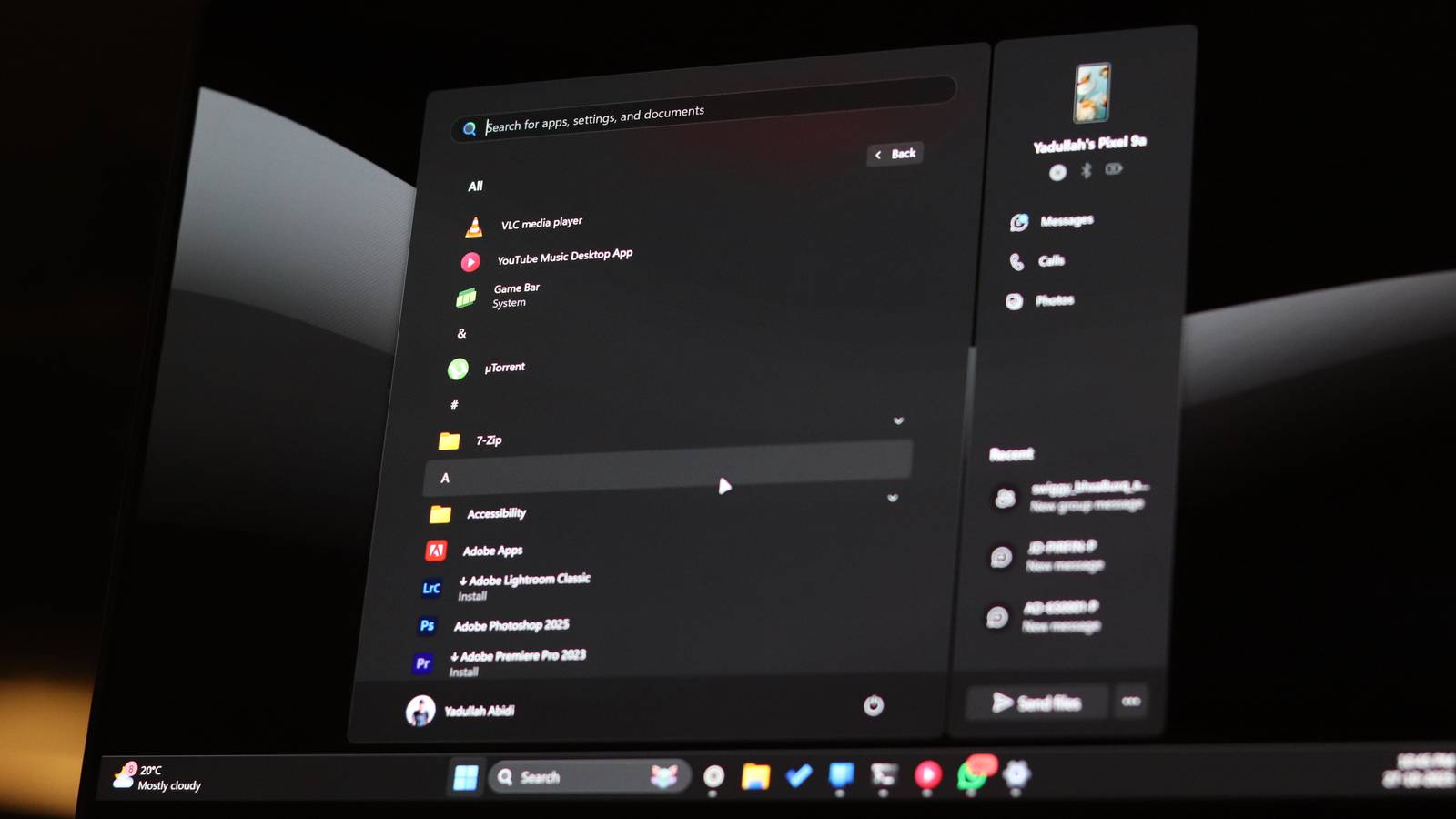
Windows Search gets a bad rap, and a lot of it is deserved. It’s slow, cluttered with Bing results nobody asked for, and half the time it can’t find a file you know is present on your system. I use three search apps on Windows to fix these issues, but you don’t necessarily have to replace Windows Search if you don’t want to.
Windows Search, as bad as it is, isn’t fundamentally broken. It’s just poorly configured out of the box. With a handful of tweaks that only take a few minutes, you can turn it into something genuinely useful. No third-party tools required.
Turn on enhanced indexing (yes, it’s hidden)
Let Windows search your whole PC—not just Documents and Desktop
By default, Windows uses classic indexing, which only covers your Documents, Pictures, Music folders, and the desktop. Everything else on your drives is invisible to Windows Search.
You can change this by following these steps:
- Head to Windows Settings and open the Privacy & security tab
- Click Search under Windows permissions
- Change the search indexing to Enhanced under the Find my files section.
This tells Windows to index your entire PC. The first pass takes a while—a few hours to a full day depending on the file count—but once it’s done, searches become dramatically faster and more complete. If you’re on a laptop, make sure to keep it plugged in during the initial index.
Cut Bing out of your local search

Nothing ruins a local file search like a wall of Bing results pushing your actual files out of view. You search for budget, expecting your spreadsheet, and instead get ten web links about government spending. Stopping Windows from searching the web is one of the best ways to make the Start menu faster. Microsoft doesn’t offer a toggle for this in Windows Settings, but a registry edit can handle it.
Open the Registry Editor and navigate to the following path:
HKEY_CURRENT_USER\SOFTWARE\Policies\Microsoft\Windows
Once there, create a new key called Explorer if it doesn’t exist, add a DWORD (32-bit) value named DisableSearchBoxSuggestions, and set it to 1. Restart your PC, and the Bing clutter will vanish. Your Start menu will now return only local results, including apps, files, folders, and settings. As a bonus, this also removes the trending news and search highlights on the search home page.
Make Windows search inside files, not just their names
Even with enhanced indexing on, Windows only indexes file properties by default, such as file name, date modified, size, and more. It doesn’t look inside your files, meaning searching for a Word document by remembering a phrase from it won’t work unless you change this.
To enable this, you need to change Windows’ indexing options to let it look into your files. Here’s how:
- Press Windows Key + R to open the run prompt. Type control.exe srchadmin.dll and hit Enter.
- Click the Advanced button.
- Head over to the File Types tab.
- Switch from Index Properties Only to Index Properties and File Contents.
You can choose which files Windows should peek into and which to ignore. And if you want a specific file extension that isn’t present in the default list, you can add your own. This increases your index size, but the payoff is huge: you can now search for text inside your documents, not just their names.
Use filters and operators like a power user
Master file types, date filters, and Boolean tricks for laser-focused results
Windows Search supports surprisingly powerful syntax that most people never discover. Instead of typing a vague keyword and hoping for the best, you can narrow results with filters right in File Explorer’s search box.
Try using kind:document ext:.pdf to find only PDFs or size:>100MB to look for files that are bigger than 100 MB. You can also filter by date using date:, or search inside files with content:. These are, of course, examples that you can modify as per your requirements.
Boolean operators work too. For example, report AND 2025 will find files containing both terms, while report NOT draft excludes anything with draft in the title. Wildcards also work as intended. Using a search term like budget*.xlsx will find any Excel file starting with the word budget.
All these filters also appear in the Search Options menu in File Explorer’s toolbar, so you don’t have to memorize everything. But once you start using them, they quickly become second nature. There are plenty of similar File Explorer hacks I can’t live without that speed up searching.
Rebuild the index when search goes dumb
Fix broken results with one reset; most people never try
If searches feel broken, returning incomplete results, missing known files, or running painfully slow, the index might be corrupted. This happens more often than you’d think, especially after major Windows updates or if your PC crashes mid-indexing.
The fix is as simple as rebuilding the index from scratch:
- Press Windows Key + R to open the run prompt. Type control.exe srchadmin.dll and hit Enter.
- Click the Advanced button.
- Under Troubleshooting, click the Rebuild button to start rebuilding the index.
Windows will warn you that searches will slow temporarily during the rebuild, which is true, but it’s the nuclear option that fixes most search weirdness. On a typical PC, a full rebuild can take a few hours so it’s best to run the reindexing overnight. Your searches should start feeling noticeably snappier and more accurate afterward.
Windows Search isn’t great, but it can be better
None of these tweaks requires installing anything or giving up the integration Windows Search has with the Start menu, taskbar, and File Explorer. They just remove the junk, expand the scope, and unlock features that Microsoft buried in settings panels most people never open.

PowerToys quietly delivered the Windows search upgrade we’ve waited for
Microsoft finally nailed search—just not where you expected
Give them a shot before reaching for a third-party replacement, especially if you’re hesitant about trying one. There are PowerToys features that have made Windows Search irrelevant, but if you still like hitting the Windows key and searching for your files or apps, some tweaking can make your life a lot easier.
