


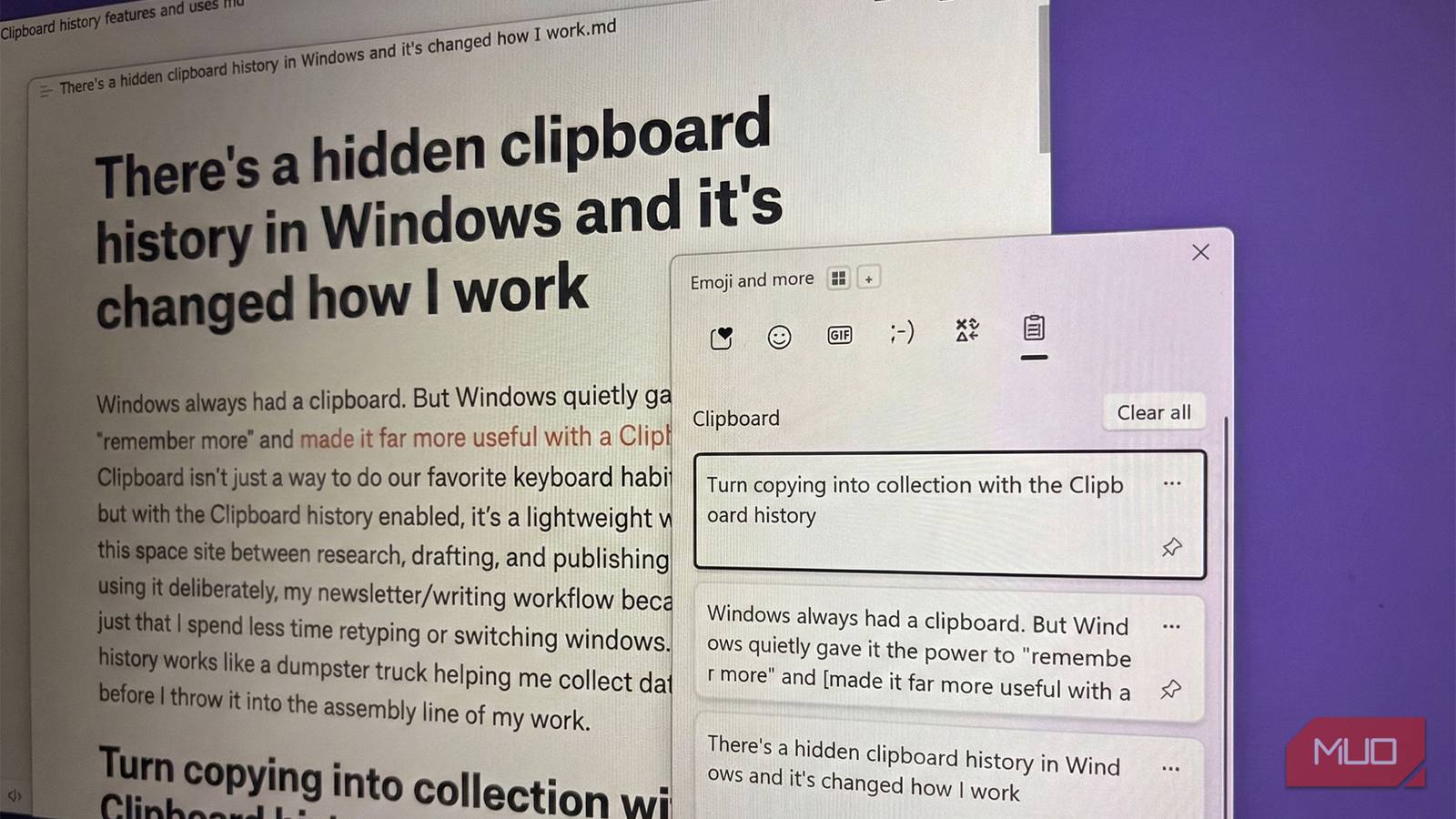
Windows always had a clipboard. But Windows quietly gave it the power to “remember more” and made it far more useful with a clipboard history. The clipboard isn’t just a way to do our favorite keyboard habit (copy and paste!), but with the clipboard history enabled, it’s a lightweight workspace. For me, this space sits between research, drafting, and publishing.
Once I started using it deliberately, my newsletter/writing workflow became faster. It’s not just that I spend less time retyping or switching windows. The clipboard history works like a dumpster truck, helping me collect data in one place before I throw it into the assembly line of my work.
Turn copying into collections with the clipboard history
Gather multiple ideas before you start writing
Clipboard history stores up to 25 copied items (text, HTML, and image data). That means you can copy quotes, stats, links, and short notes one after another, then paste them later in whatever order you want. The practical takeaway is simple: research and writing no longer have to happen at the same time. You don’t have to keep switching tabs between your apps.
I now treat copying as a deliberate “collect” phase. While reading sources or skimming old drafts, I think of the 25-item limit as “25 ideas” I can put in my writing (for instance, a newsletter). I copy anything that might be useful without breaking focus, and I don’t paste it immediately. When I’m ready to write, everything I need is already waiting behind Win + V.
For a newsletter, this usually looks like copying a quote, then a supporting stat, then the article link, followed by my own one-line counterpoint. When I open my editor, I paste these together and instantly have the bones of a section.
Check if the Clipboard history is enabled. If not, go to Settings -> System -> Clipboard -> Clipboard history -> On.
Pinned clipboard items survive overwriting
Paste re-usable snippets without re-writing them

I am sure you can think of at least a few repetitive blocks of text you always use. For instance, addresses or a favorite signature line. Clipboard history lets you pin items so they stay available even when newer clips push older ones out, once the 25-item limit is hit. This is ideal for things like sign-offs, disclaimers, or call-to-action blocks. Paste them straight from the clipboard panel. You can use text expanders, but the clipboard history is another free and built-in opportunity. And it saves you the little bother of setting up custom keyboard shortcuts for repeatable snippets.
I keep a small set of pinned snippets for every newsletter I write. For instance, my sign-off, a short “who this is for” description, and a few proven CTA variations. This isn’t a flashy use, but it saves mental energy every single time.
Sometimes, starting a new draft feels like another battle with writer’s block. I am experimenting with a random prompt in the prep-phase that focuses on one single idea for the article. I drop in the pinned block first, then focus only on what’s worth saying about it without overthinking.

Most people ignore this powerful Windows productivity feature
You might not consider Microsoft’s Phone Link to be a valuable productivity tool, but it’s an essential piece of my Windows workflow.
Saving multiple versions of content makes editing easier
Keeps alternate versions of your writing as pinned notes

When you’re refining a paragraph, it’s common to try multiple phrasings. Clipboard history quietly supports this by holding onto each version you copy. You can paste earlier or later versions without relying on undo or duplicating text within the document.
I use this constantly when polishing intros or transitions. I’ll copy one version, rewrite it, then copy the new version. Both are available, letting me compare them with fresh eyes or combine the best parts of each.
This makes chopping and tweaking easier. I stop worrying about losing a better sentence and start experimenting more freely, which usually leads to clearer writing.
Clipboard history works as a temporary idea scratchpad
It holds short-term ideas without turning them into permanent notes

This is a natural extension of the last benefit. Not every idea deserves a place in your notes app. Clipboard history works as a short-term holding space for things like subject lines, alternate headlines, or rough hooks. You can copy them, keep writing, and decide later which one to keep or clear away.
I often copy subject line ideas as they occur to me. Later, I paste those directly from the clipboard history. The clipboard is temporary, so it can be tapped for lightweight capture.
Clipboard history helps batch post-writing tasks
It makes repurposing content faster

Once a newsletter is finished, there’s usually follow-up work: preview text, social posts, or summaries for a web version. Clipboard history makes productivity easier by letting you collect reusable lines while you’re already editing.
As I polish a draft, I copy sentences that could work as social promos, like a tweet or an Insta caption. I can send them later without reopening the draft or searching for them. Even as I reuse text, the neighboring Emoji and GIF panels help me color my final messages with mood and emotion.
The tiny productivity boosts of using the clipboard history every day
Using clipboard history daily hasn’t made my writing flashier, but it has made it calmer and more repeatable. I no longer hopscotch between browser tabs and my editor just to avoid losing something I copied earlier. The little seconds saved add up at the end of the day. Try a simple experiment: for your next piece of writing (emails, a tweet, or anything else), collect everything first using copy only, then write the entire draft by pasting from the clipboard history.
