


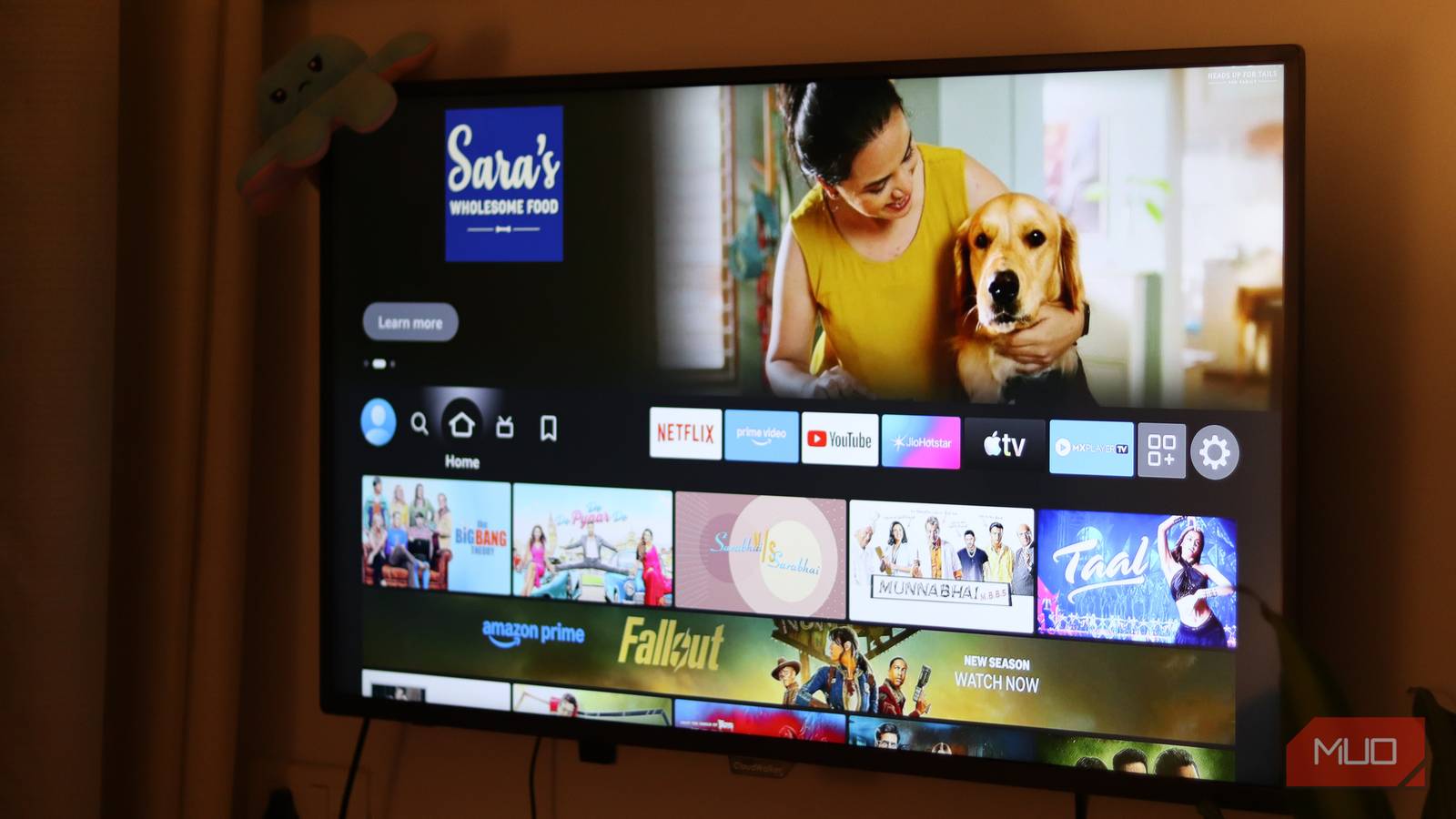
You probably don’t realize it yet, but the sleek smart TV sitting in your living room has become a surveillance device masquerading as entertainment. And the worst part? Most of us unknowingly enabled it during setup.
However, just like there are default settings you can turn off to improve your TV, there are settings you can disable to stop your TV from spying on you.
Disable Automatic Content Recognition (ACR)
This setting tracks what you watch, not what you search
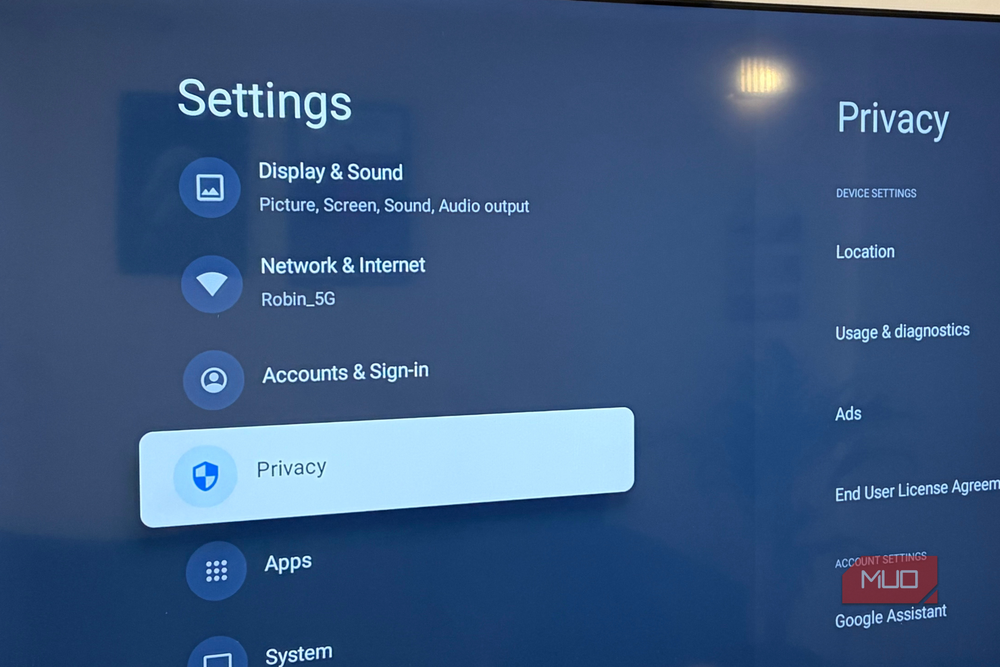
The biggest privacy invasion on your TV isn’t some mysterious backdoor; it’s a technology called Automatic Content Recognition, or ACR, and it’s enabled by default on nearly every smart TV. Think of ACR as a constant observer—it analyzes the audio and visual information streaming to your TV, takes fingerprints of that content, and matches it against a massive database of known media.
What makes this particularly invasive is that ACR doesn’t just watch what you’re streaming. It captures everything displayed on your screen, including content from connected devices such as your gaming console, Blu-ray player, or laptop via HDMI.
Once ACR identifies what you’re watching, it bundles that data with metadata—the show title, cast information, release dates, and viewing duration—and transmits it to the TV manufacturer or third-party data brokers. This data gets monetized. Your viewing habits are sold to advertisers, aggregated for targeting marketing campaigns, or used to build psychological profiles about your interests.
Disabling ACR will require some hunting through your TV settings. Different manufacturers label it differently as well. But generally speaking, you’ll find it under the privacy settings for your TV.
- Samsung TVs: Home > Settings > Privacy Choices > Terms & Conditions > Viewing Information Services
- LG TVs: Settings > All Settings > Support > Privacy & Terms > User Agreements > Viewing Information Agreement.
- For Sony, TCL, Hisense, Vizio TVs: Settings > Samba Interactive TV > Smart TV Experience or Viewing Data.
Once again, depending on your TV model and software, these settings will be enabled in different places. Consult your manual for specific instructions in case the aforementioned defaults don’t work out.
Reset the ad ID and disable interest-based ads
Your TV doesn’t need a marketing profile

After ACR, the second layer of tracking is your Advertising ID. This unique identifier tied to your TV acts as a persistent cookie, allowing advertisers to build profiles across devices and services. Every app on your TV uses this ID to serve you personalized ads based on your behavior.
Resetting your advertising ID regularly starves the tracking ecosystem of historical data. When you reset it, the TV generates a completely new ID, and suddenly you’re “new” to advertisers’ profiling systems. They have to start building your profile from scratch.
The reset function, as you’d expect, is buried in settings. You’ll find it under privacy settings on most TVs. On Google TV, you’ll have to go to Settings > Device Preferences > About > Legal Information > Ads > Reset Advertising ID.

Keep in mind that this doesn’t disable ads entirely on your TV. You’ll still see them, but you’ll fracture the ability to build comprehensive behavioral profiles. You can replace your smart TV’s ad-filled home screen with a clean launcher for a better, ad-free experience.
Disable voice recognition and microphone access
Always-listening isn’t a feature
Your TV has a microphone, and voice recognition is often enabled by default. This means every time you say “Alexa” or “OK Google”, your TV isn’t just listening, it’s potentially recording. TV manufacturers routinely collect voice data when you interact with voice assistants, and they often merge this with external data about you.
Yes, it is convenient, but it’s best to disable voice recognition entirely if you’re privacy-conscious. On Samsung TVs, this is Settings > Support > Terms & Conditions > Voice Recognition. On LG, you should see them in Microphone Access and Speech Recognition settings.
Stop third-party apps from sharing your data
Streaming apps collect more than playback stats

Individual streaming apps on your TV have their own data sharing processes that work independently of the ACR settings on your TV. Amazon Prime Video, for example, has its own permissions to send viewing and content information to Amazon. Each app has its own privacy settings buried in separate menus.
You’ll find these settings buried under device usage data or app usage settings, and it can be tedious to hunt through every single app, but it cuts off another data pipeline.
Disconnect Wi-Fi when you’re not using it
The nuclear option that actually works

Finally, and perhaps the most underrated privacy setting you should monitor is disabling Wi-Fi when not in use. Some TVs continue recording viewing data locally and upload it later when reconnected. This is particularly sneaky because you think you’ve disabled tracking, but the data collection continues offline.
For devices that need Wi-Fi for firmware updates, I’ve set up a separate guest network with stricter firewall rules. This segments my TV (and other smart home devices) from my main network, limiting its ability to snoop on other devices or access sensitive systems. It’s extra friction, but the privacy payoff is real.
You can still use a smart TV without being tracked
Disabling these settings won’t magically stop all data collection and make your TV completely private. Your TV will still talk to its manufacturer, and the apps you can use track independently.

Change These Settings to Instantly Make Your Smart TV More Private
With just a few small tweaks, you can boost your smart TV privacy.
But you will drastically reduce the surveillance surface. Your viewing habits are data, and like any valuable commodity, you shouldn’t hand it over without understanding the cost.
