


Most of us treat PC maintenance like tidying a messy room: we pick up the obvious clothes off the floor (delete useless Windows files and folders) and maybe vacuum the rug (empty the Recycle Bin). Free tools that clean and optimize your PC, such as CCleaner, are good vacuums — they grab the surface dust and make things look presentable.
But what about the dirt hidden under the floorboards?
That is where PrivaZer thrives. While standard cleaners focus on freeing up space, PrivaZer is a forensic expert that scrubs the ghost of the file from the magnetic or silicon soul of your drive.

- OS
-
Windows
- Developer
-
Goversoft
- Price model
-
Free (Pro version available)
Clean your PC deeper than standard cleaners with PrivaZer. It securely removes traces, frees space, and helps protect your privacy without slowing your system.
PrivaZer hunts down forensic traces that other cleaners ignore
Pressing “Delete” in Windows is really just a suggestion, not a command

When you delete a file in Windows, it’s not really gone. The system marks that space as free and moves on, while the actual data hangs around in the background. Most cleaning tools stop there and leave those “deleted” leftovers untouched. PrivaZer does not. It goes hunting in places many people — and even plenty of tech-savvy ones — never think to look. I’m not talking about just clearing your browser(s) cache; PrivaZer dives into the MFT (Master File Table) and the USN Journal, low-level logs that track when files are created, changed, or deleted.
It also pushes deeper into the operating system’s memory. PrivaZer targets ShellBags, obscure registry entries that remember the size, position, and view settings of every folder you have ever opened. In theory, those keys can be used to show that you accessed a particular folder long after the files themselves are gone. PrivaZer flags these traces and gives you the option to erase them.
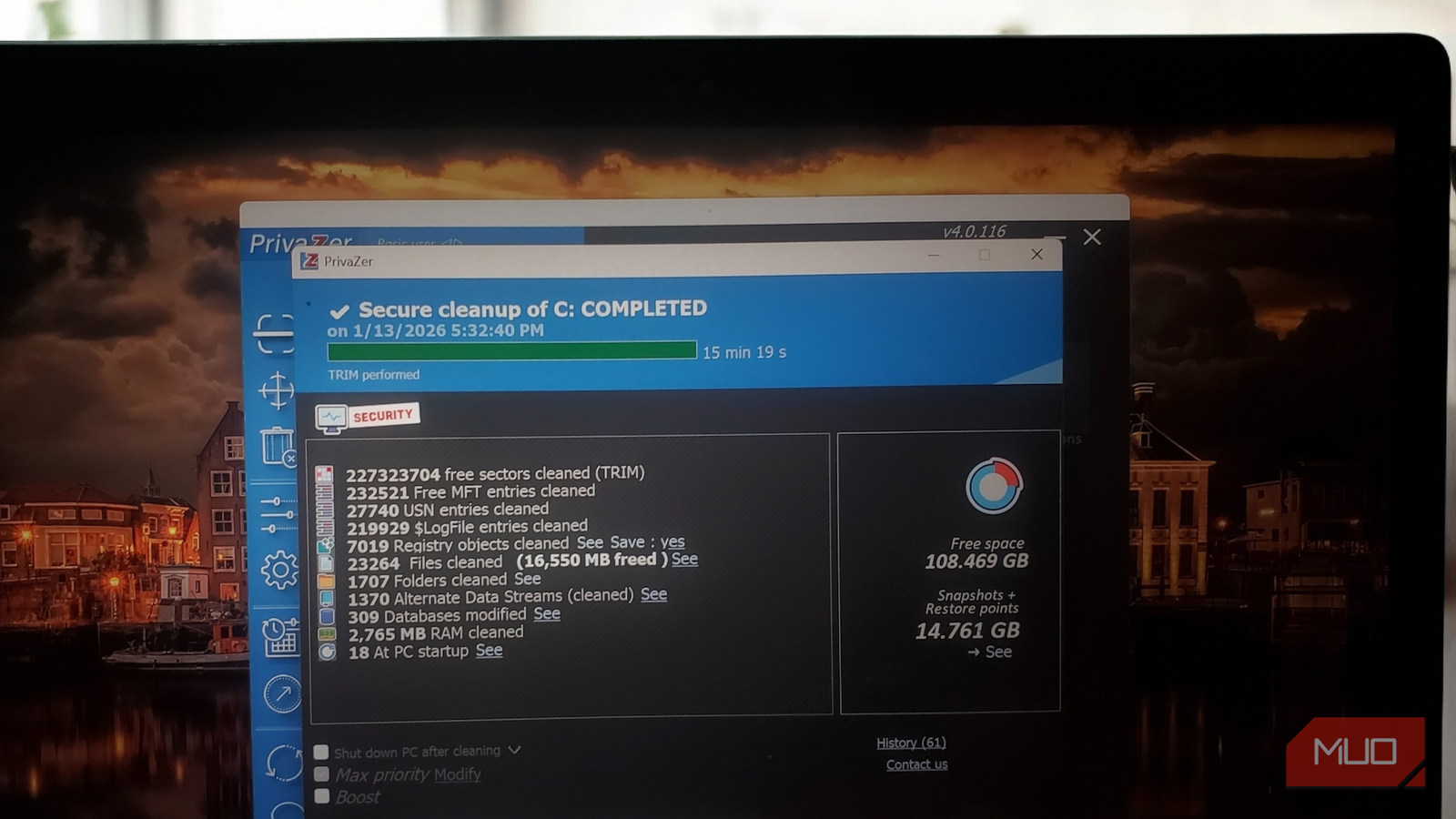
What really impressed me is that it is hardware-aware. If it detects an SSD, it backs away from old-school overwriting and switches to TRIM commands instead. You still get a forensic-grade clean, but without chewing through the lifespan of an expensive NVMe drive.
PrivaZer interrogates your PC before it touches a single file
You first have to survive the 19-step wizard
PrivaZer’s interface sits somewhere between hacker chic and a guided wizard. At first glance, it can feel a little intimidating, especially if you are used to apps full of bright buttons and friendly labels. Once you start moving through it, though, you’re likely to find the flow linear and make sense step by step.
Your first stop is the Interview, a 19-step setup wizard that launches the first time you open the app. This part matters, so do not skip it. Early on, you will be asked to choose between Basic User and Advanced User. Stick with Basic if you want PrivaZer to handle safety checks for you. As you work through the steps, you will make a handful of important choices. Step 11 is worth slowing down for. Select Yes, automatic to have PrivaZer protect active logins for sites like Gmail and Amazon. Later, at Step 19, you will see the option to disable the hibernation file. If you never use hibernation, this can free up several gigabytes.

If you don’t use Hibernate on Windows, delete this massive hidden file now
I found a hidden Windows file consuming as much space as my RAM—and I didn’t need it.
Once the interview wraps up, you land on the main screen. At the top is a drive selector, and along the left side is a list of scan targets. Make sure Local Disk (C) is selected and leave the Select all option checked if you want a full, deep clean. When you start the process, you may get a cookie prompt. Just confirm the Smart selection you already configured.
Clicking Scan turns the interface into a sector-by-sector map of your drive. You will see blocks gradually filling in, with red blocks showing traces left by old files and blue blocks representing active data. The app says you can keep browsing while this runs, but closing other apps usually leads to a more thorough scan.

When the scan finishes, PrivaZer presents its cleanup options. For most people, Normal cleanup strikes the right balance, securely overwriting data and optimizing free space in roughly 17 to 90 minutes. Turbo cleanup moves faster but skips some depth, which makes it better for regular upkeep. After you hit Clean, PrivaZer gets to work. In my test, it reclaimed more than 10GB of space and wiped nearly 23,000 traces. On SSD systems, you will also see confirmation that a TRIM command ran successfully, which helps maintain performance.
One final thing to keep in mind is that your very first deep clean can take up to two hours, depending on how much history your system has accumulated. If the progress bar feels slow, that is normal. It is methodically scrubbing years of leftovers, not just emptying the trash.
A little slower than the competition, but a whole lot deeper
After running PrivaZer’s first deep clean, going back to CCleaner felt like sweeping a lab floor with a toy broom. Both clear away the obvious dust, but only one seems aware of the microscopic mess underneath. PrivaZer is not flawless, though. The nineteen-step wizard can feel like a lot if you were hoping for a quick one-click cleanup. The language assumes you are at least somewhat comfortable with terms like MFT residue or SRUM telemetry. And the free version does hold back a few advanced perks, including automatic scheduled cleaning. Still, when it comes to forensic-level privacy cleanup, nothing else really competes.
A few final tips are worth keeping in mind. Always enable the “Create a restore point” and “Save registry” options. They give you a safety net in case aggressive cleaning nudges system stability in the wrong direction. Pay attention to your hardware as well. PrivaZer knows how to use TRIM on SSDs, but running secure overwrites every day is still a bad idea if you care about your drive’s lifespan. And take a moment to configure Smart Cookies properly during setup, or you may find yourself logged out of every site you use in one very unforgiving sweep.
