Close Menu
SkytikSkytik

    Subscribe to Updates

    Get the latest creative news from FooBar about art, design and business.

    What's Hot

    At Least 32 People Dead After a Mine Bridge Collapsed Due to Overcrowding

    November 17, 2025

    Here’s how I turned a Raspberry Pi into an in-car media server

    November 17, 2025

    Beloved SF cat’s death fuels Waymo criticism

    November 17, 2025
    Facebook X (Twitter) Instagram
    • About Us
    • Contact Us
    SkytikSkytik
    • Home
    • AI Tools
    • Online Tools
    • Tech News
    • Guides
    • Reviews
    • SEO & Marketing
    • Social Media Tools
    SkytikSkytik
    Home»Online Tools»How to Set a Song as Your iPhone Alarm
    Online Tools

    How to Set a Song as Your iPhone Alarm

    AwaisBy AwaisJanuary 14, 2026No Comments4 Mins Read0 Views
    Facebook Twitter Pinterest LinkedIn Telegram Tumblr Email
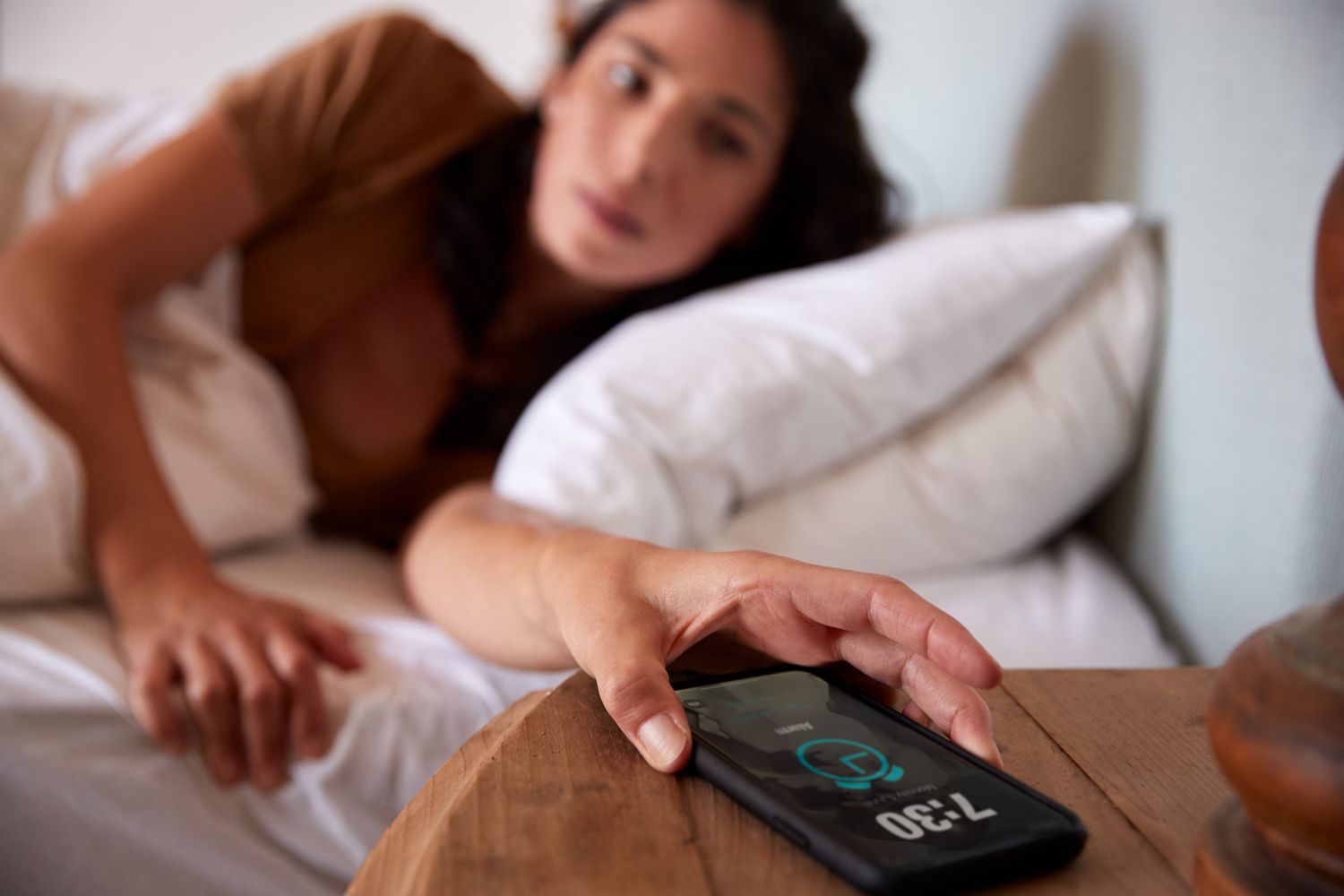
    How to Set a Song as Your iPhone Alarm
    Share
    Facebook Twitter LinkedIn Pinterest Email

    The Download

    • Go to the Clock app, find Alarm, and pick your favorite song from the Music library.
    • Use the Timer feature to stop music playing after a set time so you can fall asleep.
    • Songs must be in the iPhone Music app, not from streaming services like Spotify or Pandora.

    This article explains how to set an alarm with music on iPhone iOS 6 and above, and how to set a timer to stop playing music on iPhone iOS 12 and above.

    How to Add Music to an iPhone Alarm

    Setting an alarm with music differs from setting ringtones on an iPhone. To make a music alarm, open the Clock app.

    1. In the Clock app, select Alarm from the bottom menu bar.

    2. Select the plus (+) sign to set up a new alarm.

      Or, to edit an existing alarm, tap Edit in the upper-left corner, then select the alarm to add music.

    3. Select Sound. Then, under Songs, tap Pick a song.

    4. From your Library, choose the song you want to set as the alarm sound.

    5. In the upper-left corner, select Back, then select Save in the upper-right corner.

    Set Up the Timer to Stop Music

    The Clock app has a “Stop Playing” feature that automatically turns off any music, video clip, TV show, etc., that’s playing on your iPhone.

    Start the Stop Playing timer, then turn on your music. You can fall asleep to your favorite tunes, assured that your iPhone will turn off the music at the set time.

    1. On the iPhone home screen, open the Clock app.

    2. Choose Timer in the lower-right corner.

    3. Tap and scroll to set the countdown timer to stop playing music. For example, to play the music for an hour, set the time to 1 hour.

    4. Select When Timer Ends.

    5. Scroll to the bottom of the screen and choose Stop Playing. Then, select Set in the upper-right corner to save your choice.

    6. Go to the app where your music is, and start playing it.

    7. Return to the Clock app and select Timer. Then, select Start to activate the timer.

    8. The music stops playing automatically after the time you set elapses.

    You must switch When Timer Ends back to a tone if you need to use your timer for other purposes and want to hear it go off.

    Can’t Find the Right Alarm Clock Song?

    Your Apple alarm clock works only with songs saved to your phone in the iPhone Music app. Unfortunately, this means you can’t set iPhone alarm music from Spotify, Pandora, or other music streaming apps.

    To set a specific song as your iPhone alarm, use Apple Music to purchase the song or sync your iPhone with your computer to transfer the song from iTunes.

    You can also download free ringtones and make your own iPhone ringtones to use as custom alarm clock sounds.

    FAQ

    • How do I make a Spotify song my alarm on iPhone?

      You’ll need a third-party app and Spotify Premium to use a Spotify song as an alarm on your iPhone. For example, download the Alarm Clock for Spotify iPhone app. In the app, sign in to Spotify > go to the Alarms section > select Add > and choose a Spotify alarm song for your iPhone.

    • How do I make a song my alarm on Android?

      On an Android device, open the Clock app, tap Alarm and then your current alarm sound to change it. Tap Add New and navigate to a song you’ve downloaded on your Android device. If you have YouTube Music, Pandora, or Spotify, you’ll have the option to choose songs from these services.


    Thanks for letting us know!

    Get the Latest Tech News Delivered Every Day

    Subscribe

    Tell us why!


    Alarm iPhone set song
    Share. Facebook Twitter Pinterest LinkedIn Tumblr Email
    Awais
    • Website

    Related Posts

    Get threat intelligence to your team fast, in the tools they already use

    March 17, 2026

    HubSpot lead scoring: Reach your best prospects

    March 14, 2026

    The 11 best campaign management software in 2026

    March 14, 2026

    What is Agentic AI? + How to start using it

    March 13, 2026

    Transform Data in Zap Steps

    March 13, 2026

    Claude vs. ChatGPT: What’s the difference? [2026]

    March 12, 2026
    Leave A Reply Cancel Reply

    Top Posts

    At Least 32 People Dead After a Mine Bridge Collapsed Due to Overcrowding

    November 17, 20250 Views

    Here’s how I turned a Raspberry Pi into an in-car media server

    November 17, 20250 Views

    Beloved SF cat’s death fuels Waymo criticism

    November 17, 20250 Views
    Don't Miss

    Bridging Modality Gap with Temporal Evolution Semantic Space

    March 18, 2026

    [Submitted on 13 Mar 2026 (v1), last revised 16 Mar 2026 (this version, v2)] View…

    How to Effectively Review Claude Code Output

    March 18, 2026

    Google adds video visibility to Performance Max reporting

    March 18, 2026

    Everything You Need to Know About Recursive Language Models

    March 17, 2026
    Stay In Touch
    • Facebook
    • YouTube
    • TikTok
    • WhatsApp
    • Twitter
    • Instagram
    Latest Reviews

    [2601.15871] Why Inference in Large Models Becomes Decomposable After Training

    March 17, 2026

    Top Blog Platforms for SEO: Which Sites to Conside

    March 17, 2026
    Most Popular

    13 Trending Songs on TikTok in Nov 2025 (+ How to Use Them)

    November 18, 20257 Views

    How to watch the 2026 GRAMMY Awards online from anywhere

    February 1, 20263 Views

    Corporate Reputation Management Strategies | Sprout Social

    November 19, 20252 Views
    Our Picks

    At Least 32 People Dead After a Mine Bridge Collapsed Due to Overcrowding

    November 17, 2025

    Here’s how I turned a Raspberry Pi into an in-car media server

    November 17, 2025

    Beloved SF cat’s death fuels Waymo criticism

    November 17, 2025

    Subscribe to Updates

    Get the latest creative news from FooBar about art, design and business.

    Facebook X (Twitter) Instagram Pinterest YouTube Dribbble
    • About Us
    • Contact Us
    • Privacy Policy
    • Terms & Conditions
    • Disclaimer

    © 2025 skytik.cc. All rights reserved.

    Type above and press Enter to search. Press Esc to cancel.