


:max_bytes(150000):strip_icc():format(jpeg)/no-service-cellphone-getty-2232579379-016566fb83d5406380a895742216afd5.jpg)
The Download
- Make sure your iPhone isn’t on Airplane Mode because it turns off cellular and Wi-Fi services.
- Restarting your iPhone can help reconnect it to your carrier and fix the “No Service” issue.
- Contact your carrier to check for local outages or issues with your service plan if the problem continues.
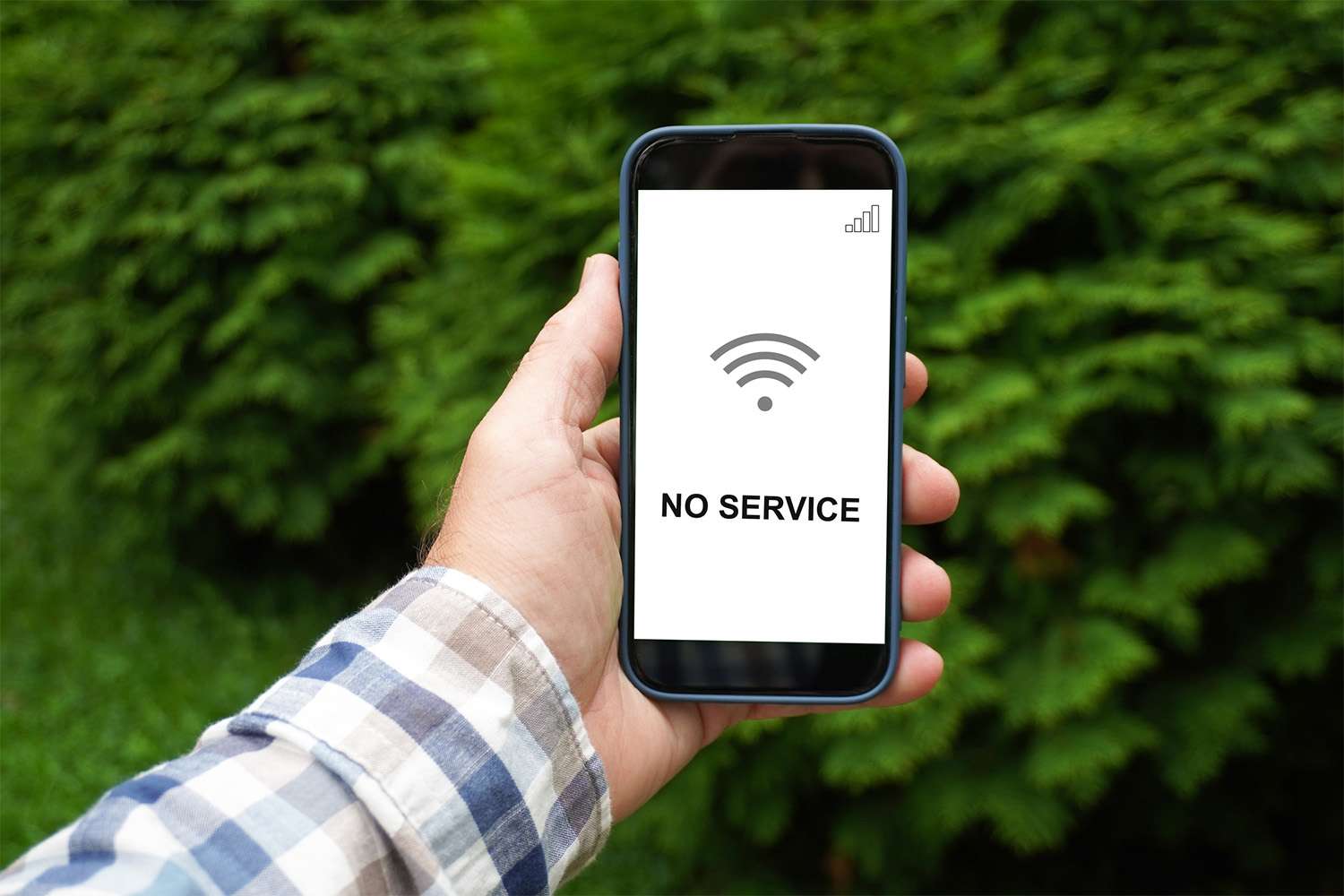
If you see an error message or can’t make or receive phone calls on your iPhone, there could be several reasons for this. You might be experiencing a service outage, your carrier may have an outage, or there could be an issue with your iPhone.
You can try a few steps to resolve these issues. These troubleshooting steps will help you restore your phone’s functionality so you can receive calls and messages again.
How to Fix Your Phone When It Has No Service
Before changing any iPhone settings or performing more time-consuming troubleshooting tasks, work through these easy fixes. Try each step in order until you find a solution.
Make sure the phone is not set to Airplane Mode. Airplane Mode can disable cellular and Wi-Fi services. If you see an airplane icon in the upper-right corner of your iPhone screen, where the signal strength bars usually appear, the phone is in Airplane Mode.
You might still have Wi-Fi if your phone is in Airplane Mode, as that’s a setting that can be adjust to allow you to access in-flight Wi-Fi networks when traveling.
Toggle cellular data off and on again. If your mobile data is the issue, a quick restart cycle could help. To turn it off and then on again, select Settings > Cellular and ensure Cellular Data is on. If it’s on, toggle it off and back on.
Turning Airplane Mode on and off again accomplishes the same thing, so this step might be unnecessary if you tried Step 1.
Make sure you’re within a coverage area. Ensure you have service where you are. If you’re deep inside a building, underground, or in a rural area, you may not have service in that location due to being out of range or because your signal is blocked by concrete and metal. Check for signal strength bars in the upper-right corner of the screen.
Restart your iPhone. Like toggling Airplane Mode, completely restarting your iPhone will trigger a request for a new connection from your carrier. Sometimes, this is all you need to reconnect to the network and resume normal operation.
Try turning on Wi-Fi calling. If you regularly have poor service or no service in locations where you spend a lot of time, such as at home, enable Wi-Fi Calling on your iPhone. This feature allows your calls and messages to be delivered via the internet if you don’t have mobile services.
This is an excellent solution if you move to a new house or apartment and find it’s in a cellular dead zone for your wireless provider.
If you live in a cellular dead zone, consider purchasing a signal booster for your home, which amplifies the cellular signal so you can use the iPhone normally. Signal boosters are available from retailers, as well as most cellular providers.
Check for a carrier settings update. Carriers occasionally release updates that can affect your iPhone’s ability to connect to the cellular network. You can check to see if your iPhone has a carrier settings update by tapping Settings > General > About, and in some cases, manually force the update.
Reset the network settings. It’s possible your iPhone’s settings may have been corrupted, which prevents you from getting cellular service. Reset your network settings back to factory default to solve this issue.
Remove and replace the SIM card. The SIM card may not work correctly because it isn’t seated properly or is damaged. This is especially true if you’ve dropped your phone or it has been impacted in another way. Remove your SIM card, inspect it for damage, and gently clean it by blowing on it or wiping it with a cotton swab or cloth. Then, replace it in your phone, ensuring it’s completely seated in the SIM slot.
Only models from the iPhone 13 and below have physical SIM cards. Starting with the iPhone 14 (in the US, other countries may vary), all models have eSIMs, which means if you have a newer iPhone, you can skip this step.
Check with your carrier. If you still have no service, contact your cellular service carrier and ask about any local outages, problems with your service plan, and if your device is blocked.
Customer Service Contacts for Major Cellular Providers: AT&T 800-288-2020 T-Mobile 800-937-8997 Verizon 800-922-0204 MetroPCS 888-863-8768 Boost Mobile 866-402-7366 Cricket 800-274-2538 Virgin Mobile 888-322-1122 Alternatively, you can always check an online service like DownDetector to see if others are reporting the same issues that you are experiencing.
Have the iPhone serviced by Apple. If all else fails, contact Apple support or make an Apple Genius Bar appointment to see if the Apple experts can help you suss out and fix your problem.
Causes of Why Your iPhone Says ‘No Service’
If you are seeing a “No Service” or “SOS” message at the top of your iPhone’s screen, it is likely:
- Airplane Mode is turned on.
- You are out of your carrier’s service area.
- A misconfigured setting.
- Your carrier is having a problem.
- Your bill is past due, and your carrier has temporarily disabled your service.
The list above should solve most of these problems. But if nothing here works, it might be time to seek the assistance of a professional to get your phone working again.
Thanks for letting us know!
Tell us why!
