


Summary
- Install GNOME Extension Manager to quickly add playful desktop effects.
- Turn workspaces into a 3D Desk Cube and tweak parallax and background for extra charm.
- Add Burn My Windows, Compiz Wobbly, and Magic Lamp for wild window effects and transitions.
Software used to be fun and full of little quirks and gimmicks. If you’ve experienced the Frutiger Aero era of design, you know exactly what I’m talking about. That was before flat, sterile, ‘clean’ designs without any trace of personality took over. Still, I miss when software used to be fun, and I’d like to bring it back where I can. If you’re using the GNOME desktop environment, here are four extensions you can install right now to make your computer fun again.
Get the Gnome Extensions manager
First things first, we need to install the GNOME extension manager. It’ll allow you to browse, install and tweak the 3D extensions. Some GNOME environments might already have the extension manager. Look up ‘extensions’ in the search menu. If it comes up empty, install the GNOME Extensions app.

If your distro has an app center, you can search for ‘GNOME extensions’ and install the official app. Alternatively, you can install it using the APT package manager like so.
sudo apt update
Then,
sudo apt install gnome-shell-extension-manager

Confirm the installation when prompted and launch the extension manager app. Now we’re ready to add some cool desktop and window effects.

Make your desktop cubular
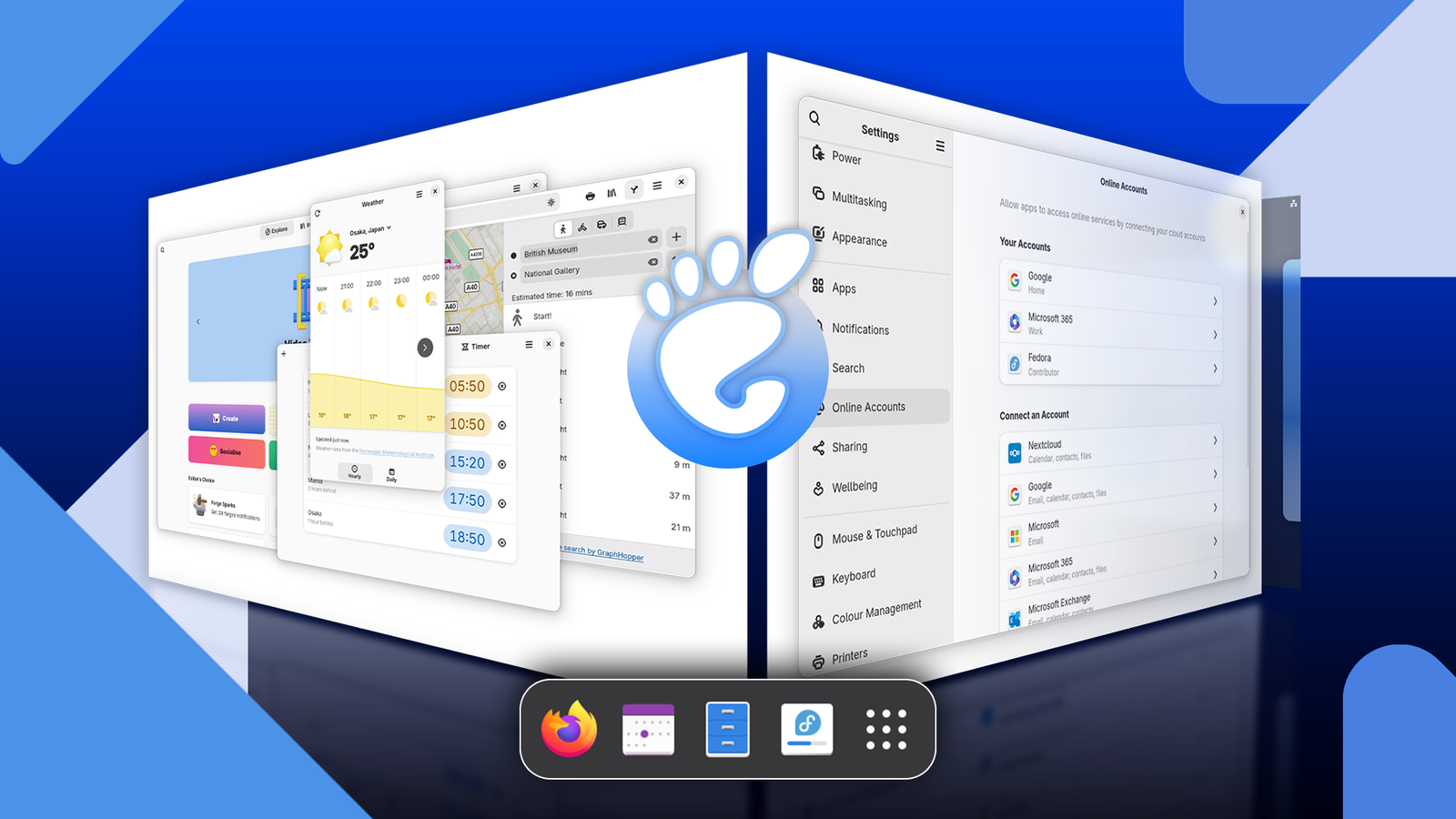
First up, we have the Desktop Cube. It turns the otherwise boring virtual desktop switching experience into a fun cube toy. You can see all your virtual desktops on a 3D carousel that you can spin and move in 3D space. It’s like a little fidget toy and I sometimes get distracted playing with it.

Open the official GNOME extensions website and install the Desk Cube extension by clicking the ‘install’ button. Grant permission to open the Extension Manager, if prompted. When the extension loads in the Extension Manager, click ‘Install’ to load it on your device.

Right away, the workspace switcher will turn into a 3D cube. If your distribution supports it, you can click (or touch) and drag from the top and access the desk cube. You can click once to flip between the desktops. Or, you can click-and-drag the desktops to move them in 3D space.

Desktop Cube also supports a neat parallax effect, but you can’t tell on the plain default background. Click the gear icon next to the extension toggle and select a background image under Background Panorama. You can also change the intensity of the parallax effect using the slider.

There are other settings here that you can tweak to fine-tune the behavior of the Desktop Cube.
Beam me up!
Burn My Windows is a classic GNOME extension that applies cool effects to window transitions—they’re applied when you open or close a window. There are about two dozen effects, and they’re all amazing (except for the ‘mushroom’ effect.)
Go to this GNOME extensions link and install the Burn My Windows extension by clicking the ‘Install’ button. Then load it using the Extensions Manager.

Make sure the extension is enabled and click the gear icon to select your effects. There are too many effects to list in detail here, but I’ll tell you some of my favorites.
There’s Energize A and Energize B, which mimic the transporter effects from Star Trek. Then there’s Aura, which produces a magical glow when windows are fading or loading. There’s also Portal, which mimics the green portal effect from Rick and Morty. Windows get sucked into and come out of a green animated portal.
You can tweak each effect to your liking by clicking the caret icon next to it. For example, you can change the duration and colors of the Energize effect. You change the blur, color, duration, animation, saturation, and edge size of the Aura effect. For the portal effect, you can change how it whirls, its color, and its level of detail.
Wobbly windows
KDE Plasma, by default, has a wobbly effect on its windows when you move them around. You can get the same style of window animation using the Compiz Window Effect extension.
Install the Compiz window effect extension from the official website link. Click the ‘Install’ button to load it into Extension Manager and then install it on your device.

As long as it’s enabled, your windows will show a wobbly effect when you drag them around. If it’s too aggressive, you click the gear icon next to this extension to tweak the effects. Toggle off the ‘maximize effect’ button and choose ‘subtle’ from the preset menu. You can also make it more exaggerated by choosing ‘exaggerated’ from the same menu.

Make windows minimize and maximize in the style of macOS
By default, macOS has a neat effect of minimizing and maximizing windows, which feels like a genie emerging from a lamp. When you minimize a window, it leaves a trail that leads back to a specific spot on the taskbar or dock. That way you can track which app is where on muscle memory alone. You can get that same effect with a GNOME extension called Compiz Magic Lamp Effect.

Follow the GNOME extensions website link to install it. Click the ‘Install’ button on the web page, let it load into the Extension Manager, and then install it on your machine.
Make sure its toggle is enabled and test it by minimizing or maximizing a window.
The best part of having a Linux machine is that you customize it to truly make it your own. I don’t know about you, but customizations that have this whimsical charm and personality always turn my head.
