


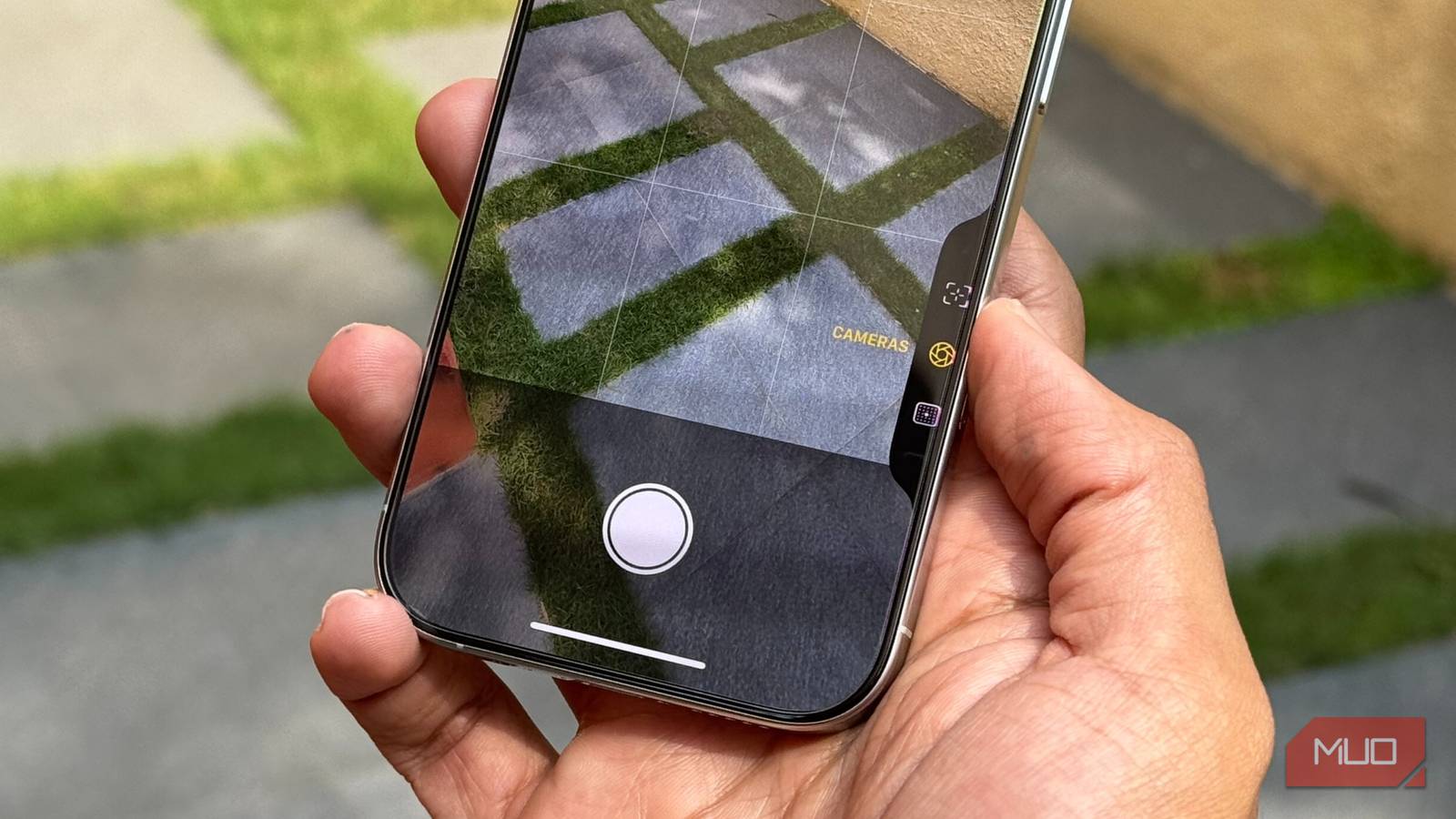
Your phone’s camera isn’t just for selfies; it can also double as a visual search engine. Instead of snapping a photo of a strange plant, a cool pair of sneakers, or a random gadget and then trying to describe what you see to Google Search or any other text-based search engine, the right app lets you get straight to the answer with a single image. In many cases, all you need to do is point, shoot, and let the app handle the rest.
Whether I’m satisfying my curiosity, shopping more intelligently, or simply learning something new on the go, I rely on a number of Android and iPhone apps that can identify almost anything I see. Even better, most of these apps are free to use, which makes turning your camera into a pocket-sized identification tool easier than ever.
Google Lens
For identifying everything


Many people might be unaware, but you can pair Google’s search engine chops with your phone’s camera to figure out what pretty much anything is. Whether it’s a picture you’ve already taken or something you spot in real-time, Google Lens is up to the task.
To launch this app, simply open Google Chrome, Google Photos, or the Google app on your smartphone and tap the camera icon at the far right of the search bar. If you’re using an Android phone, you can download the Google Lens app instead.
Now, all you have to do is point your camera at the object you want to identify and tap the capture button. Google Lens can recognize a wide range of items, including animal breeds, plants, flowers, branded gadgets, logos, jewelry, and more. However, it doesn’t consistently work for identifying people.
There’s so much more you can do with Google Lens — if you’re curious, give it a try!
Pinterest
Art, design, and decor identifier


Pinterest is another excellent photo identifier app. You open the search page, tap the camera icon, take a picture, and Pinterest fetches similar pages for the objects it recognizes.
This app can also match multiple items in a complex image, such as an outfit, and, if possible, find links for you to purchase items.

Pinterest Is Finally Fighting Back Against AI Slop
Pinterest will now label images that have been generated or modified with AI.
Pinterest’s visual search is primarily designed for exploring designs, outfits, and other similar categories. For purposes such as exploring nature, you’ll have a better time with other apps, like Google Lens.
Price comparison and Amazon availability


Even though you can only discover products sold by Amazon and its retailers, this is still an excellent tool for identifying everyday items. Plus, it likely offers the easiest purchasing process.
When you open the Amazon Shopping app, you’ll notice a camera icon right in the search bar on the homepage. Tap it, and you’ll be taken to Amazon Lens. From there, you can snap a photo or scan a barcode to find a product, reorder something you’ve purchased before, or even check reviews for an item you already own.
If something catches your eye, completing your purchase and arranging delivery to your doorstep takes just a few clicks.
Image Recognition and Searcher
Mostly for reverse image searching, but can also identify objects
Although Image Recognition and Searcher is primarily designed for reverse image searching, it also offers a camera feature that lets you identify physical photos or objects easily.
Once you snap a picture to perform a reverse image search, the app generates a list of web links directly related to the item in the image. You can also upload images from your gallery or simply copy and paste them into the app for quicker searches.
The app delivers results from three major search engines: Google, Bing, and Yandex. These results include websites, social media profiles, and purchase options, all in a bid to help you uncover the source of the image or identify the item in question.
Currently, this app is available exclusively for iPhone and iPad users.

- OS
-
iOS
- Price model
-
Free, subscription available
Lookout
Help for the visually impaired


Lookout is a Google app designed specifically to help individuals with visual impairments. Using the app’s Explore feature (in beta at the time of writing), you simply point your camera at an item, and Gemini, Google’s Artificial Intelligence (AI) software, identifies it. Once identified, Gemini announces the object in simple terms like “book,” “throw pillow,” or “painting.”
In low-light settings, Lookout automatically activates the flashlight. There are also specialized modes, such as the Find mode (also in beta), which helps locate seating options. If it spots a couch, for instance, it provides step-by-step directions to guide you to the seat — similar to how Google Maps, one of the best mobile navigation apps, gives you directions.

Everyone tells me to switch to Waze, but there’s a good reason I won’t
It’s a good platform, but I can’t make it work for me.
Lookout’s additional tabs let you read food labels, text, documents, and currency. While it can struggle with messy handwriting, it does okay with printed materials and text on a screen.
You can also upload photos from your camera roll for identification, although the app is best used for live exploration — moving your phone’s camera around to identify your surroundings. Currently, Lookout is unavailable for iOS devices, but a great alternative for iPhone users is Seeing AI by Microsoft.

- OS
-
Android
- Price model
-
Free
Lookout helps those who are visually impaired understand their surroundings by using the phone camera to identify objects, text, and scenes in real time.
PictureThis
Identify all the plants you come across


Whether you’re a gardening enthusiast or a simple nature lover, PictureThis is a must-have. It’s one of the best plant-identifying apps and is perfect for discovering which pesky weed is killing your cucumbers or for naming the beautiful moss covering your favorite campground.
Using PictureThis, just snap a photo of the plant in question, and the app instantly identifies it while providing detailed information. This includes potential pests or diseases, watering tips, and more. You’ll also get watering reminders and access to experts who can help you diagnose your sick houseplants.

- OS
-
Android, iOS
- Price model
-
7-day free trial available
PictureThis helps you identify and learn about plants instantly by snapping a photo.
Vivino
To know if a bottle of wine is the best one for you


Whether you’re a wine connoisseur or simply a fan of the occasional glass, Vivino is one of the best wine apps you can download. All it takes is a quick photo of a wine label, and Vivino delivers a wealth of information to help you choose wisely.
After processing the image, the app provides details such as the wine’s popularity, taste profile, ingredients, age, and more. It even offers user reviews and ratings from Vivino’s massive community of over 30 million users, so you never have to make a wrong choice again.

- OS
-
Android, iOS
- Price model
-
Free, in-app purchases available
With Vivino, you can scan wine labels to see ratings, reviews, and personalized recommendations, so you can choose the perfect bottle for you.
Bixby Vision
Google Lens alternative for Samsung users


If you’re a Samsung user looking for an alternative to Google Lens, Bixby Vision could be your go-to. This built-in app makes your smartphone camera smarter, allowing you to identify objects, text, and even landmarks with ease.
With Bixby Vision, simply point your camera at an object or image and let the app do the rest. Whether it’s identifying products, scanning QR codes, translating text in real time, or uncovering details about landmarks, Bixby Vision helps you identify things around you.
Accessing Bixby Vision is slightly different from launching a typical app—it’s not as easy as going to your app list and launching it. To use it, open your camera, tap on More to expand the camera options, and then select Bixby Vision. Alternatively, you can activate Bixby Voice and ask it to launch Bixby Vision.
While Google Lens may have more features overall, Bixby Vision remains a solid, built-in option for Galaxy owners.

- OS
-
Pre-installed on Samsung Galaxy devices
- Price model
-
Free
Bixby Vision lets you search, translate, and shop instantly by analyzing what your camera sees.
With any of these apps, satisfying your curiosity is just a snapshot away
Whether you’re trying to pick the best bottle of wine, identify a plant, or just find a nice pair of shoes easily, these apps make it easier than ever to get answers instantly. They turn your phone into a powerful detection tool that can recognize almost anything in your surroundings, saving you time and energy trying different word combinations to identify an item.
Download one today, start exploring, and see how much more you can learn, discover, and shop — all with just a quick snapshot.
