


:max_bytes(150000):strip_icc():format(jpeg)/transfer-iphone-to-android-2d0eb275e50745bbb8dbcbe684c83dd6.jpg)
The Download
- Gmail: iPhone Settings > Mail > Accounts > Gmail account > Contacts toggle on > sign in on Android device.
- Google One: Menu > Settings > Sync Settings > Contacts > Check Status > Allow > Set up sync.
- vCard: iCloud Contacts site > Saved to iCloud > Select All Contacts > Share > Export vCard > open the .vcf file.
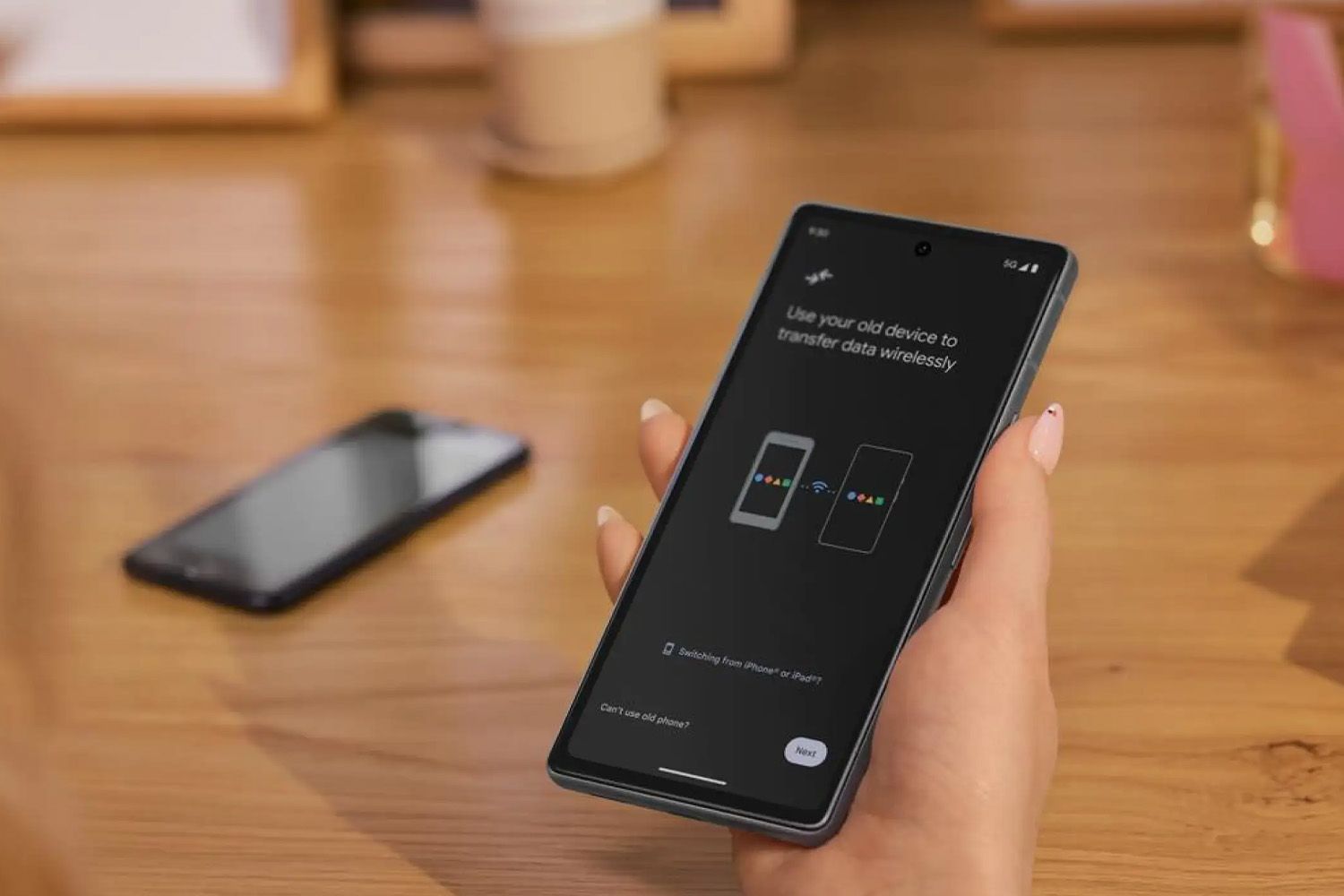
This article explains how to transfer contacts from an iPhone to an Android phone, including how to sync through Gmail or Google Drive, and how to download contacts manually from iCloud.
Transferring Contacts from iPhone to Android
Android and iOS are completely different mobile ecosystems, but transferring contacts between them is one of the easiest parts of switching from iPhone to Android.
If you already have a Gmail account on your iPhone, then the easiest option is to turn on the contacts toggle in the Mail settings app. As long as you use the same Gmail account on your new Android phone, all of your contacts will follow you automatically.
You can also back up contacts from iPhone to Android through the Google Drive app on your iPhone, or by accessing the desktop version of the iCloud website from your Android phone.
Contacts can be transferred one at a time via email as well, although that method is so time-consuming that it isn’t useful if you have a lot of contacts to move over.
How to Transfer Contacts from iPhone to Android Using Your Gmail Account
If you already use Gmail on your iPhone, then your contacts might import automatically when you sign into your new Android using your old Gmail account. There’s no reason to take any chances though, as checking this is fast and easy.
You’ll need to get into the Mail settings on your iPhone and make sure that it’s set to back up your Gmail contacts. As long as the contacts toggle is turned on, the contacts from your iPhone will automatically show up on your Android when you log into Gmail on that device.
Here’s how to transfer contacts from iPhone to Android using Gmail:
On your iPhone, open Settings > Apps.
Tap Contacts > Contacts Accounts.
Tap your Gmail account.
Check the Contacts toggle, and tap it if it isn’t already on.
If it’s already on, you don’t need to do anything.
Log in to the same Gmail address on your Android phone, and your contacts will import automatically.
How to Transfer Contacts From iPhone to Android With Google One
To use this method, you’ll need to download the Google One app from the App Store and sign in using the same Google account that you plan on using with your Android. This allows you to perform a manual backup of your contacts, and then access that data from your new Android phone.
Here’s how to transfer contacts from iPhone to Android with Google One:
Download and sign in to Google One on your iPhone if you haven’t already done so.
Select the Google account you will use with your new phone.
Tap Menu > Settings > Sync settings.
Select Contacts > Check Status.
Tap Allow Full Access to complete the status check.
If you aren’t already syncing your iPhone contacts to Google One, select Sync > Upload contacts and follow the instructions.
When the backup is complete, you’re done. Your contacts will sync to your Google account, so all you need to do is log in to your Android phone using the same Google account.
How to Transfer Contacts from iPhone to Android With a vCard
If you prefer to transfer your contacts manually, you can use a vCard. A vCard is a .vcf file that contains contact information including their name, phone number, email, physical address, and other details.
You can create a vCard on the iCloud website, download it to your Android phone, and import contacts that way. For this to work, you’ll also need to make sure that your iPhone is set to back up your contact data to iCloud.
Here’s how to transfer contacts from iPhone to Android with a vCard:
On your iPhone, open Settings and tap your Apple Account/Apple ID at the top.
Tap iCloud.
Tap Saved to iCloud > See All.
Tap the Contacts toggle to turn it on.
If the toggle is already on, don’t tap it.
On your Android phone, navigate to iCloud.com/contacts and sign in.
Tap the ellipses icon > Select All Contacts.
Tap Share > Export vCard.
Next, open the Contacts app on your Android.
Select Organize > Import from file to add the vCard file to your Google account.
Your contacts will be available as soon as the import process finishes.
Transferring Single Contacts Between iPhone and Android
There is one more way to move contacts from iPhone to Android, but it’s unnecessarily time consuming unless you only want to import a small number of contacts.
This method is usually used when you want to send a single contact to a friend, but you can also use it to send contacts to yourself. It involves using the Contacts app to share individual contacts from your iPhone to an account that you have on your Android phone.
Here’s how to transfer contacts from iPhone to Android using email or text messages:
Open the Contacts app on your iPhone, and tap the contact you want to transfer.
Tap Share Contact.
Select a method to share the contact, i.e. Mail.
Enter the email address you use with your Android phone, and tap send.
Open the email on your Android phone, and tap the attachment.
Select your Google account.
The contact will be imported to your account.
Thanks for letting us know!
Tell us why!
