


:max_bytes(150000):strip_icc():format(jpeg)/samsung-galaxy-lock-screen-1d586bd283734f7b9688a2cad9c7061e.jpg)
The Download
- Most Androids: Settings > Security & privacy > Device unlock > Screen lock > passcode > None > Delete.
- Samsung: Settings > Lock screen and AOD > Screen lock and biometrics > passcode > None > Remove data.
- Important: Disabling screen lock leaves your private information vulnerable to theft and tampering.
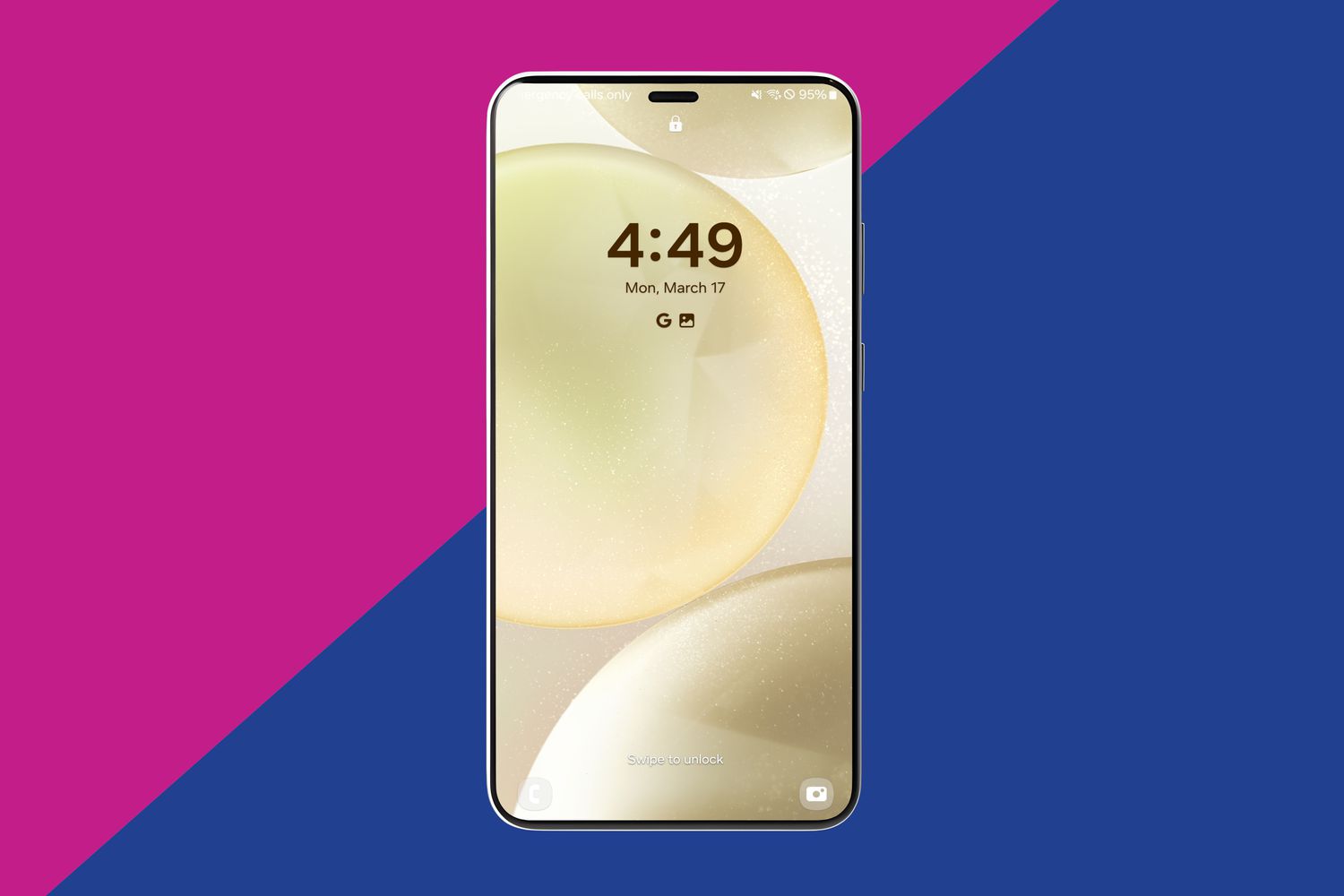
This article explains how to turn off screen lock on Android. Following these steps will remove the lock screen password, PIN, pattern, etc., so that you can get into your device faster.
How to Remove Screen Lock on Most Android Phones
Screen lock options are available through the Settings app. It’s as easy to turn off screen lock as it was to turn it on. Here’s how it’s done:
These steps vary depending on your device and its version of Android. We’ve included partial directions for older devices, but if you can’t follow along exactly, don’t hesitate to poke around the Settings app or search for related terms.
Open the Settings app.
Select Security & privacy.
If you don’t see that option, look for something similar, like Security or Security & location. You can also search for the word security.
Tap Device unlock.
Device unlock options are found in the security area of the Settings app.Choose Screen lock. Some devices call this something else, like Lock screen password.
Enter your current PIN or passcode, draw the pattern, or authenticate in whatever way you usually do.
Select None > Delete. Depending on your device, this might be called Disable lock screen password.
Read the warning. Some things will change after disabling screen lock.
Some features are disabled when you turn off screen lock.
How to Remove Screen Lock on Samsung Galaxy Phones
Samsung devices work a lot like other Androids, but the steps for turning off screen lock aren’t exactly the same. Here’s how this works on a Samsung Galaxy phone:
Open Settings. One way to get there is through the Quick Settings menu.
Tap Lock screen and AOD.
If that’s not the option you see, select Lock screen instead, or go to My Device > Personalization > Lock Screen.
Tap Screen lock and biometrics or, if you don’t see that, Screen lock type.
Enter your current passcode and then tap Continue.
Tap None to disable the screen lock.
You might see a message that says your biometric data will be erased from your phone. If you agree to this, tap Remove data to finish up.
Selecting ‘None’ lets you into your phone faster.
The Risks of Android Lock Screen Removal
You can turn off screen lock whenever you want. And the benefit is clear—you get into your phone or tablet faster. But here’s the catch: So can anyone.
A lock screen passcode is useful for security reasons. Similar to how a locked door helps to keep intruders away, a phone that uses a passcode is much more secure than one that doesn’t.
Disabling the lock screen passcode is akin to keeping your doors unlocked. As convenient as it is to walk right into your home without fumbling for keys, it’s just not wise. The same applies to your smartphone or tablet.
If you ever lose your device, someone can just pick it up and get right into your apps. This would grant them full access to things like your notes, which could include passwords, your texts that have private conversations, emails, etc.
Consider an alternative if you’re tired of entering a passcode. If your phone supports it, set up face recognition or fingerprint scanning instead. These screen lock options don’t require you to remember anything and can usually unlock the device quickly.
Thanks for letting us know!
Tell us why!
