


YouTube represents one of the biggest stages for video content, drawing more than 2.5 billion active users every month. Brands and creators can rack up views, increase awareness, and draw considerable revenue from the platform.
The upside is clear, but such a popular resource also brings in stiff competition. With 500 hours of footage uploaded every minute, viewers have endless alternatives from the moment your video feels confusing or hard to navigate.
That’s why social media managers focus so heavily on how a video guides the audience.
Storytelling sparks interest, but retention comes from reducing the mental effort required to follow along. Clear segment breaks, concise on-screen cues, and predictable structure help viewers absorb information without having to “work” for it.
YouTube timestamp links are a simple but powerful extension of this idea.
They send users straight to the moment they need, whether it’s a demonstration, an answer, a key insight, or the section a social media point is referencing. Timestamps give people a sense of what the video contains and let them jump directly to the part that solves their problem.
The benefits add up quickly: more engaged viewers, fewer drop-offs, higher watch time, and a smoother overall experience. And from a search engine optimisation (SEO) and answer engine optimisation (AEO) standpoint, timestamps help Google understand your content more precisely, creating clean reference points that can be indexed, surfaced, or summarised.
Let’s look at how to format timestamp links properly, use them across different devices, and turn them into a small but reliable advantage in both user experience and search visibility.
What is the exact YouTube timestamp format?
A timestamp link only works if the URL is structured correctly. This is where most issues happen, especially when links are copied from different devices or shared across multiple platforms. The format itself isn’t complicated. It’s just a matter of knowing which part of the link controls the “start time.”
Short links vs. long links
You’ll typically see YouTube links in two styles:
- Short links (youtu.be/abc123): Used when you copy a link from the YouTube “Share” button.
- Long links (youtube.com/watch?v=abc123): Used when you copy the URL directly from the browser.
The main thing for creators to remember is this:
- Short links add a timestamp with ?t=
- Long links add it with &t=
That’s the only difference.
All you’re doing is adding the timestamp in the correct shape so YouTube can recognise it. Once you click the stamp, the YouTube video will start at a specific time, giving viewers an instant jump to the exact moment you want to highlight.
How to format the time code
YouTube lets you specify the exact moment your video should start by using hours (h), minutes (m), and seconds (s).
You can write:
- 1m45s (one minute, forty-five seconds)
- 45s (forty-five seconds)
- 1h3m30s (one hour, three minutes, thirty seconds)
Here’s a complete example using a long URL:
https://www.youtube.com/watch?v=12345&t=1m45s
When someone clicks this link, the video jumps straight to 1:45, no scrolling or scrubbing required.
How to create YouTube timestamps
Creating a timestamp link is straightforward once you know where to look. Most social media managers only need two workflows: the quick desktop method and the manual mobile method.
Both achieve the same result, but the steps differ slightly depending on where you’re grabbing the link.
The fastest way (desktop browser)
On desktop, YouTube gives you two built-in options that generate timestamp links automatically:
Method #1: Right-click method
- Play the video and pause at the exact moment you want to share.
- Right-click on the video.
- Select Copy video URL at current time.
- Paste the link into your post or scheduling tool (the timestamp is already included).
Method #2: Share button
- Click the Share button under the video.
- Tick Start at and confirm the time is correct.
- Copy the generated link and use it in your post.
This method produces a short youtu.be link, which uses the ?t= format.
Creating a YouTube link with a timestamp on mobile (the manual method)
The YouTube mobile app doesn’t offer a “Start at” checkbox, so you’ll need to add the timestamp yourself:
- Tap “Share”, “Copy link”
- Paste the link into a draft post or notes app.
- Add the timestamp manually:
- Short link: ?t=45s
- Long link: &t=45s
For example:
youtu.be/abc123?t=90 takes viewers 1 minute 30 seconds into the video.
How to timestamp YouTube comments
You can create a YouTube timestamp comment, too. When you type a time format like 1:45 into a comment, YouTube automatically turns it into a clickable timestamp.
This is useful when you want to highlight key moments for your audience, pin important sections, or give viewers a quick entry point into longer videos.
Leveraging timestamps for AEO and video chapters
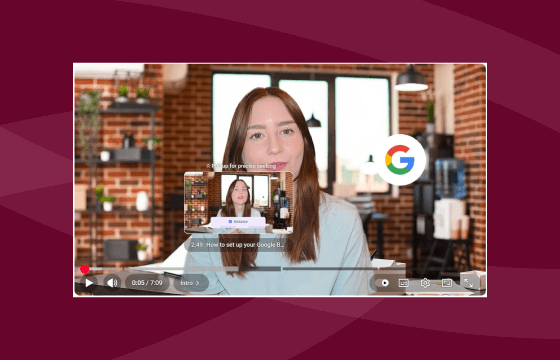
Timestamps aren’t only useful when you’re sharing a direct link. When you add them inside the video description, YouTube converts them into clickable YouTube description chapters (the horizontal navigation bar that appears directly beneath the video window).
Each chapter has its own thumbnail, timestamp, and title, giving viewers an immediate overview of how the video is structured.
These chapters help viewers navigate long videos more easily, but they also create clear structural signals that Google and large language models (LLMs) can process.
That structure becomes valuable for search visibility, summaries, and any AI-powered feature that pulls information from your content.
Chapters act like a built-in table of contents.
They break the video into predictable sections, make key moments easier to scan, and help users jump to the part that matches their intent. When a viewer understands the shape of a video upfront, they’re far more likely to stay with it.
Requirements for video chapters to work
YouTube only recognises chapters if they follow three rules:
- The first entry must start at 0:00.
- You need at least three timestamps in the description.
- Each timestamp must be 10 seconds or more apart.
YouTube’s system won’t activate chapters unless all three conditions are met.
Boosting LLM visibility with chapter tiles
Chapters become even more effective when each section has a clear, descriptive title. Use keywords that reflect what the viewer will learn or see in that moment.
LLMs rely on these titles when identifying topics, answering questions, and generating summaries, making your video easier to surface and more useful in AI-driven results.
Increasing content efficiency with video tools
Social media managers rely on timestamps when repurposing clips, linking to specific talking points, and coordinating multi-platform campaigns. The more organised the video is, the easier it becomes to manage everything around it: uploads, thumbnails, captions, assets, and platform-specific posts.
This is where Sendible’s tools fit naturally into the workflow, helping you move from timestamps to chapters to full campaign planning, without switching systems or losing time.
Schedule YouTube videos and timestamps effortlessly
Once your timestamps are mapped out, you can add them directly into the YouTube description field inside Sendible’s scheduling workflow.
Sendible lets you upload your video, set the title, write the description, choose your tags and category, and pick the exact time it should publish.
Because YouTube sits alongside every other social profile in your Sendible dashboard, your video upload becomes part of a coordinated, multi-platform schedule.
You can line up supporting posts, plan cross-channel promotion, and keep your timing consistent across every network you manage. It’s a cleaner, faster way to handle YouTube publishing when you’re juggling several channels at once.
Streamline media management for YouTube assets
Sendible gives you access to a Content Library and a built-in image editor, so you have a central hub for visual assets (thumbnails, chapter cards, overlays, etc.).
This saves you time searching through folders or creating graphics from scratch for every piece of content.
Inside the Compose Box, you can upload or update a thumbnail, make adjustments in the editor, and attach it to your YouTube upload or related social posts.
It keeps your visual assets consistent across platforms and makes it much easier for teams to work from the same set of files.
Centralise your entire video campaign
Video-led campaigns become far more manageable when everything sits inside one dashboard. You can upload the video, add your timestamped description, prepare your thumbnail, and build the supporting posts for other platforms without switching tools.
The whole campaign comes together in a single workflow, which reduces friction and keeps your timing consistent across every channel. This approach is faster, clearer for teams to follow, and especially useful when you’re coordinating several accounts at once.
Troubleshooting: Why are your YouTube chapter timestamps not working?
Even when the format looks correct, timestamp links and chapters can fail for a few simple reasons. Most issues come down to small formatting details, copied links with hidden parameters, or pasting a timestamp into the wrong type of YouTube URL.
The good news is that almost every problem has a straightforward fix once you know what to check.
Four reasons your link or chapters may fail
#1 Missing the required 0:00 chapter
YouTube will not activate chapters unless the first entry in your description starts at 0:00. If this is missing, none of the timestamps will convert into chapters.
#2 Using ?t= when the link already has parameters
If your URL already contains ?v= or other tags, you must use &t= to add the timestamp. Using ?t= again breaks the link structure.
#3 Incorrect time formatting
YouTube does not accept decimal-based timestamps. Formats like 1.5m won’t work. Use 1m30s or 90s instead.
#4 Not testing the link before publishing
Always test your timestamp in a fresh browser tab or incognito window. Cached sessions can make a broken link appear correct.
Make your videos easier to navigate, for users and algorithms
Mastering timestamp links gives your audience a smoother way to navigate long videos. When viewers can jump straight to the sections that matter, engagement improves and watch time becomes more predictable.
These small formatting choices also help search engines and AI tools understand your content more clearly, making every video easier to surface and share.
If you want the same clarity in your workflows, Sendible brings your uploads, assets, and multi-platform posts into one organised dashboard.
Try Sendible for free for 14 days and see the practical insights you’ll gain on video content firsthand.

