


, our basic understanding of the Python language is knowing that we can program functions, introduce iterations with the help of Python loops, and decide which program to execute with the help of conditional statements like if, elif, and else. But Python is far more powerful than that; it can access and process files, create interesting games, simulate scientific concepts, process big data, generate machine learning models, and a lot more!
In this article, we will use Python to create graphical outputs by using the Python module Turtle. This is a beginner-friendly tutorial that teaches how to draw shapes and program drawings using Python. To proceed further, it is essential to have a thorough understanding of Python fundamentals: basic statements, loops, classes and objects, and accessing modules.
Python’s Turtle Module
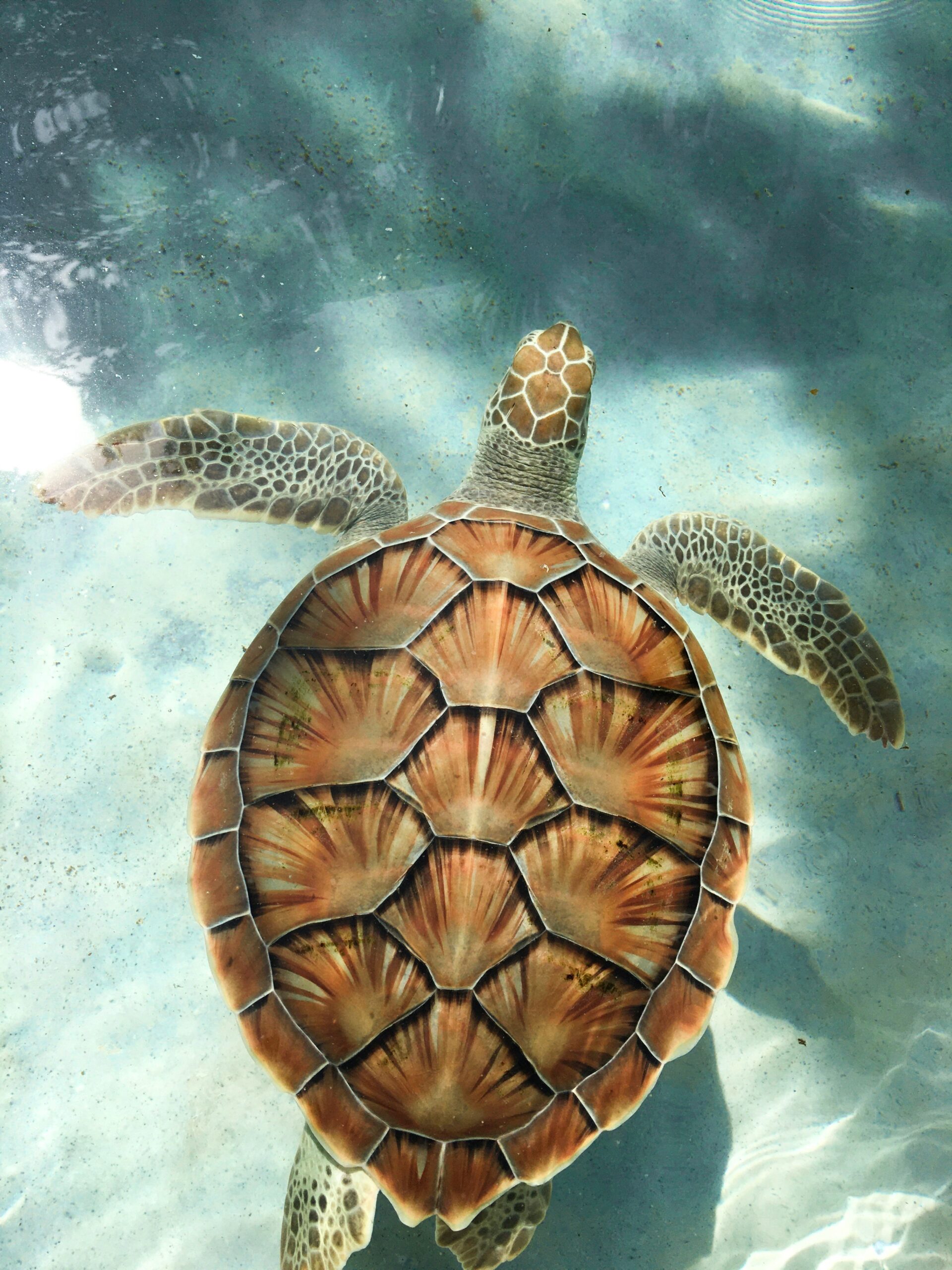
The turtle module in Python is a module that allows graphical outputs through code. The module provides a pointer, which can be customised as a turtle (thus the name), and the movement of the turtle leaves a trail behind, drawing shapes and creating visual patterns on the screen. The module is installed with the Python standard library, which means that we do not have to install the module ourselves. Its classes and functions can easily be accessed through the following import statement:
from turtle import *Now, let us dive deep into this module through the Python official documentation: https://docs.python.org/3/library/turtle.html
Turtle Basic Commands
As can be seen from the documentation linked above, the basic commands that we can give to our turtle are the following:
forward()This function tells the turtle to move forward by a specific distance. It takes an integer value as an argument.backward()This function tells the turtle to move backward by a specific distance. It also takes an integer value as an argument.left()This tells the turtle to turn to the left by a certain angle that has been passed to the function as an argument.right()This tells the turtle to turn to the right by a certain angle that has been passed to the function as an argument.color()This will change the color of the turtle according to the string that has been passed to this function as an argument (eg, “pink”). Color names can be accessed from here.width()This will change the width of the pointer by the integer valueexitonclick()This will allow us to close the screen that has been generated as an output to our code, just by clicking on the screen.
Run the following code, and alter it according to your requirements to understand what the turtle does when each of the above functions is called.
from turtle import *
color("pink")
width(5)
forward(100)
left(45)

color("blue")
width(4)
forward(100)
left(45)
forward(20)

color("red")
width(4)
forward(60)
left(45)
backward(50)

color("yellow")
width()
forward(100)
right(45)

exitonclick()
Using OOP Turtle Graphics
Now that we have seen how the basic functions in the module work and how the output is generated, we will use the concept of Object Oriented Programming that is explained in the documentation to further our understanding. The concept of classes and objects, created through the constructor, brings ease when programming huge complex programs with variables having similar parameters but different values. This is where OOP comes in handy, and its incorporation in the module will allow us to use more than one turtle at a time.
In order to proceed ahead, it is important to have a basic level understanding of classes and objects, specifically how objects can be created with their attrbitutes and methods.
Let us create our turtle and screen objects:
from turtle import Turtle, Screen

my_turtle = Turtle()
print(my_turtle)

As can be seen from the screenshot above, the turtle object has been created, and its location is defined. Now we will use the documentation to customize our turtle.
We will define the shape, color, and width of our turtle using the following code:
my_turtle.shape("turtle")
my_turtle.color("coral1")
my_turtle.width(4)
Let us also define the screen object and customise it.
screen = Screen()
screen.title('Drawing Shapes with Turtle Module')
screen.bgcolor("white")
screen.exitonclick()
The screen object has been defined above, and its title and background colors have been set accordingly. Now, let us move towards the main goal of this tutorial!
Drawing Shapes
We will now learn how to draw different shapes with our customised turtle!
Triangle
The first shape that we will draw is a triangle. This can be drawn using the basic functions that we discussed above: forward and right. We know that a triangle consists of 3 sides, and for an equilateral triangle, the angle between each side is 60. We can draw this triangle using the following lines of code:
my_turtle.forward(200)
my_turtle.right(120)
my_turtle.forward(200)
my_turtle.right(120)
my_turtle.forward(200)
my_turtle.right(120)
As can be seen, we have successfully created a triangle with the help of our turtle. Notice that we have set the angle by which the turtle moves to the right to 120, so that would mean the remaining angle that would become the internal angle of the triangle will be 180 – 120 = 60. This had been our goal. We will work similarly for the next shape.
Square
Now we will use our turtle to draw a square. Since a square has 4 sides, we will use the forward movement method 4 times, with the angle set as 360/4 = 90º whenever we are using the right method. Let us also change the color of the turtle to dark turquoise (Turtle Colors)
Here is our code to draw a square:
my_turtle.color("dark turquoise")
my_turtle.forward(200)
my_turtle.right(90)
my_turtle.forward(200)
my_turtle.right(90)
my_turtle.forward(200)
my_turtle.right(90)
my_turtle.forward(200)
my_turtle.right(90)
Pentagon
Next, we will create a pentagon, which is a 5-sided shape with the angle between each side equal to 108. This means that the exterior angle will be equal to 72. We will code the above into our code, this time using 5 lines of code for the 5 sides. We will also change the color of our turtle.
my_turtle.color("spring green")
my_turtle.forward(150)
my_turtle.right(72)
my_turtle.forward(150)
my_turtle.right(72)
my_turtle.forward(150)
my_turtle.right(72)
my_turtle.forward(150)
my_turtle.right(72)
my_turtle.forward(150)
my_turtle.right(72)
As you can see in the code block above, we have reduced the forward movement from 200 to 150 so that the pentagon can be drawn within the screen.
Building the Algorithm
We have used the turtle module to draw a triangle, a square, and a pentagon. As we can see from the above, we can easily detect a pattern. The turtle moves forward and right as many sides as there are. For drawing a triangle, thus a three-sided shape, the turtle moves forward, then right, then forward, then right, then again forward and again right, a total of 3 sets of forward and right. For a square, the same set is executed four times, that is, as many sides as the shape has. And similarly for a pentagon. Thus, we can establish a pattern of recurring forward and right functions. We can set a fixed value of the distance covered whenever the turtle moves forward. As for the angle given to the right method, just like the number of times the statements are repeated depends on the number of sides in the shape, similarly, the angle is also determined by the number of sides. This exterior angle can easily be calculated by the following formula:
Exterior Angle = 360 / Number of Sides
The exterior angle for a triangle will be 360/3 = 120. The exterior angle for a square will be 360/4 = 90, and so forth and so on. This will be used to feed the right method.
Defining the Function
Now we will define a generic function that takes the number of sides of a shape to draw the shape. If we give 3 as an argument, it will create a triangle. If we give 8 as an argument, it will create an octagon, etc.
def draw_shapes(num_sides):
    angle = 360 / num_sides
    for i in range(num_sides):
        my_turtle.forward(50)
        my_turtle.right(angle)
The function takes in the number of sides, calculates the exterior angle, which is fed to the right method, and executes the forward and right method the number of times as there are sides. So, suppose we want to draw an octagon, we will call the function and give the number 8 as an argument to the function. We may also define the color of the shape:
my_turtle.color("pale violet red")
draw_shapes(8)
Drawing Shapes within a Range
Now we will use the above function we have defined, and use the for loop to loop through a range of numbers, each corresponding to a side. We will start with 3 for a triangle, and our turtle will draw as many shapes as we would like. So, suppose we would like to draw a triangle, a square, a pentagon, etc up to a decagon, we will loop through the numbers 3 to 11, as 11 is excluded in the range of a for loop.
Let us also add the provision of drawing each shape with a different color. For that, we will create a list of colors, and the for loop will also loop through the colors in the list.
my_colors = ["dark gray", "hot pink", "midnight blue", "orange", "indigo", "dark sea green", "tan", "pale violet red", "sky blue", "spring green"]
Once we have created our list of colors, we will modify our function to include the color-changing feature, and then loop through the range to draw shapes.
def draw_shapes(num_sides):
    angle = 360 / num_sides
    my_turtle.color(my_colors[3-num_sides])
    for i in range(num_sides):
        my_turtle.forward(75)
        my_turtle.right(angle)

for shape_size_n in range(3,11):
    draw_shapes(shape_size_n)
Conclusion
In this tutorial, we have explored the turtle module, understood its basic functions and OOP concept, and used it to create shapes. This was an intermediate-level Python tutorial that required a basic level understanding of classes and objects, defining and calling functions, as well as customizing colors with the help of Trinket. This is a basic-level example of what could be done with the Turtle module. We can explore the module further and learn a lot of coding through it!
