Close Menu
SkytikSkytik

    Subscribe to Updates

    Get the latest creative news from FooBar about art, design and business.

    What's Hot

    At Least 32 People Dead After a Mine Bridge Collapsed Due to Overcrowding

    November 17, 2025

    Here’s how I turned a Raspberry Pi into an in-car media server

    November 17, 2025

    Beloved SF cat’s death fuels Waymo criticism

    November 17, 2025
    Facebook X (Twitter) Instagram
    • About Us
    • Contact Us
    SkytikSkytik
    • Home
    • AI Tools
    • Online Tools
    • Tech News
    • Guides
    • Reviews
    • SEO & Marketing
    • Social Media Tools
    SkytikSkytik
    Home»Online Tools»How to Easily Cancel ESPN Plus
    Online Tools

    How to Easily Cancel ESPN Plus

    AwaisBy AwaisDecember 11, 2025No Comments4 Mins Read0 Views
    Facebook Twitter Pinterest LinkedIn Telegram Tumblr Email
    How to Easily Cancel ESPN Plus
    Share
    Facebook Twitter LinkedIn Pinterest Email

    The Download

    • From the ESPN website, select your profile photo > Account > Manage Subscription.
    • If you signed up elsewhere (Roku, Hulu, etc.), cancel ESPN Plus from that service.
    • Alternatively, call 1-800-727-1800 or send an email request to memberservices@espn.go.com.

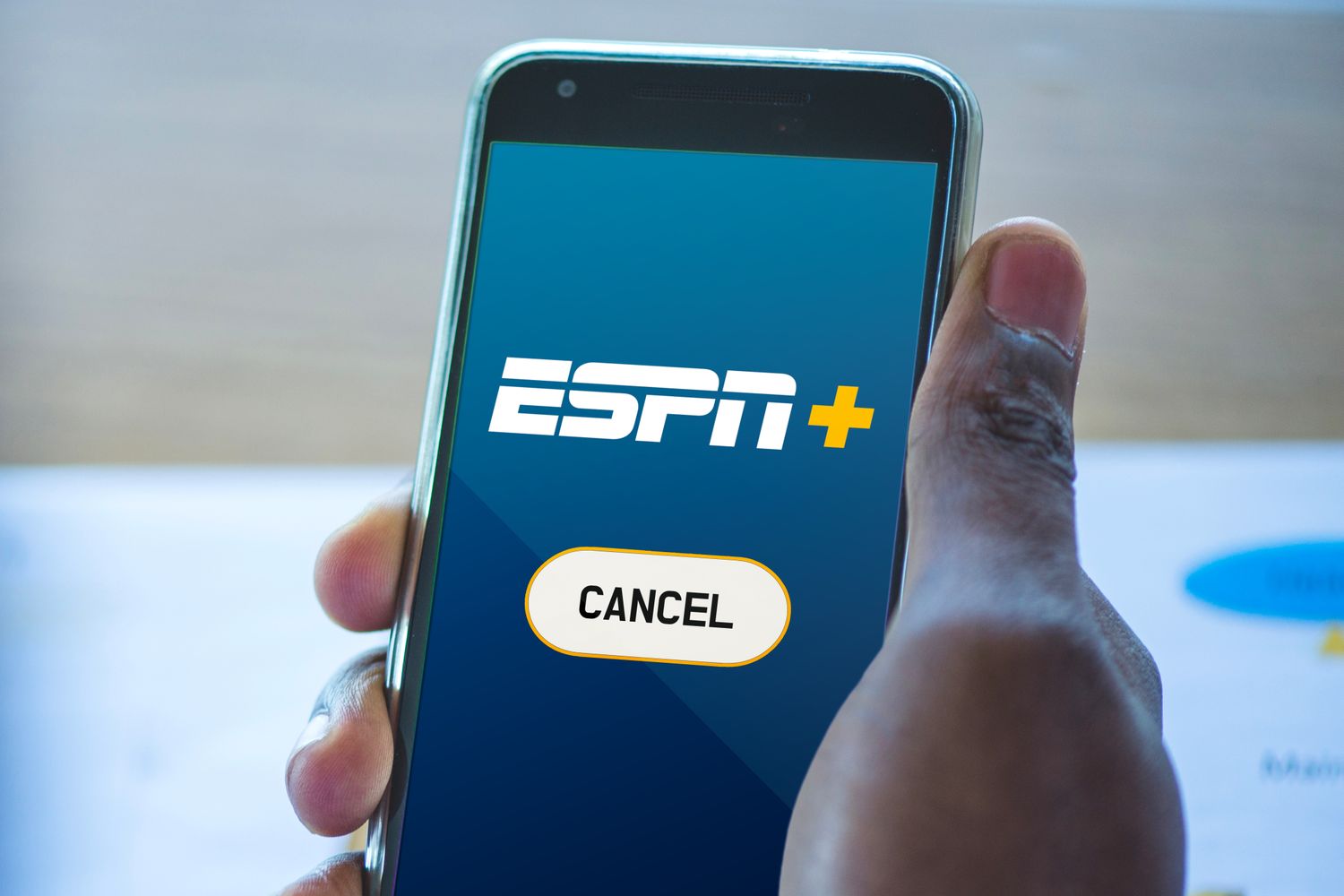
    This article explains how to cancel ESPN Plus. These instructions apply no matter which devices or platforms you utilize to stream ESPN+ content.

    How to Cancel ESPN Plus

    You can cancel your ESPN+ subscription at any time on your PC or mobile device by following these steps:

    1. Open ESPN.com in a web browser and ensure you’re logged in to your account.

    2. Select your profile image in the corner and then choose Account from the menu that appears.


      Your account details are available through the website’s main menu.
    3. You should now see your subscription details. Select Manage Subscription.

      Your account remains active until the end of the current billing cycle if you haven’t been charged for a month. Accessing ESPN+ content during this time won’t cause your subscription to be renewed.

    4. Select the subscription under Plans & Billing, and then choose the plan you want to cancel.

    5. Select Cancel, then confirm to finish up.

      A message should appear noting your ESPN+ subscription has been canceled. You’ll also receive a confirmation email.

    How to Cancel ESPN Plus on a Roku

    If you signed up for ESPN+ through your Roku account, you can cancel your account from the Roku website:

    1. Go to your Roku account page and sign in if necessary.

    2. Select My subscriptions on the left.


      View your subscriptions for Roku in your account settings.
    3. Select the cancel option next to ESPN+.

    Another way to cancel ESPN+ is directly from your Roku. You can manage your subscription from your TV by highlighting the ESPN+ app and pressing the star (*) button on the remote.

    Other Ways to End an ESPN+ Subscription

    There are a few possible ways that you signed up for ESPN+. You could have used the ESPN website (those cancellation directions are covered above) or obtained the subscription through a bundle that includes Hulu and Disney+.

    If you’ve been using ESPN+ as part of that bundle, you’ll need to cancel it there. It’s easy to cancel Disney+ or cancel Hulu.

    Not sure where you signed up? Visit ESPN’s Manage Your Account page, and see what it says next to your plan. For example, there might be a Manage on Hulu link if you get ESPN+ though your Hulu + Live TV subscription.


    End your subscription through the service where you originally signed up.

    There are other ways to cancel your ESPN+ service if the other methods haven’t worked:

    • Email: Send an email to [email protected] containing your account details along with your cancellation request. It should be sent from the email account used to create your ESPN+ account and should contain all pertinent details, with the exception of your password and credit card number.
    • Phone: You can also cancel your subscription the old-fashioned way by calling 1-800-727-1800.
    • X: Another way to request that your plan be cancelled, or at least to learn how to cancel your particular subscription, is to send a private message to @ESPNFANSUPPORT.

    How to Reactivate Your ESPN+ Account

    After cancellation, your account information remains intact for an indefinite period, allowing you to quickly reactivate it at a later date.

    Follow the steps above until you’re prompted to reinstate your subscription. You’ll be asked to confirm your desired plan and payment details.

    FAQ

    • Why can’t I cancel my ESPN Plus subscription?

      You must cancel ESPN Plus through the same method you signed up, so if you can’t cancel on the ESPN+ website, you might need to cancel through a different service. If you can’t remember how you signed up, email ESPN+ support.

    • Will deleting my ESPN profile cancel my ESPN+ subscription?

      No. Your ESPN+ account and EPSN profile are separate, so deleting one doesn’t cancel the other.

    • How do I cancel Hulu and ESPN+ but keep Disney Plus?

      If you have the Hulu+Disney Plus+ESPN Plus bundle, you can’t cancel any of the individual services. You must cancel the bundle, then subscribe to Disney+ separately.


    Thanks for letting us know!

    Get the Latest Tech News Delivered Every Day

    Subscribe

    Tell us why!


    Cancel Easily ESPN
    Share. Facebook Twitter Pinterest LinkedIn Tumblr Email
    Awais
    • Website

    Related Posts

    Get threat intelligence to your team fast, in the tools they already use

    March 17, 2026

    HubSpot lead scoring: Reach your best prospects

    March 14, 2026

    The 11 best campaign management software in 2026

    March 14, 2026

    What is Agentic AI? + How to start using it

    March 13, 2026

    Transform Data in Zap Steps

    March 13, 2026

    Claude vs. ChatGPT: What’s the difference? [2026]

    March 12, 2026
    Leave A Reply Cancel Reply

    Top Posts

    At Least 32 People Dead After a Mine Bridge Collapsed Due to Overcrowding

    November 17, 20250 Views

    Here’s how I turned a Raspberry Pi into an in-car media server

    November 17, 20250 Views

    Beloved SF cat’s death fuels Waymo criticism

    November 17, 20250 Views
    Don't Miss

    Bridging Modality Gap with Temporal Evolution Semantic Space

    March 18, 2026

    [Submitted on 13 Mar 2026 (v1), last revised 16 Mar 2026 (this version, v2)] View…

    How to Effectively Review Claude Code Output

    March 18, 2026

    Google adds video visibility to Performance Max reporting

    March 18, 2026

    Everything You Need to Know About Recursive Language Models

    March 17, 2026
    Stay In Touch
    • Facebook
    • YouTube
    • TikTok
    • WhatsApp
    • Twitter
    • Instagram
    Latest Reviews

    [2601.15871] Why Inference in Large Models Becomes Decomposable After Training

    March 17, 2026

    Top Blog Platforms for SEO: Which Sites to Conside

    March 17, 2026
    Most Popular

    13 Trending Songs on TikTok in Nov 2025 (+ How to Use Them)

    November 18, 20257 Views

    How to watch the 2026 GRAMMY Awards online from anywhere

    February 1, 20263 Views

    Corporate Reputation Management Strategies | Sprout Social

    November 19, 20252 Views
    Our Picks

    At Least 32 People Dead After a Mine Bridge Collapsed Due to Overcrowding

    November 17, 2025

    Here’s how I turned a Raspberry Pi into an in-car media server

    November 17, 2025

    Beloved SF cat’s death fuels Waymo criticism

    November 17, 2025

    Subscribe to Updates

    Get the latest creative news from FooBar about art, design and business.

    Facebook X (Twitter) Instagram Pinterest YouTube Dribbble
    • About Us
    • Contact Us
    • Privacy Policy
    • Terms & Conditions
    • Disclaimer

    © 2025 skytik.cc. All rights reserved.

    Type above and press Enter to search. Press Esc to cancel.