


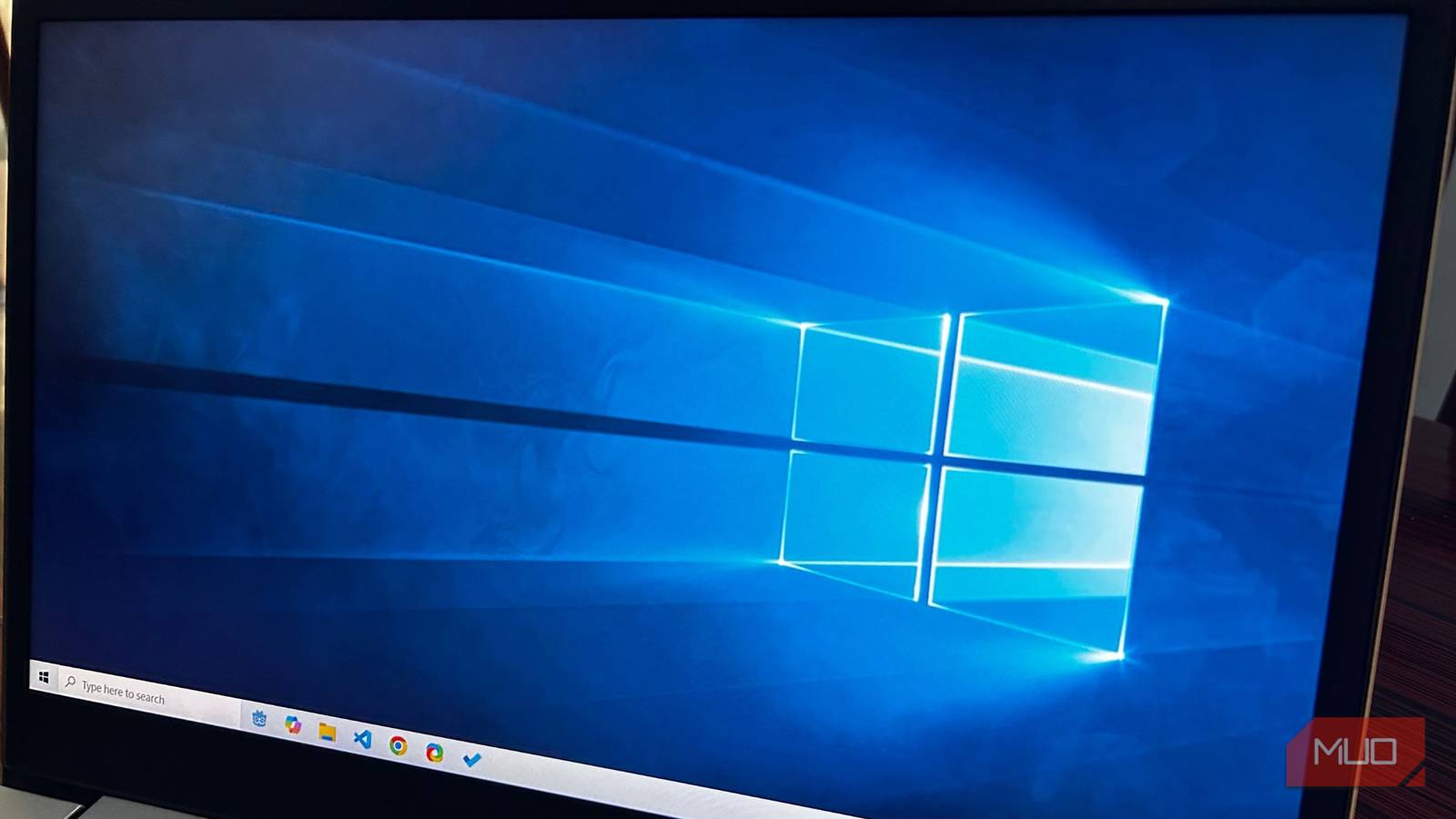
October 14, 2025, is a day many Windows users will remember forever. That’s because it’s the day Microsoft pulled the plug on one of the most beloved iterations of its operating system — Windows 10. Windows 11 gets a lot of hate, and some of it is warranted (e.g., forced Copilot, telemetry, and TPM). But if you don’t want to completely let go of Windows 10, there are some things you can do to make the upgrade smoother.
Most of the tweaks discussed here don’t require you to install anything (only one does). This speaks volumes about just how customizable Windows 11 is. These tweaks aren’t just for people who want to make the Windows 11 experience less alien. They’re for everyone, even those hankering for the classic elements of Windows past.
Before making changes to your Windows installation, especially with the Registry Editor, it’s always best to create a system restore point. That way, you have a backup of prior settings that you can restore should something go wrong.
Disable Microsoft Copilot
Return to a time before Microsoft was pushing Copilot hard

Many people stick with Windows 11 because they don’t really care about the advancements that Microsoft is so proud of. One of these is Copilot. Unfortunately, there’s no toggle in the Settings app to disable it completely (Microsoft wouldn’t make it that easy for something it’s pushing so hard). If you’re on Windows Pro, Education, or Enterprise, you will have to use the Local Group Policy Editor. Otherwise, tweak the registry.

You should seriously give Microsoft Copilot a chance
Microsoft forced this app on me, and I liked it.
Follow the steps below to disable Copilot using the Local Group Policy Editor (the safest option):
- Press Win + R to open the Run dialog.
- Type gpedit.msc and click OK.
- Navigate to User Configuration -> Administrative Templates -> Windows Components -> Windows Copilot.
- Double-click Turn off Windows Copilot.
- Click the Enabled radio button — this will disable it.
- Click OK.
To use the Registry Editor, follow the steps below:
- Press Win + R to open the Run dialog.
- Type regedit and click OK.
- Navigate to HKEY_CURRENT_USER -> Software -> Policies -> Microsoft -> Windows.
- Right-click an empty space in the right pane, select New → DWORD (32-bit) Value.
- Name it TurnOffWindowsCopilot.
- Double-click it and set the value to 1.
- Click OK and restart your computer.
These steps will get rid of Copilot, including the annoying Ask Copilot option in the context menu. If you decide Copilot is useful, you can re-enable it by setting the Turn off Windows Copilot policy to Not configured or by setting the TurnOffWindowsCopilot entry to 0.
As for the icon on the taskbar, you can right-click it and select Unpin from taskbar.
Use the default Windows 10 wallpaper
Never lose sight of this iconic wallpaper

Everyone who has stuck with Windows for a long time remembers the “Hero” desktop background of Windows 10. It looked like a window in a dark room with blue light coming in. I remember seeing it as if Microsoft was telling me to look through it to discover a whole new digital world.
You can download the Windows 10 wallpaper from many wallpaper sites. A popular and safe option is Wallpapers Wide — it will even auto-detect your screen size (highlighted in orange when downloading). It may come with a watermark in the bottom-right corner, but you can easily remove it with Microsoft Designer.
Afterward, follow the steps below to make it your background:
- Press Win + I to open Settings.
- Go to Personalization -> Background.
- Click the Browse photos button next to Choose a photo.
- Navigate to the wallpaper’s location and click Choose picture.
This is a small step towards making Windows 11 feel like Windows 10, but it makes a huge difference.

When you’re coming from Windows 10, it can be frustrating learning to use the new context menu. It shows a compact version, where certain options like Copy and Paste have been turned into icons, making it confusing and less intuitive. Furthermore, some functions are hidden behind Show more options, which adds an unnecessary extra step, reducing productivity.
The good news is that you can bring back the classic context menu indefinitely. But doing this requires editing the registry. As noted earlier, you can create a system restore point to revert to if things go wrong, but you can also back up the registry.

How to Enable Automatic Registry Backups in Windows 11
Automatic registry backups are a good idea, so why not make Windows 11 do them for you so you can get on with your day?
To return to the classic context menu, open Terminal (Admin) from the Power Menu (Win + X). Afterward, paste the command below and run it:
reg.exe add "HKCU\\Software\\Classes\\CLSID\\{86ca1aa0-34aa-4e8b-a509-50c905bae2a2}\\InprocServer32" /f /veHere’s the command to bring back the default Windows 11 context menu:
reg.exe delete "HKCU\\Software\\Classes\\CLSID\\{86ca1aa0-34aa-4e8b-a509-50c905bae2a2}" /f
Move the taskbar to the left
Not everything looks good when centered

Due to decades of muscle memory, Windows users who recently upgraded to Windows 11 might find the centered taskbar disruptive. It’s understandable because the taskbar has always been aligned to the left since its introduction in Windows 95. Luckily, realigning it to the left only takes a few clicks.
Here’s what to do:
- Press Win + I to open Settings.
- Navigate to Personalization -> Taskbar.
- Under Taskbar behaviors, set Taskbar alignment to Left.
This utility can even transform the taskbar
I am one of the many who loved the Windows 10 Start menu. It was much more efficient to find what you needed since it was more intuitive. You can bring it back with Explorer Patcher, an open-source utility that allows you to customize your Windows environment.
Once you download and install Explorer Patcher, do the following:
- Right-click the taskbar and select Properties.
- Select the Start menu in the menu on the left.
- Set Start menu style to Windows 10.
- Click Restart File Explorer in the bottom-left corner for the changes to take effect.
You can also set the taskbar to look like the one from Windows 10. This is an entire aesthetic shift that’s simpler than aligning icons to the left. Follow the steps below:
- Right-click the taskbar and select Properties.
- Select the taskbar in the menu on the left.
- Set Taskbar style to Windows 10 (Explorer Patcher).
- Click Restart File Explorer in the bottom-left corner for the changes to take effect.
Explorer Patcher is a versatile Windows customization tool that can help you tweak other things like File Explorer and the system tray. You can even use it to disable Show more options in the context menu instead of manually tweaking it yourself. I didn’t lead with it because it’s good to know how to tweak certain things using built-in tools before relying on third-party options.
Resist the change for as long as you can
While Windows 11 brings modern features and improvements, you don’t have to abandon everything you loved about Windows 10. These simple tweaks let you blend the familiarity of the old interface with new capabilities. Whether you disable Copilot, restore the classic context menu, or bring back the Windows 10 Start menu, you can create a personalized experience that works for you without completely resisting progress.
