Close Menu
SkytikSkytik

    Subscribe to Updates

    Get the latest creative news from FooBar about art, design and business.

    What's Hot

    At Least 32 People Dead After a Mine Bridge Collapsed Due to Overcrowding

    November 17, 2025

    Here’s how I turned a Raspberry Pi into an in-car media server

    November 17, 2025

    Beloved SF cat’s death fuels Waymo criticism

    November 17, 2025
    Facebook X (Twitter) Instagram
    • About Us
    • Contact Us
    SkytikSkytik
    • Home
    • AI Tools
    • Online Tools
    • Tech News
    • Guides
    • Reviews
    • SEO & Marketing
    • Social Media Tools
    SkytikSkytik
    Home»Guides»5 things your Samsung Galaxy camera can do besides taking photos
    Guides

    5 things your Samsung Galaxy camera can do besides taking photos

    AwaisBy AwaisJanuary 5, 2026No Comments5 Mins Read0 Views
    Facebook Twitter Pinterest LinkedIn Telegram Tumblr Email
    5 things your Samsung Galaxy camera can do besides taking photos
    Share
    Facebook Twitter LinkedIn Pinterest Email

    Even if your Samsung phone’s camera is one of your most-used features, there’s a good chance that you’re only scratching the surface of what it can actually do. Beyond snapping photos, scanning QR codes, and capturing documents, it can help you with a lot of things.

    With the right app, you can use your Samsung phone’s camera to measure stuff, identify things, navigate a new city, and even check if your TV remote is working. These aren’t features you’ll use daily, but you’ll be glad to know they are there when you need them.

    Check if the remote is actually sending a signal

    Troubleshoot your remote in seconds

    Samsung Camera app
    Screenshot by Pankil Shah — No attribution required
    Checking remote IR sensor in Android phone camera
    Screenshot by Pankil Shah — No attribution required
    Checking remote light in Android phone camera
    Screenshot by Pankil Shah — No attribution required

    When your TV or AC remote stops working out of nowhere, your first instinct is to blame the dead batteries. That’s fair, but sometimes even replacing them might not fix the problem. And when that happens, the easiest way to check if the issue lies with the remote or the appliance is by using your phone’s camera.

    The infrared light remotes use is not visible to the naked eye, but your phone’s camera can see it just fine. You just need to open the Camera app, point it at the front of the remote’s LED, and press any button. If the remote is sending a signal, you should see the LED light up.

    Measure objects and surface area

    Your phone as a digital measuring tape

    Quick Measure app on Samsung phone
    Screenshot by Pankil Shah — No attribution required
    Quick Measure app showing distance to computer monitor
    Screenshot by Pankil Shah — No attribution required
    Quick Measure app showing laptop screen dimensions
    Screenshot by Pankil Shah — No attribution required

    Measuring lengths, heights, or surface area is something you don’t need to do every day. But when you do, there’s no need to go grab a measuring tape. Your Samsung phone can do that job, and with surprising ease. All you need is Samsung’s Quick Measure app.

    The Quick Measure app can calculate the distance between the camera and an object, measure the length or height of objects (or even a person), and work out the surface area. It’s all too easy to do, and you can even capture the image with measurements overlaid for reference.

    The best part is accuracy. Most of the time, the margin of error is usually less than a couple of centimeters.

    Turn your phone into a magnifier

    Read the fine print without squinting

    Magnifier app in Samsung phone
    Screenshot by Pankil Shah — No attribution required
    Magnifier app options on Samsung Galaxy phone
    Screenshot by Pankil Shah — No attribution required
    Magnifier app on Samsung Galaxy phone
    Screenshot by Pankil Shah — No attribution required

    Even if your eyesight is fine, you’ll still sometimes come across text that’s too tiny to read comfortably. It could be the fine print on a medicine box, instructions on electronics, or ingredients on food packaging that force you to squint.

    In such cases, you can dive into your Samsung phone’s accessibility menu, go to Vision enhancements, and select Magnifier. Once you’ve set up a shortcut for the magnifier, you can access it any time.

    Simply point your phone’s camera at the text and use the slider to zoom in. You can use the flashlight toggle for better visibility or apply color filters for better contrast.

    Get walking directions with Google Maps Live View

    Never second-guess a turn

    Google Maps is something you typically only use when driving, but it can be surprisingly useful when you’re on foot too. It has a Live View feature that uses augmented reality to overlay walking directions on top of your camera feed.

    This is great when you’re exploring a city for the first time. Instead of constantly looking at the boring blue dot and missing what’s around you, Live View gives you visual cues in the real world.

    To use this, simply start navigation to your destination in Google Maps, switch to walking mode and choose Live View. Then hold your phone up, and you’ll see arrows and distance markers on the screen.

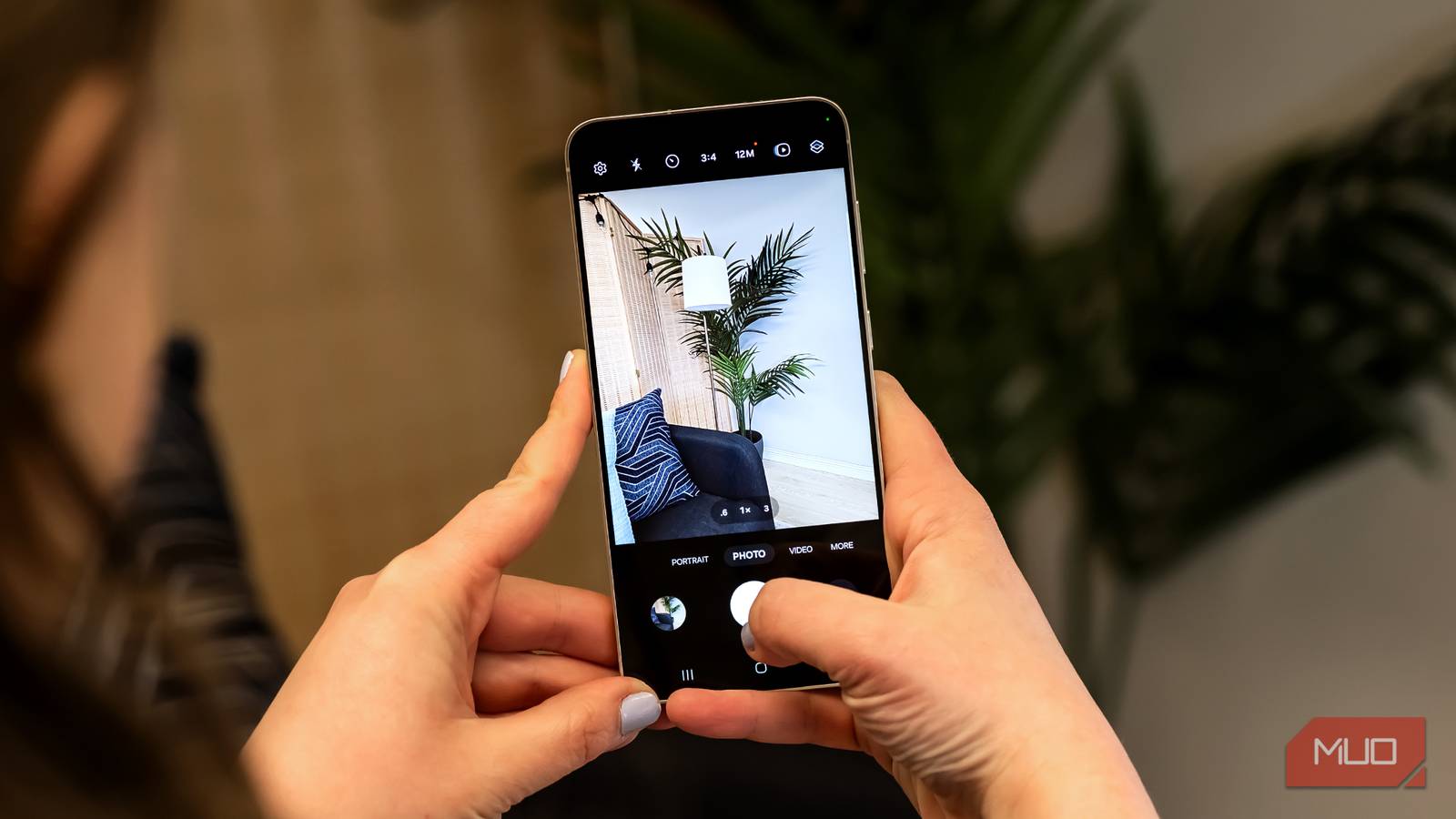
    Using the camera of the Samsung Galaxy S24 Plus

    9 Samsung Camera Features You’re Not Using (But Should Be!)

    Your Samsung camera can do more.

    Translate in real time and identify anything

    Put a name to what you’re seeing

    Language barriers can be frustrating. Anyone who’s ever traveled to a country that speaks a different language or dealt with a user manual in a foreign language probably already knows the pain.

    Google Lens can help you with that. You just need to point the phone at the text and decipher the sign or a restaurant menu quickly. The app immediately replaces the original text with the translated version.

    From time to time, you’re also likely to come across something interesting and have no idea what it is. It could be a plant, a landmark, a cool gadget, or a species you’ve never seen before. When that happens, you can use your Samsung phone’s camera and Google Lens to identify it.

    If you don’t want to install Google Lens, you can also use Samsung’s Bixby Vision for this. It comes preinstalled, and you can find it inside the More tab in the Camera app. And if you want detailed explanations, context, or recommendations, you can also use AI-powered voice assistants like Gemini and ChatGPT.


    Honestly, I don’t blame you for not knowing all of these features. That’s because some of them do require a specific app. But now that you know, you should definitely take the time to explore them.

    camera Galaxy photos Samsung
    Share. Facebook Twitter Pinterest LinkedIn Tumblr Email
    Awais
    • Website

    Related Posts

    How to daisy-chain multiple monitors from a single cable

    February 19, 2026

    I finally found a great use for my TV’s USB port

    February 19, 2026

    A 32-inch 4K OLED 240Hz monitor for $799.98 is the kind of “finish the setup” deal that’s hard to ignore

    February 18, 2026

    AI is helping hackers make new malware faster and more complex than ever – and things may only get tougher

    February 18, 2026

    Is your Galaxy Z Trifold at risk of breaking? Fresh reports detail worsening screen issues

    February 18, 2026

    Apple Cider Vinegar’s Real Benefits, According to Registered Dietitians

    February 18, 2026
    Leave A Reply Cancel Reply

    Top Posts

    At Least 32 People Dead After a Mine Bridge Collapsed Due to Overcrowding

    November 17, 20250 Views

    Here’s how I turned a Raspberry Pi into an in-car media server

    November 17, 20250 Views

    Beloved SF cat’s death fuels Waymo criticism

    November 17, 20250 Views
    Don't Miss

    How nonprofits can build a digital presence that actually drives impact

    March 17, 2026

    For a long time, a nonprofit’s digital presence hasn’t been a “nice-to-have.” It’s the central…

    How Google Profits From Demand You Already Own

    March 17, 2026

    Extra-Creamy Deviled Eggs Recipe | Epicurious

    March 17, 2026

    How to Sell AI Services Without Selling Your Soul : Social Media Examiner

    March 17, 2026
    Stay In Touch
    • Facebook
    • YouTube
    • TikTok
    • WhatsApp
    • Twitter
    • Instagram
    Latest Reviews

    Generalizing Real-World Robot Manipulation via Generative Visual Transfer

    March 17, 2026

    LinkedIn updates feed algorithm with LLM-powered ranking and retrieval

    March 17, 2026
    Most Popular

    13 Trending Songs on TikTok in Nov 2025 (+ How to Use Them)

    November 18, 20257 Views

    How to watch the 2026 GRAMMY Awards online from anywhere

    February 1, 20263 Views

    Corporate Reputation Management Strategies | Sprout Social

    November 19, 20252 Views
    Our Picks

    At Least 32 People Dead After a Mine Bridge Collapsed Due to Overcrowding

    November 17, 2025

    Here’s how I turned a Raspberry Pi into an in-car media server

    November 17, 2025

    Beloved SF cat’s death fuels Waymo criticism

    November 17, 2025

    Subscribe to Updates

    Get the latest creative news from FooBar about art, design and business.

    Facebook X (Twitter) Instagram Pinterest YouTube Dribbble
    • About Us
    • Contact Us
    • Privacy Policy
    • Terms & Conditions
    • Disclaimer

    © 2025 skytik.cc. All rights reserved.

    Type above and press Enter to search. Press Esc to cancel.