


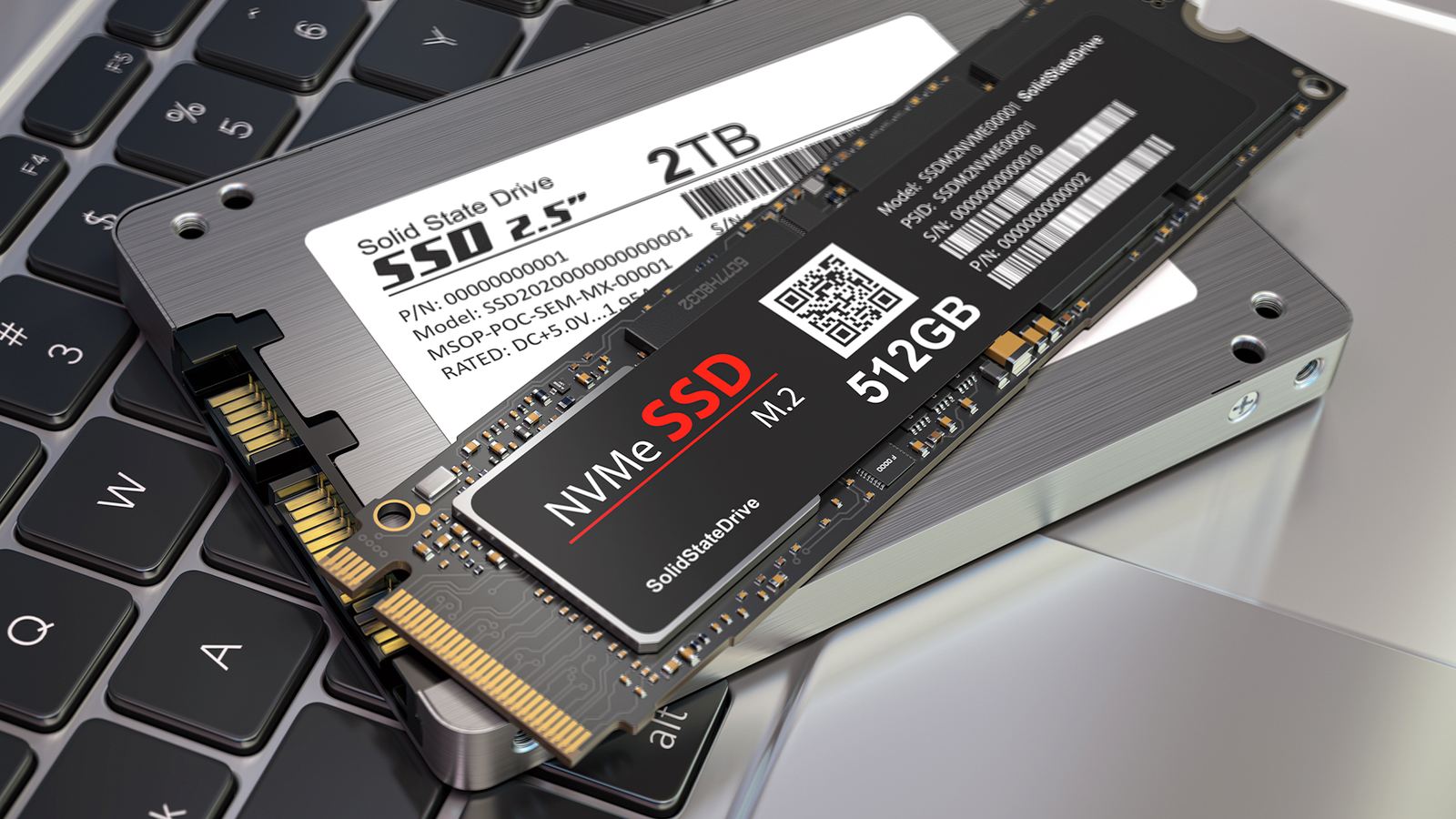
Recently my PC just didn’t feel as quick as it used to. Apps seemed slower to launch and file operations felt laggy. I started digging with the usual tools I trust, like Task Manager, Resource Monitor, and CrystalDiskInfo, and everything kept pointing back to storage. At first, my assumption was the obvious one. I figured the SSD might be wearing out or starting to fail, which is where most people’s minds go when a system suddenly feels sluggish.
What surprised me was how wrong that assumption turned out to be. After walking through a short checklist and fixing a few Windows-level issues, my system felt noticeably snappier again. No new hardware, no reinstall, no drastic measures. Just a handful of quick checks that most people never think to make. If your PC feels slower than it should, and you’re worried your SSD is on its last legs, this is the same checklist I use before blaming the drive itself.

HTG Wrapped: Our favorite tech in 2025
24 days of our favorite hardware, gadgets, and tech
What TRIM does and why it matters for SSD performance
TRIM is one of those SSD features that does a lot of heavy lifting in the background. When you delete files on an SSD, the data isn’t actually erased right away. Without TRIM, the drive has no idea which blocks are truly free, so it has to do extra cleanup work before it can write new data. Over time, that extra overhead adds up and performance slowly drops, especially with lots of small writes. TRIM fixes that by letting Windows tell the SSD which blocks are no longer in use, so the drive can clean them up ahead of time and stay fast instead of constantly playing catch-up.

My PC took 30 minutes to boot until I fixed this one SSD problem
SSD problems can make your PC entirely unusable
On most Windows systems, TRIM is enabled automatically, so seeing it turned off can be surprising. It can happen after cloning a drive, restoring from an older system image, switching storage controllers, or upgrading from a much older Windows install. In other words, it doesn’t mean your SSD is failing. It just means Windows stopped sending TRIM commands at some point, often without making that obvious.
Checking whether TRIM is enabled only takes a minute. Open the Start menu, type Command Prompt, right-click it, and choose Run as administrator.

In the command window, type the following command and press Enter.
fsutil behavior query DisableDeleteNotify

If you see a value of 0, TRIM is enabled and working as it should. If it returns 1, TRIM is disabled. On my system, TRIM returned a value of 1, which meant it was disabled for some reason. If you find this, turn it on by running this command, pressing Enter, and then you’re done.
fsutil behavior set DisableDeleteNotify 0

There’s no reboot required, and no downside to enabling it on an SSD. It’s one of the fastest checks you can make, and it removes a surprisingly common cause of slowdowns before they snowball into bigger performance problems.
How firmware affects SSD performance and stability
SSD firmware is another easy thing to overlook, mostly because Windows never surfaces it in any kind of meaningful way. That said, firmware controls how the drive handles caching, garbage collection, wear leveling, and even how it responds to certain workloads. When it’s outdated, performance can suffer in subtle ways, especially after OS updates or long stretches of heavy use. In some cases, vendors also fix outright performance bugs or compatibility issues through firmware updates, but if you never go looking, you’d never know those fixes exist.
Checking your SSD’s firmware usually means going straight to the manufacturer. Tools like CrystalDiskInfo will show you the current firmware version, which you can then compare against what’s listed on the vendor’s support site or in their official utility. Most major SSD brands provide a simple update tool that handles the process for you, but you should always make a full backup first before touching firmware.

In my case, my SSD’s firmware wasn’t up to date, and updating it checked off one more potential cause of the slowdown. It didn’t require replacing anything, but it was an important step before blaming the drive itself.
How low free space affects SSD write performance
On an SSD, available space directly affects how efficiently the controller can do its job. Without enough room to work, performance, especially write performance, drops much faster than most people expect. When a drive gets too full, it loses that breathing room, and performance, especially write performance, can fall off. That’s why an SSD that benchmarks well when it’s new can start to feel sluggish once it’s packed to the gills, even if the drive itself is still perfectly healthy.
The simplest fix is also the most boring one: free up space and keep it free. As a rule of thumb, I try to keep at least 15 to 20 percent of my SSD empty so the controller has room to work. That means uninstalling software I no longer use, cleaning out large downloads, and moving media or archives off my drive if needed. Thankfully, my SSD had plenty of room on it so I was able to rule this out as an issue.
If you want to take it a step further, some SSD tools let you explicitly reserve overprovisioning space, but even without that, leaving a healthy chunk of free space achieves the same goal.
What write caching does and why it matters
Write caching is one of those Windows settings most people never touch, but it can have a real impact on day-to-day SSD performance. When it’s enabled, Windows is able to batch and reorder write operations in a way that keeps the drive from constantly stopping and starting. If it’s disabled, every small write has to be committed immediately, which can make file copies, installs, and general system activity feel noticeably slower. Windows will sometimes turn write caching off after certain errors, driver changes, or power events, and it doesn’t always make that obvious.
Checking it is straightforward. Open Device Manager, expand Disk drives, right-click your SSD, and choose Properties.

Under the Policies tab, make sure Enable write caching on the device is checked. For most desktop and laptop systems, leaving this on is safe and recommended, especially if you’re on a system with a battery or a reliable power source.

Once I confirmed it was enabled, I was able to rule it out as another potential cause of the slowdown and keep moving through the checklist.
How to identify background disk activity in Windows
Before assuming your SSD is the problem, it’s worth checking whether it’s just busy. A healthy SSD can feel slow if something in the background is constantly reading from or writing to it. Cloud sync tools, antivirus scans, search indexing, backups, and Windows updates can all keep disk activity elevated for long stretches without making it obvious why. In my case, I use Syncthing to keep folders in sync across multiple systems, and I initially suspected that might be contributing to the slowdown.
A quick look in Windows made things clearer. In Task Manager, I watched the Disk column and could see when usage stayed consistently high rather than spiking briefly. Resource Monitor made it even easier to pinpoint what was happening, showing exactly which processes were accessing the drive in real time.

Syncthing, in particular, does a lot of small file operations when it’s scanning or syncing, which can make an SSD feel slower while it’s running even if the drive itself is fine. Once I accounted for that background activity, it was much easier to tell the difference between a genuinely slow SSD and one that was simply busy doing its job.
By the time I worked through this checklist, it was clear my SSD wasn’t failing at all. It was a mix of small Windows issues, background activity, and a few easy-to-miss settings that had slowly chipped away at performance over time. Once those were addressed, my system felt noticeably snappier again without replacing hardware or reinstalling Windows.

- Storage capacity
-
2TB
- Hardware Interface
-
PCIE x 4
If your PC feels slower than it should and you’re worried your SSD is on its last legs, these are the same checks I’d make first. Sometimes, the fix is a few minutes of cleanup and verification, not a new drive.
