Close Menu
SkytikSkytik

    Subscribe to Updates

    Get the latest creative news from FooBar about art, design and business.

    What's Hot

    At Least 32 People Dead After a Mine Bridge Collapsed Due to Overcrowding

    November 17, 2025

    Here’s how I turned a Raspberry Pi into an in-car media server

    November 17, 2025

    Beloved SF cat’s death fuels Waymo criticism

    November 17, 2025
    Facebook X (Twitter) Instagram
    • About Us
    • Contact Us
    SkytikSkytik
    • Home
    • AI Tools
    • Online Tools
    • Tech News
    • Guides
    • Reviews
    • SEO & Marketing
    • Social Media Tools
    SkytikSkytik
    Home»Guides»12 Ways to Fix FaceTime Not Working
    Guides

    12 Ways to Fix FaceTime Not Working

    AwaisBy AwaisJanuary 23, 2026No Comments4 Mins Read0 Views
    Facebook Twitter Pinterest LinkedIn Telegram Tumblr Email
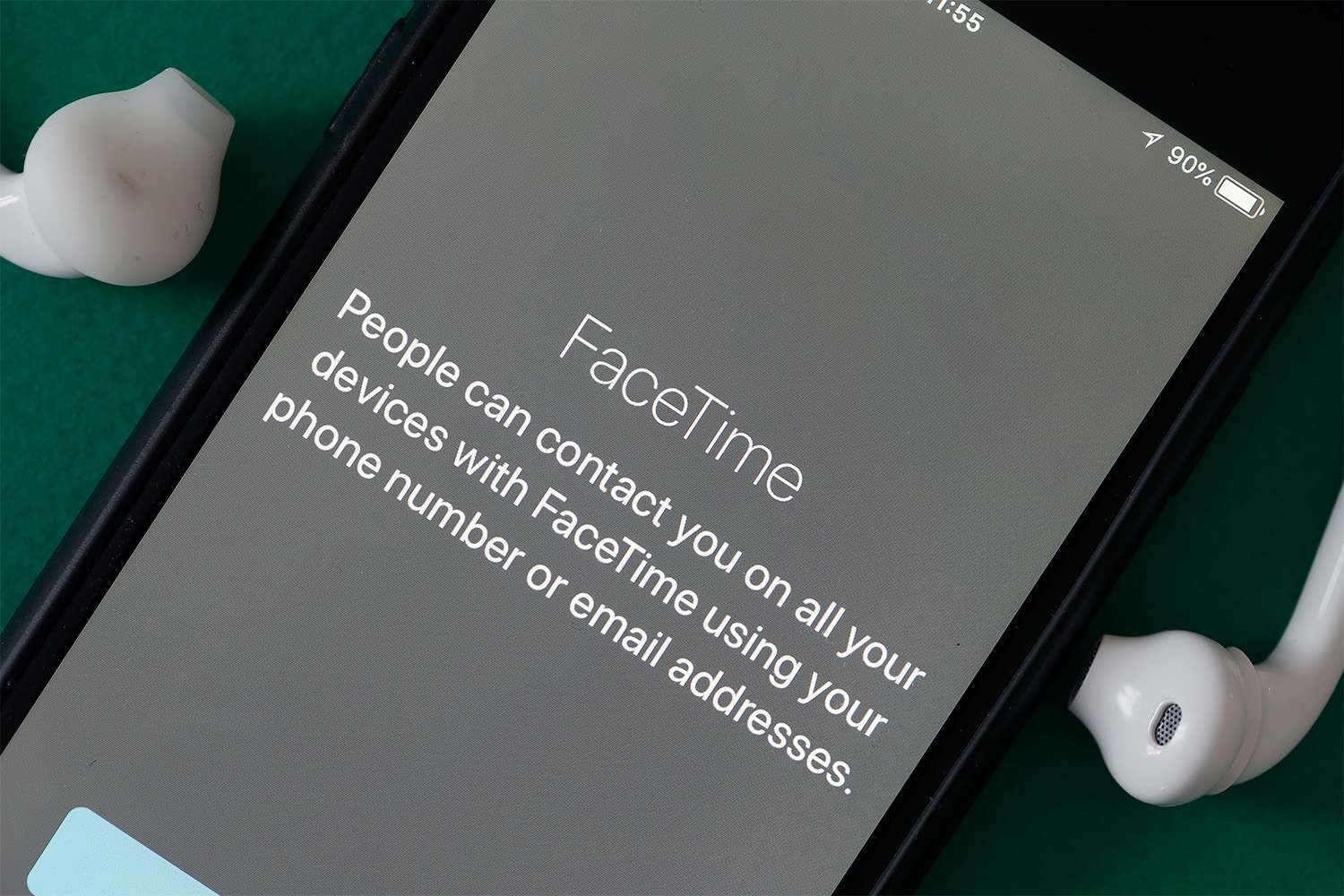
    12 Ways to Fix FaceTime Not Working
    Share
    Facebook Twitter LinkedIn Pinterest Email

    This article provides troubleshooting steps to resolve FaceTime issues. The main steps involve checking connection status and FaceTime permissions.

    How to Fix the Most Common FaceTime Issues

    If you’re experiencing problems where the FaceTime icon doesn’t light up, doesn’t appear as an option during a call, or if you can’t receive calls, these steps might help:

    1. Ensure FaceTime is turned on. To verify, open the Settings app, scroll to FaceTime, and set the FaceTime slider to on/green.

    2. Verify that the person you’re calling has FaceTime enabled. The recipient needs a compatible Apple or an Android/Windows device with a web browser. These devices must have a front-facing camera to facilitate the call.

      Android and Windows users can join FaceTime calls but cannot initiate them. Windows operates the same way, as it’s browser-based.

    3. Ensure a phone number or email address is added. A phone number or email is required for FaceTime to identify you. Check Settings > FaceTime and verify you have a phone number, email, or both listed in the You Can Be Reached By FaceTime At section. Add them if missing.

    4. Check your network connection. FaceTime requires a Wi-Fi or cellular network, so disable Airplane Mode and confirm you’re connected to Wi-Fi or cellular data.

    5. Check if you blocked the user. Blocking may prevent you from FaceTiming someone or receiving their calls. Go to Settings >Apps > FaceTime > Blocked Contacts to view blocked numbers.

      If the person is listed, swipe left, tap Unblock, and you’ll be ready to connect.

    6. Confirm your carrier supports FaceTime. If you’re making a FaceTime call over cellular, not Wi-Fi, your carrier must support it. Most carriers offering iPhones do, but it’s worth checking. Check Apple’s website to see if your carrier is on the list.

    7. Is the FaceTime app missing? If FaceTime is missing from your device, it might be turned off via Content Restrictions or you might need to redownload the app.

      Look under Allowed Apps & Features for FaceTime or Camera (as disabling Camera also disables FaceTime) to confirm whether FaceTime has been restricted on your device.

    8. Contacting Apple for expert support. If your device meets all requirements and these troubleshooting steps don’t help, consider going directly to Apple for more assistance.

    Troubleshooting FaceTime Issues Involving Android Users

    Android users can join FaceTime calls through a link from an Apple user, and it will open in Chrome. If you’re experiencing issues with FaceTime on your Android, try these solutions.

    1. Restart your Android. A restart can resolve temporary glitches.

    2. Update Android. An important software update might be missing.

    3. Allow Chrome access to the microphone and camera. Check Android app permissions to ensure Chrome can access your camera and microphone.

    4. Close all Android apps. Another app could be interfering with Chrome.

    5. Check your network connection. Ensure you’re connected to Wi-Fi or a cellular network, and your device isn’t in Airplane Mode.

    Why FaceTime Might Not Be Working

    Several common reasons might cause FaceTime not to work for you:

    • FaceTime is disabled
    • The person you’re calling doesn’t have FaceTime
    • You need to add a phone number or email address
    • Problems with your network connection
    • Your carrier doesn’t support FaceTime

    Ensure your device is properly connected. If it is, proceed to the steps listed above.

    FAQ

    • Why is FaceTime Audio not working?

      If FaceTime Audio isn’t working, check that your microphone is working correctly, then check your Wi-Fi or mobile data connection. If you still have trouble, download and install new iOS updates.

    • How do I fix a black screen on FaceTime?

      To fix a black screen on FaceTime, check that you haven’t accidentally chosen an audio-only call. Make sure the right camera is selected. If you still have problems, restart the device, close other apps, check your internet connection, and update your OS.

    • Why are my AirPods not working on FaceTime?

      Your AirPods might not be working on FaceTime for various reasons. To troubleshoot, toggle Bluetooth off and on on your device and disconnect other Bluetooth devices. Next, forget your AirPods, then reconnect them to your device. If all else fails, factory reset your AirPods.


    Thanks for letting us know!

    Get the Latest Tech News Delivered Every Day

    Subscribe

    Tell us why!


    FaceTime fix ways working
    Share. Facebook Twitter Pinterest LinkedIn Tumblr Email
    Awais
    • Website

    Related Posts

    5 ways to automate Claude with Zapier MCP

    March 25, 2026

    4 ways to automate Microsoft Copilot with Zapier MCP

    March 25, 2026

    4 ways to automate Rillet

    March 20, 2026

    4 ways to automate Visualping

    March 11, 2026

    4 ways to automate Seamless

    March 11, 2026

    5 ways to automate Tactiq with Zapier

    March 10, 2026
    Leave A Reply Cancel Reply

    Top Posts

    At Least 32 People Dead After a Mine Bridge Collapsed Due to Overcrowding

    November 17, 20250 Views

    Here’s how I turned a Raspberry Pi into an in-car media server

    November 17, 20250 Views

    Beloved SF cat’s death fuels Waymo criticism

    November 17, 20250 Views
    Don't Miss

    Google is tightening political content rules for Shopping ads starting April 16

    March 25, 2026

    A quiet but important policy update is coming to Google Shopping ads next month, requiring…

    [2503.10144] Multiplicative learning from observation-prediction ratios

    March 25, 2026

    5 ways to automate Claude with Zapier MCP

    March 25, 2026

    “You Are An Expert” Prompts Can Damage Factual Accuracy

    March 25, 2026
    Stay In Touch
    • Facebook
    • YouTube
    • TikTok
    • WhatsApp
    • Twitter
    • Instagram
    Latest Reviews

    Google Begins Rolling Out The March 2026 Spam Update

    March 25, 2026

    Production-Ready LLM Agents: A Comprehensive Framework for Offline Evaluation

    March 25, 2026
    Most Popular

    13 Trending Songs on TikTok in Nov 2025 (+ How to Use Them)

    November 18, 20257 Views

    How to watch the 2026 GRAMMY Awards online from anywhere

    February 1, 20263 Views

    Corporate Reputation Management Strategies | Sprout Social

    November 19, 20252 Views
    Our Picks

    At Least 32 People Dead After a Mine Bridge Collapsed Due to Overcrowding

    November 17, 2025

    Here’s how I turned a Raspberry Pi into an in-car media server

    November 17, 2025

    Beloved SF cat’s death fuels Waymo criticism

    November 17, 2025

    Subscribe to Updates

    Get the latest creative news from FooBar about art, design and business.

    Facebook X (Twitter) Instagram Pinterest YouTube Dribbble
    • About Us
    • Contact Us
    • Privacy Policy
    • Terms & Conditions
    • Disclaimer

    © 2025 skytik.cc. All rights reserved.

    Type above and press Enter to search. Press Esc to cancel.